
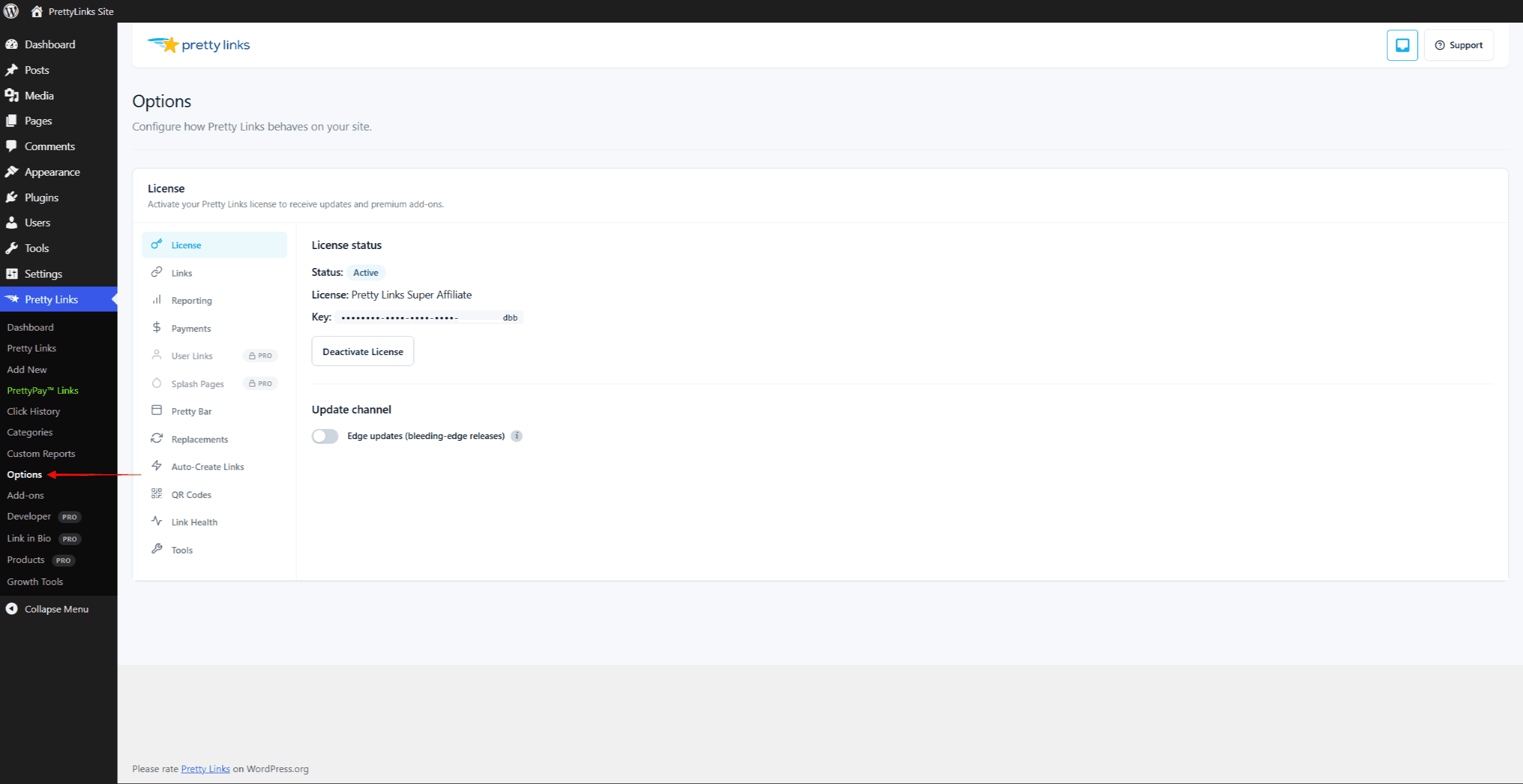
Most of Pretty Links’ global configuration lives at Dashboard > Pretty Links > Options. The page is organized into tabs, each grouping related settings. This page is your map.
Auto-Save
A quick note before the tour: the Options page doesn’t have a Save button. Settings auto-save about 600 milliseconds (a little over half a second) after you stop typing or change a control. You’ll see a small confirmation indicator after a successful save.
This means:
- Don’t expect to “discard changes” by leaving the page — by then, your changes are already saved;
- If you make a typo in a critical field, fix it before navigating away;
- Refresh after saving to confirm what was stored, especially when changing sensitive options like tracking mode.
The Tabs
The tabs appear in a set order. The Lite sections come first — License, Links, Reporting, Payments — followed by the Pro and add-on sections, with Tools always last.
License
Manage your Pretty Links Pro license:
- Activate or deactivate the license on this site;
- See your license status, plan tier, and renewal date;
- Trigger a manual update check;
- Find your customer support resources.
This is the first tab to visit after installing Pretty Links Pro on a new site.
Links
Defaults and global rules that apply to new pretty links you create:
- Default redirect type (301 or 302; 307 is deprecated);
- Slug character count for auto-generated slugs;
- Reserved slug patterns (with optional admin bypass);
- Default
rel="nofollow"andrel="sponsored"toggles for new links.
See Default Link Settings for details.
Reporting
Click tracking and analytics behavior:
- Master “Track clicks on all links by default” toggle;
- Tracking mode — Normal, Extended, or Simple;
- Click data retention (auto-delete window);
- IP anonymization;
- Bot filtering and IP exclude/allow lists.
Payments
Connect Stripe and configure defaults for PrettyPay™ Links — pretty links that collect payment before redirecting. Skip this tab unless you plan to monetize your shortlinks directly.
Public Links (Pro)
Settings for public link creation:
- Enable / disable;
- URL prefix;
- Default category;
- Spam controls.
This section appears only when public links are in use.
Pretty Bar (Pro)
Settings for the Pretty Bar redirect type:
- Position (top or bottom of viewport);
- Bar height and colors;
- Logo upload;
- Default headline, button text, and link;
- Social sharing options inside the bar.
Replacements (Pro)
Controls for keyword and URL replacements:
- Case sensitivity;
- Force nofollow / sponsored on replacements;
- Auto-create unknown URLs;
- Global exclusion list;
- URL block list.
Auto-Create (Pro)
Configuration for auto-creating pretty links on post publish:
- Per-post-type opt-in;
- Default category for auto-created links;
- Slug generation strategy.
QR Codes (Pro)
Settings for QR code generation:
- Enable / disable QR codes;
- Default format (PNG / SVG);
- Logo overlay options.
Link Health (Pro)
Configuration for the Link Health checker:
- Enable periodic checks;
- Check frequency;
- Notification preferences.
Social Buttons (Pro)
Settings for social sharing buttons:
- Which buttons to show;
- Placement (top, bottom, both);
- Per-CPT enable/disable;
- RSS feed toggle.
User Links (Super Affiliate add-on)
Appears when the User Links add-on is installed. Configures the front-end shortlink dashboard for logged-in members. Until the add-on is active, the tab is shown as a locked teaser.
Splash (Super Affiliate add-on)
Appears when the Splash Pages add-on is installed. Defaults for the branded interstitial shown before redirects. Until the add-on is active, the tab is shown as a locked teaser.
Tools
Always the last tab in the sidebar. Houses import/export, performance utilities, and other one-shot operations that don’t fit cleanly into the other configuration tabs.
Recommended First-Pass Setup
For a brand-new install, walk through the tabs roughly in this order:
- License — Activate.
- Links — Set your defaults (most users leave 302 as the redirect type and decide whether new links should be nofollow / sponsored by default).
- Reporting — Confirm “Track clicks on all links by default” is on, pick a tracking mode (Normal is the default and right for most), enable IP anonymization, and configure your IP exclude list with your office IP.
- Auto-Create — Decide which post types should auto-create pretty links. Enable for blog posts at minimum.
- Replacements — Decide whether to enable keyword and URL replacements globally. For new sites, leaving them off and adding keywords per-link as needed is conservative.
- Social Buttons — If you want share buttons on your posts, enable here.
- Pretty Bar / QR Codes / Public Links — Configure these later as you reach for the features.
You don’t have to perfect the configuration in one sitting. Settings can be changed any time and most apply to new links going forward (existing links keep their original settings unless you bulk-update them).
Tips
- Auto-save is fast but not instant. Wait for the confirmation indicator before navigating away;
- The License tab is the source of truth for your plan tier — bookmark it for reference;
- Settings on this page apply globally. Per-link overrides happen on the link’s own edit screen;
- Per-post overrides are configured via the post options metabox inside individual posts, not here.