
Pretty Links can generate a scannable QR code for any pretty link, suited to print materials, event signage, business cards, product packaging, and anywhere else a printable shortcut to a URL is useful.
QR codes are available at the Beginner tier and up.
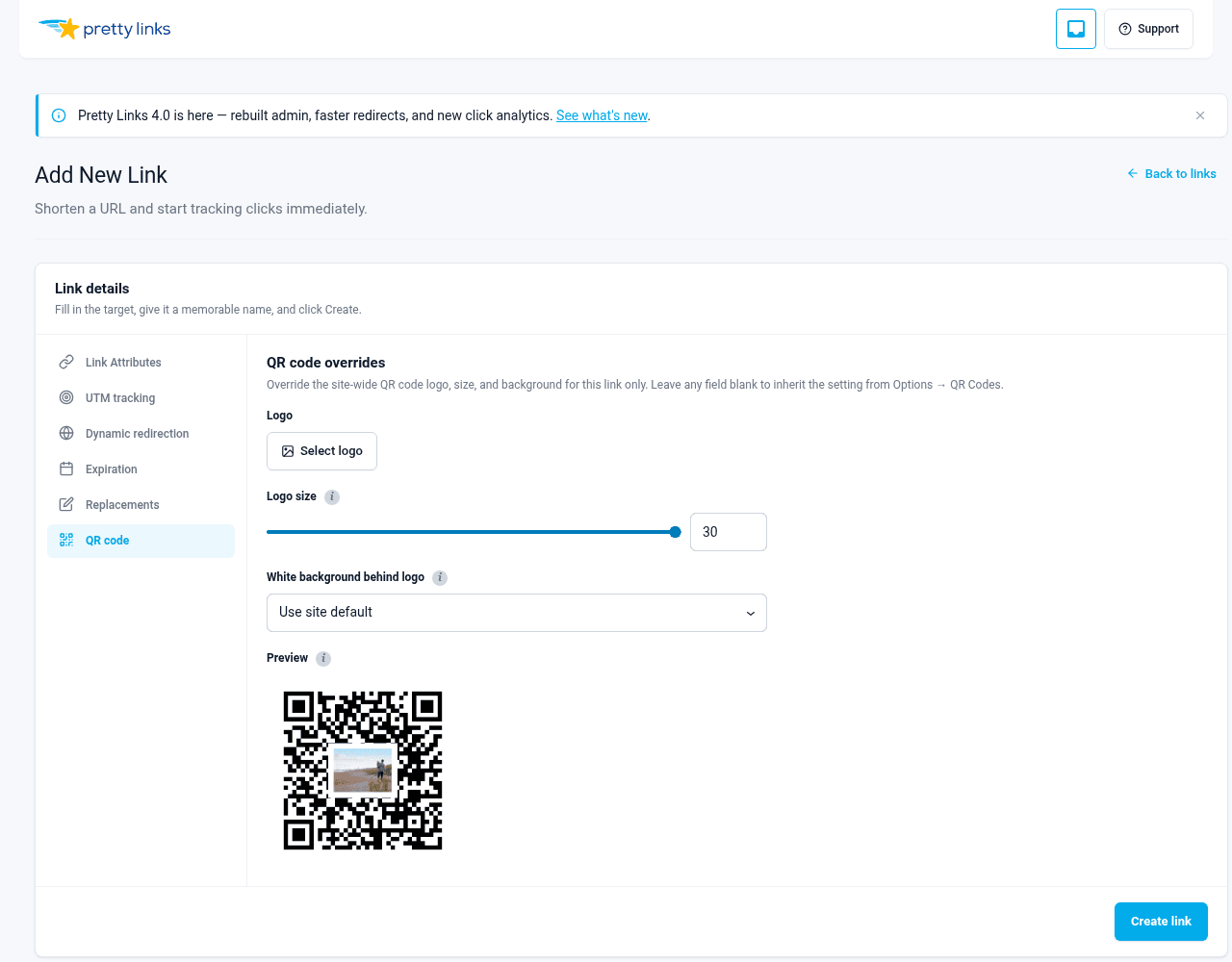
Enabling QR Codes
Go to Dashboard > Pretty Links > Options > QR Codes and turn on Enable QR Codes.
Once enabled, every pretty link gets a QR Code action in the links list and on its edit screen. Click it to preview, customize, and download the code.
PNG vs. SVG
You can download QR codes in two formats:
- PNG — A standard raster image. Best for digital use (websites, social media, email) and quick sharing. Works everywhere PNG works;
- SVG — A scalable vector image. Best for print, large signage, and anywhere you need crisp output at any size. Can be opened and edited in Illustrator, Affinity Designer, Inkscape, and similar tools.
For most digital uses, PNG is fine. For anything you’ll print at billboard scale or hand off to a designer, use SVG.
Optional Logo Overlay
You can place a small logo in the center of your QR code — your brand mark, product image, or any square graphic.
Logo overlays are applied to PNG output only. SVG downloads are pure vector and don’t carry the embedded logo. If you need a logo, download the PNG.
Upload your logo from the QR code panel. Pretty Links will:
- Center it inside the QR code automatically;
- Size it as a percentage of the code (configurable; default 20%);
- Optionally add a white background behind the logo for contrast.
QR codes are generated at the highest error-correction level (ECC level H), which is why you can punch a logo into the middle and still have the code scan reliably. That said, keep your logo simple and high-contrast, and always test the result with a phone before printing thousands of copies.
PNG generation requires the GD PHP extension. If GD isn’t installed, Pretty Links falls back to SVG so the request still succeeds — but the logo overlay will be skipped in that fallback.
Where to Download
There are three ways to grab a QR code for any link:
- From the Pretty Links list, hover the link and click the QR Code action.
- From the link’s Edit screen, click the QR Code tab or panel.
- From the QR Code panel, click Download PNG or Download SVG.
Scanning Behavior
When someone scans a Pretty Links QR code with their phone camera or a QR scanner app, it works exactly like clicking the pretty link in a browser:
- The redirect type you’ve configured (301, 302, cloak, pretty bar, etc.) is honored;
- The click is recorded in your reports just like any other click;
- Targeting rules (geographic, device, etc.) are evaluated as normal;
- Rotation and split tests work as configured.
That means you can use QR codes for split tests, geographic targeting (a sign in Europe vs a sign in the US can use the same QR code and route to localized pages), and detailed campaign tracking — all without printing different codes for different audiences.
Tips for Great QR Codes
- Print at least 1 inch (25mm) square. Smaller codes can fail to scan reliably;
- Keep high contrast. Black on white is the gold standard. Avoid light-on-light or dark-on-dark;
- Leave quiet space around the code. A blank margin equal to about four QR modules (the small squares) helps scanners lock on quickly;
- Always test before mass-printing. Scan with two or three different phone models, in good and dim lighting;
- Use short slugs. Shorter pretty URLs make less dense QR codes that scan faster and survive scuffs better.
Use Cases
- Restaurant menus — Point to a hosted PDF or webpage; update without reprinting;
- Event signage — One QR code per booth, route to a campaign-specific landing page;
- Product packaging — Manuals, registration pages, support links;
- Business cards — Replace the long URL with a code that points to your portfolio;
- Print ads — Swap the destination at any time without reprinting the ad.