
A split test (also called an A/B test) is the most direct way to find out which version of a page actually converts better. Pretty Links lets you set one up by combining Rotation, a control variant, and a goal link that measures conversions.
How a Split Test Works in Pretty Links
A split test has three pieces:
- The test link — A pretty link with rotation enabled, sending different visitors to different variant URLs.
- A control — One of the rotation variants is designated the control, representing the existing page or strategy.
- A goal link — A separate pretty link placed on the conversion event (a thank-you page, signup confirmation, purchase complete page, etc.). When visitors reach the goal, the split test attributes the conversion back to whichever variant they originally saw.
Visitors are split between variants. Conversions are measured. The variant with the better conversion rate wins.
Setting Up a Split Test
- Create the goal link. This is a pretty link pointing to your conversion-confirmation URL — for example, your “thank you for subscribing” page. You’ll embed this on the actual confirmation page, or use it as the redirect target after a form submission, so that reaching it counts as a conversion.
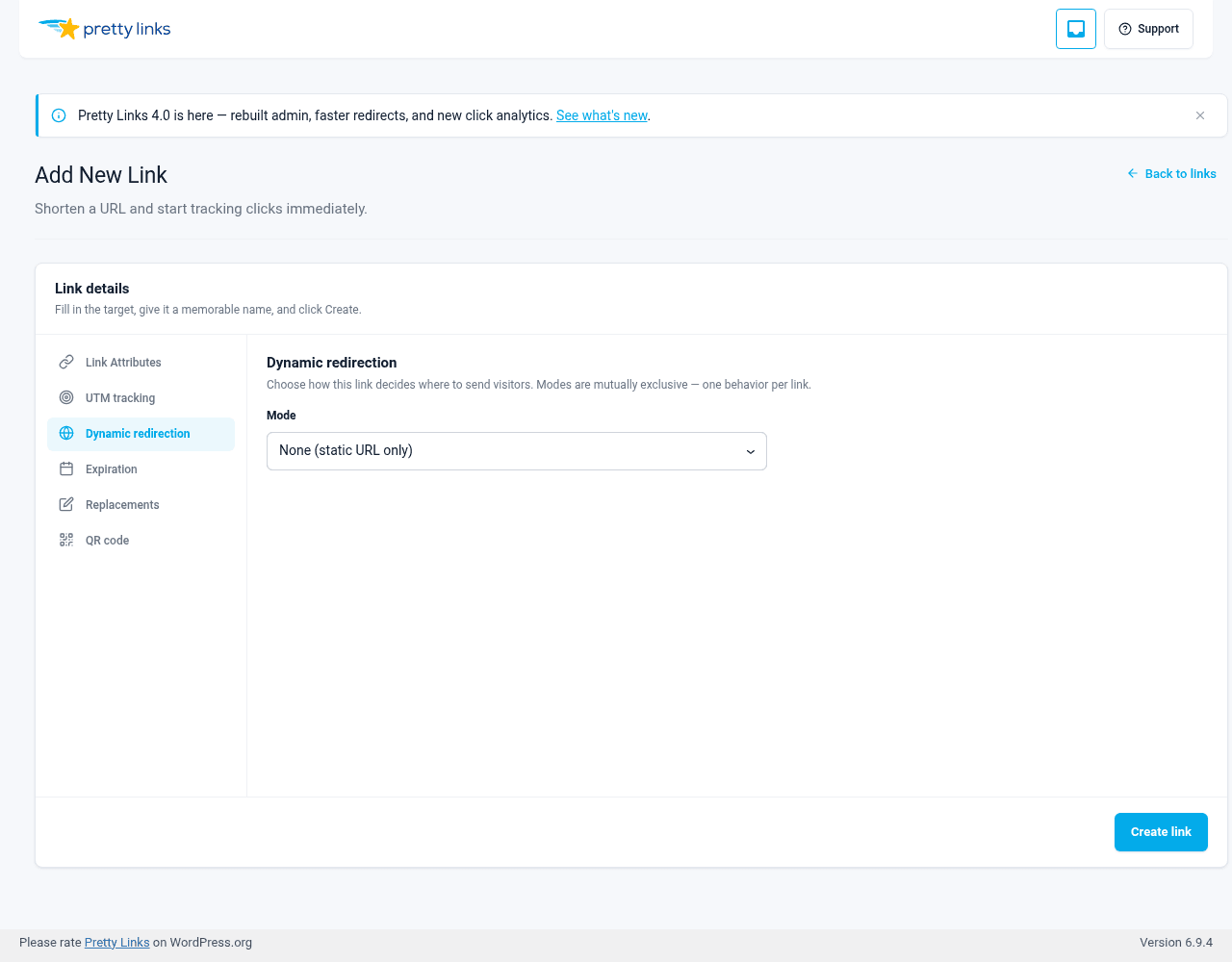
- Create the test link with rotation. On the link’s Dynamic redirection tab, set Mode to Rotation and add at least two variant URLs in the URL rotation panel — see Rotation. The link’s own target URL is the implicit “control” destination.
- Enable split testing. Still on the Dynamic redirection tab, scroll to the Split testing group and turn it on.
- Pick the goal link. In the same group, choose the goal link from the autocomplete. Conversions on that goal will be attributed to whichever variant the visitor originally saw.
- Drive traffic. Share the test link in your campaigns. As visitors click and (some of them) convert, Pretty Links collects the data automatically. View the report from the Split Test Report row action on the Pretty Links list.
Reading the Results
The split test report shows, for each variant:
- Clicks — How many visitors saw this variant;
- Conversions — How many of those visitors reached the goal link;
- Conversion rate — Conversions divided by clicks;
- Lift vs. control — How much better (or worse) this variant is performing compared to the control.
The variant with the highest conversion rate is your winner — assuming you have enough data for the difference to be meaningful.
When Is a Winner “Real”?
This is the trickiest part of split testing. With small sample sizes, random variation can make one variant look better when it’s really just luck.
Some rules of thumb:
- At least 100 conversions per variant before you start trusting differences;
- At least a few hundred clicks per variant — more is better;
- Run the test for at least a full week to average across day-of-week effects;
- Look for sustained, large lifts (10%+ relative difference) rather than tiny wiggles.
If your conversion rates differ by 1-2% on small samples, that’s noise, not signal.
Conversion Attribution
Each visitor gets a Cookies Explained prli_visitor cookie (1-year lifetime). When that visitor later hits the goal link, the conversion is attributed back to whichever variant they originally saw — even across browsing sessions. Conversion rate is measured against unique visitors, not raw clicks.
Note: split-test reporting requires Normal or Extended click tracking. Sites running in Simple click-counting mode have no per-click rows to attribute against, so the split-test report is hidden.
Common Test Ideas
- Headlines — Same offer, different headlines. Which converts better?;
- Calls to action — “Buy now” vs. “Get started” vs. “Try it free”;
- Landing-page layouts — Long form vs. short form;
- Affiliate offers — Does network A or network B convert your audience better?;
- Pricing pages — Three-tier vs. two-tier; with or without annual discount displayed.
Tips
- Test one thing at a time. If you change the headline AND the button color AND the image, you won’t know which moved the needle;
- Don’t peek too early. It’s tempting to declare a winner after a day. Resist. Early data is noisy;
- Document your tests. Keep notes on what you tested, when, and what won. Future-you will appreciate it;
- Use the Link Options Description field on each variant to remind yourself what each represents.
Combining With Other Features
Split tests work alongside:
- Targeting — Run different tests for different audiences;
- Cloak Redirect and Pretty Bar — Wrap variants in your branding;
- Expiration — Auto-end a test after a fixed window.