
Pretty Links can render a social sharing bar on your posts and pages, complete with buttons for the major platforms. The URL being shared is your pretty URL, not the raw permalink. That means every share is trackable, attributable, and can be retargeted later by changing the pretty link’s destination.
What’s Included
The social bar can include buttons for:
- X — Shares with the post title and pretty URL via x.com’s tweet intent;
- Facebook — Opens Facebook’s share dialog with the pretty URL;
- LinkedIn — Opens LinkedIn’s share flow;
- Pinterest — Opens Pinterest’s pin-create dialog;
- Reddit — Opens Reddit’s submit flow;
- WhatsApp — Sends the pretty URL via WhatsApp (web or mobile);
- Telegram — Opens Telegram’s share-URL flow;
- Email — Opens the visitor’s email client with a pre-filled message;
- Copy link — Copies the pretty URL to the clipboard with one click.
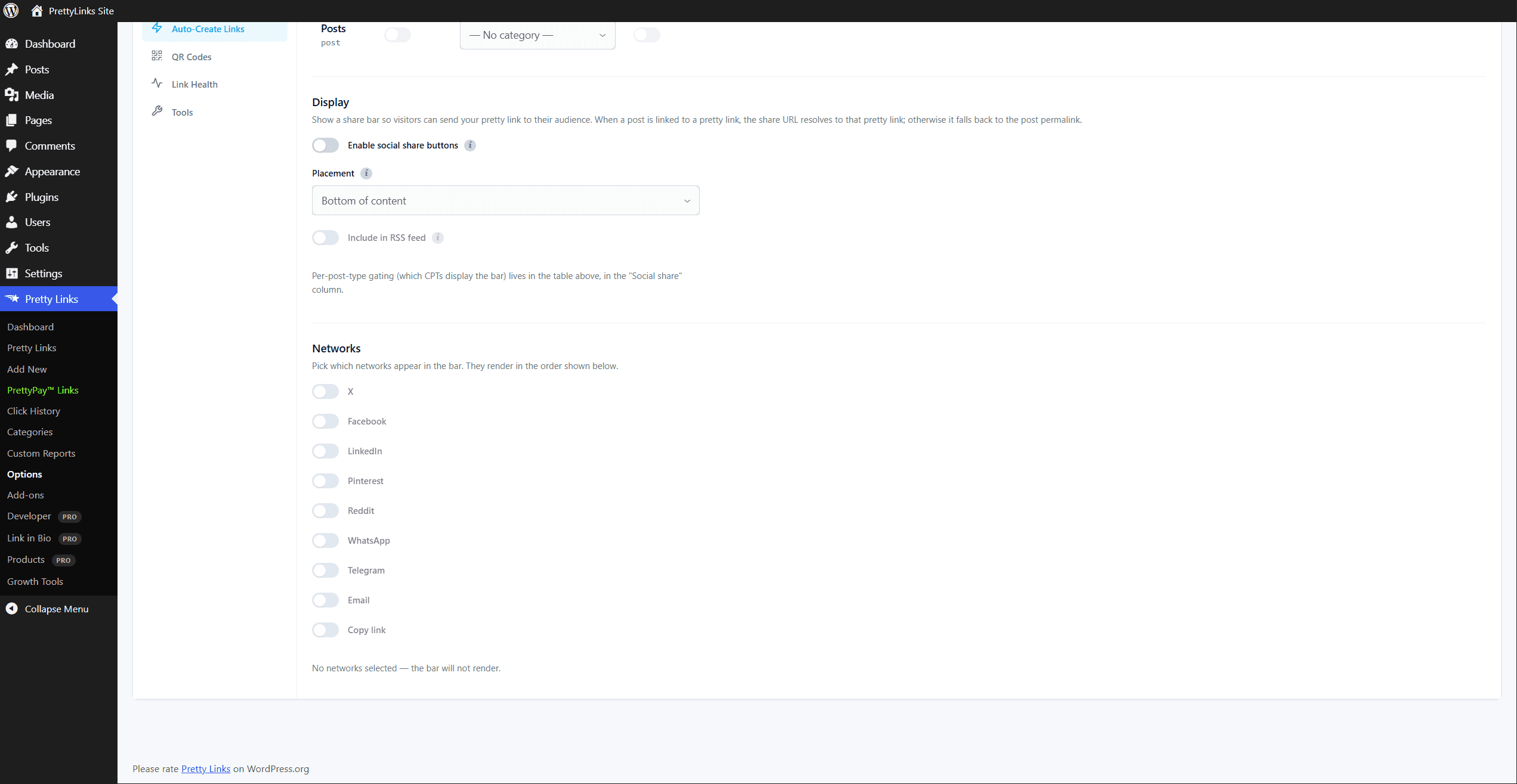
All nine networks are off by default. Enable the ones you want from the options page. The social bar does not render until you select at least one network.
Where to Configure
Go to Dashboard > Pretty Links > Options > Auto-Create Links. The social bar is configured there, under Display and Networks.
Here you can:
- Enable / disable the social bar globally;
- Pick which buttons appear — toggle each network on or off. Display order is fixed (X, Facebook, LinkedIn, Pinterest, Reddit, WhatsApp, Telegram, Email, Copy) — there’s no drag-to-reorder;
- Choose placement — top of the post content, bottom, or both;
- Pick post types to enable — the per-CPT gate lives on the same per-post-type table used by auto-create (the Social buttons column). Per-CPT gating means you can enable on blog posts but disable on a “Resources” CPT, for example;
- Toggle RSS rendering — whether the bar should appear in your RSS feed (most users leave this off so feed readers see clean content).
Visual styling (colors, shape) is controlled by your theme’s CSS — the bar emits semantic class hooks (.prli-social-buttons__btn, .prli-social-buttons__icon, etc.) that themes or a child stylesheet can target.
How the URL Gets Shared
When auto-create is enabled for a post type, each post in that type has its own pretty link. The social bar uses that pretty URL as the share URL.
Benefits:
- Shorter URLs — Valuable on character-limited platforms like X (Twitter);
- Click tracking — Every share-and-click is counted in your Pretty Links reports;
- Attribution — You can see which platforms drive traffic by looking at referrers in click history;
- Retargetability — Even after a share is out in the wild, you can change where the pretty URL ultimately points (e.g., redirect to a follow-up post when the original is retired).
If a post doesn’t have a pretty link yet (auto-create disabled, or the post predates auto-create), the social bar falls back to sharing the post’s permalink instead.
Per-Post Hide
The post options metabox lets you hide the social bar on specific posts. Common cases:
- Landing pages where the bar would distract from a single CTA;
- Thank-you pages where sharing makes no sense;
- Internal posts not meant for public sharing.
The hide is per-post; other posts still show the bar normally.
Per-Post-Type Gating
In Dashboard > Pretty Links > Options > Auto-Create Links, you can independently enable or disable the bar for each post type:
- Blog Posts — Bar enabled, top placement;
- Pages — Bar disabled (because pages are usually evergreen and have their own share UX);
- Custom Post Types — Whatever fits your site’s structure.
This is more flexible than a single global on/off, and it’s the right way to fine-tune which content gets share buttons.
RSS Toggle
By default, the social bar is not rendered inside RSS feed content. That keeps RSS feeds clean and prevents stray HTML from showing up in feed readers like Feedly.
If you have a specific reason to include the bar in RSS — for example, you’re promoting sharing actions in an email newsletter that pulls from your RSS feed — you can toggle this on.
Styling
The social bar ships minimal default styling and is meant to be themed via CSS. The rendered HTML carries semantic class hooks you can target from your theme’s stylesheet or a child theme:
.prli-social-buttons— wrapper;.prli-social-buttons__item--<slug>— per-network list item (e.g..prli-social-buttons__item--x);.prli-social-buttons__btn— the clickable button or anchor;.prli-social-buttons__icon— the inline SVG icon;.prli-social-buttons__label— the network label.
There are no built-in color or shape options on the settings page — visual customization is entirely CSS-driven.
Considerations
- Don’t enable too many buttons. Five or six options is plenty. Beyond that, choice paralysis sets in and engagement drops;
- Test on mobile. Social bars can crowd small screens. Most placements should be top-of-post or bottom-of-post (not floating) on mobile;
- Privacy. Share buttons load lightweight on-page UI; they don’t load third-party trackers from social platforms unless the user clicks. That’s a deliberate choice for performance and privacy;
- Combine with auto-create to get the full benefit — trackable, retargetable share URLs for every post automatically.