
Contents
You can turn any affiliate link into a scannable, branded QR code right inside PrettyLinks, and the whole process only takes a few minutes.
First, add your affiliate URL to PrettyLinks. It turns that long URL into a shorter, branded link called a pretty link. From there, you can open the QR Code tab, customize the design, test it, and download it.
Step 1: Add Your Affiliate Link to PrettyLinks
If you already have a QR code generator in mind, you’re probably expecting to paste your affiliate URL into a box and get a code back, since that’s how most standalone generators work.
PrettyLinks takes one extra step first. It creates the QR code from your pretty link rather than directly from the original affiliate URL, so you need to create that link before you can start working on the code.
Head into PrettyLinks and add a new link. For this walkthrough, we’re using a product called Carbon Pickleball Paddle.
Give the link a name you’ll recognize later, paste in the affiliate URL you want people to land on, then work through the remaining settings: the slug, redirect type, tracking, and category if you use one to organize your links.
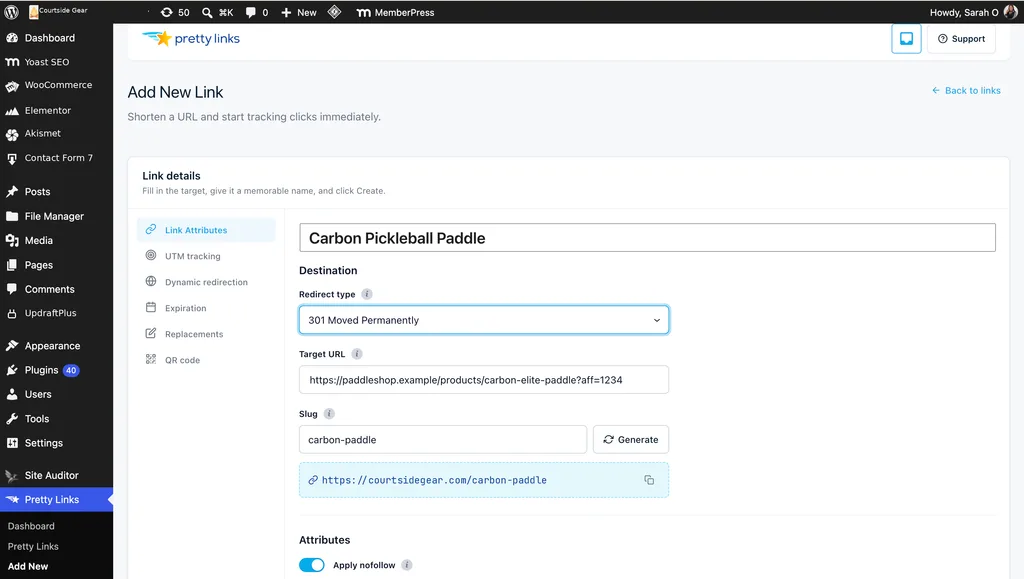
These are the same settings you’d use when creating any pretty link, so there’s no need to get too deep into them here. If this is your first time setting one up, our guide to shortening links with PrettyLinks walks through the full process.
The slug is the one choice worth paying a little more attention to. It’s the part that appears after your domain in the finished pretty link, so something deliberate like /carbon-paddle is cleaner than an automatically generated string.
A shorter link also creates a simpler-looking QR code, which can be easier to scan.
Once you save it, Carbon Pickleball Paddle joins the rest of your PrettyLinks collection. Now there’s an actual pretty link for the QR code to be built from.
Step 2: Jump into the QR Code Tab
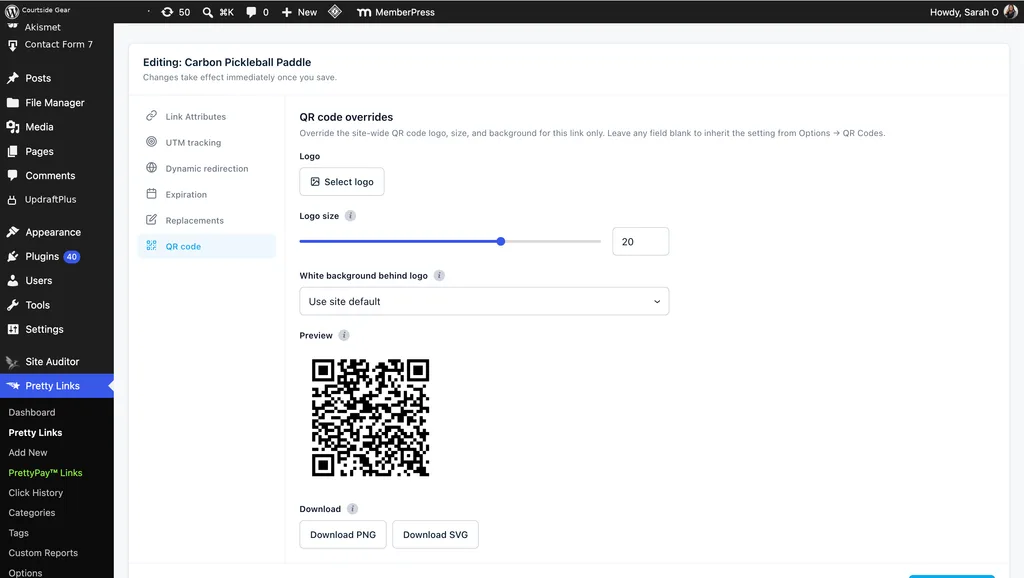
With Carbon Pickleball Paddle now saved in your collection, open it back up and switch to the QR Code tab on the link’s edit screen. The code for that link is already sitting there, generated and ready to customize.
You can also get to it directly from the PrettyLinks list using the QR Code action next to the link, without opening the full editor first.
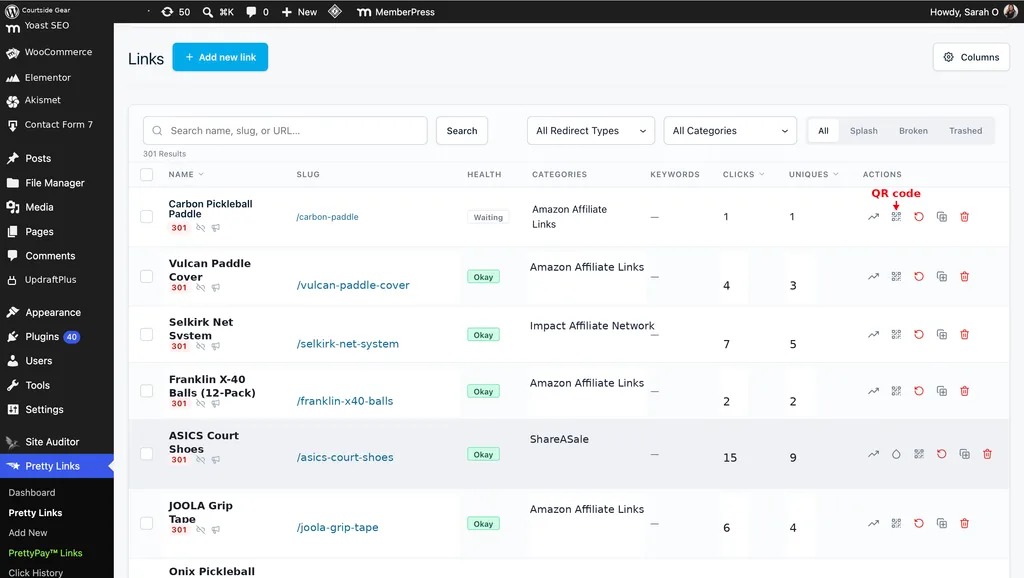
That’s it. From here, you can start customizing how the code looks.
Step 3: Customize the QR Code
With the code generated, there are three quick choices left before it’s ready to use: the logo, the size, and the background.
Upload Your Logo
Start with the logo. Click Select Logo inside the QR Code panel and choose an image the way you’d upload any image in WordPress.
PrettyLinks centers the image automatically and uses a high level of error correction, which helps the QR code remain scannable even with a logo in the middle.
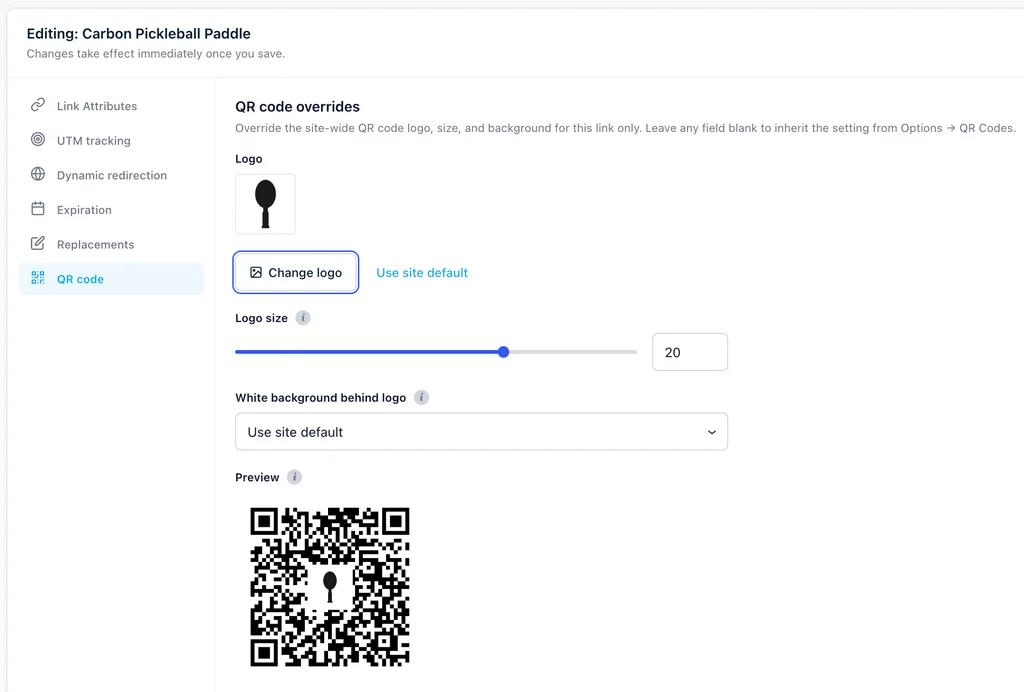
What you actually put there matters more than how you upload it. Simple, high-contrast artwork usually works better at that size than a detailed product photo, since fine detail gets lost once an image shrinks down to logo-in-a-QR-code scale.
For something like Carbon Pickleball Paddle, that leaves a few solid options: your store’s own logo, so the code is instantly recognizable as yours; a simplified, graphic version of the paddle itself rather than a full photo of it; or, if you’d rather not commit to one specific product’s image, a small icon that just signals the category, like a paddle silhouette.
Adjust the Logo Size
With your logo in place, the next decision is how much of the code it takes up. A slider controls the size, and the live preview updates as you move it, so you can see the effect immediately instead of downloading a version and coming back to adjust it.
PrettyLinks starts the logo at 20%, a good place to begin. Move the slider up if you want the logo to stand out more, or bring it down if it starts taking over too much of the code.
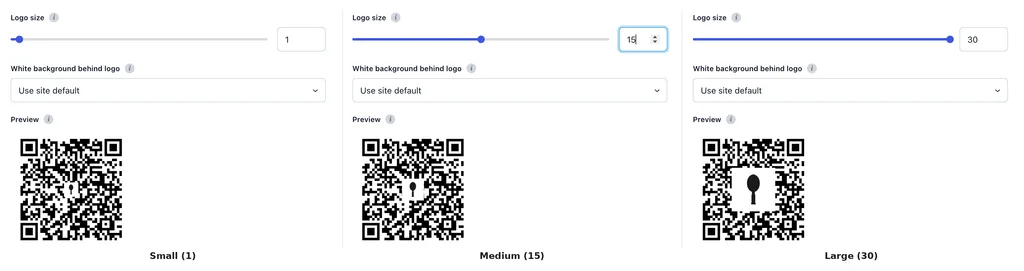
As a general rule, QR design guidance recommends staying under roughly 30% so the logo doesn’t start interfering with the scan.
Set the Background
By default, PrettyLinks puts a white background behind your QR code. You can leave it that way or turn it off for a transparent background, so the code sits directly on top of whatever you’re placing it over.
The best option depends on where you plan to use the QR code. White gives the code a consistent background, so it’s usually the safer choice when the surrounding design is busy or dark, such as on a printed flyer, a slide, or a courtside banner at a tournament.
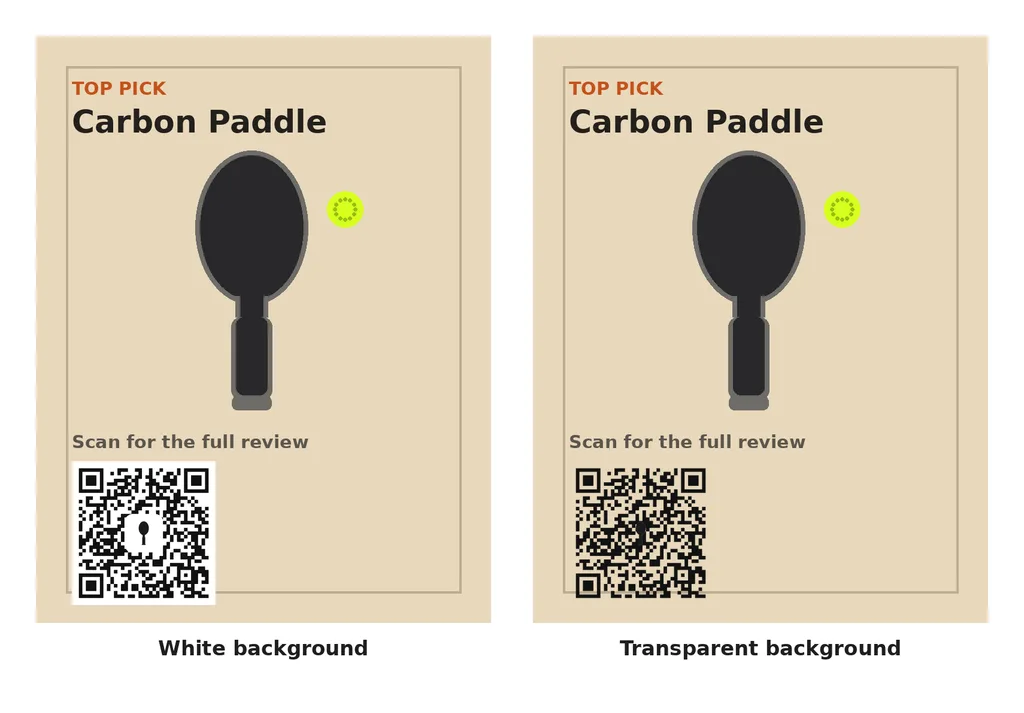
Transparent removes that white background, so the QR code can sit more naturally on top of a photo, video thumbnail, or other designed background instead of appearing as a separate white square. Just make sure the code still stands out clearly against whatever is behind it.
Step 4: Save and Share
Before you finish, look at the live preview one more time as a whole, not just each setting on its own. For instance, a logo that looked clear before can become harder to see against a transparent background. If anything feels off, adjust it now before you save.
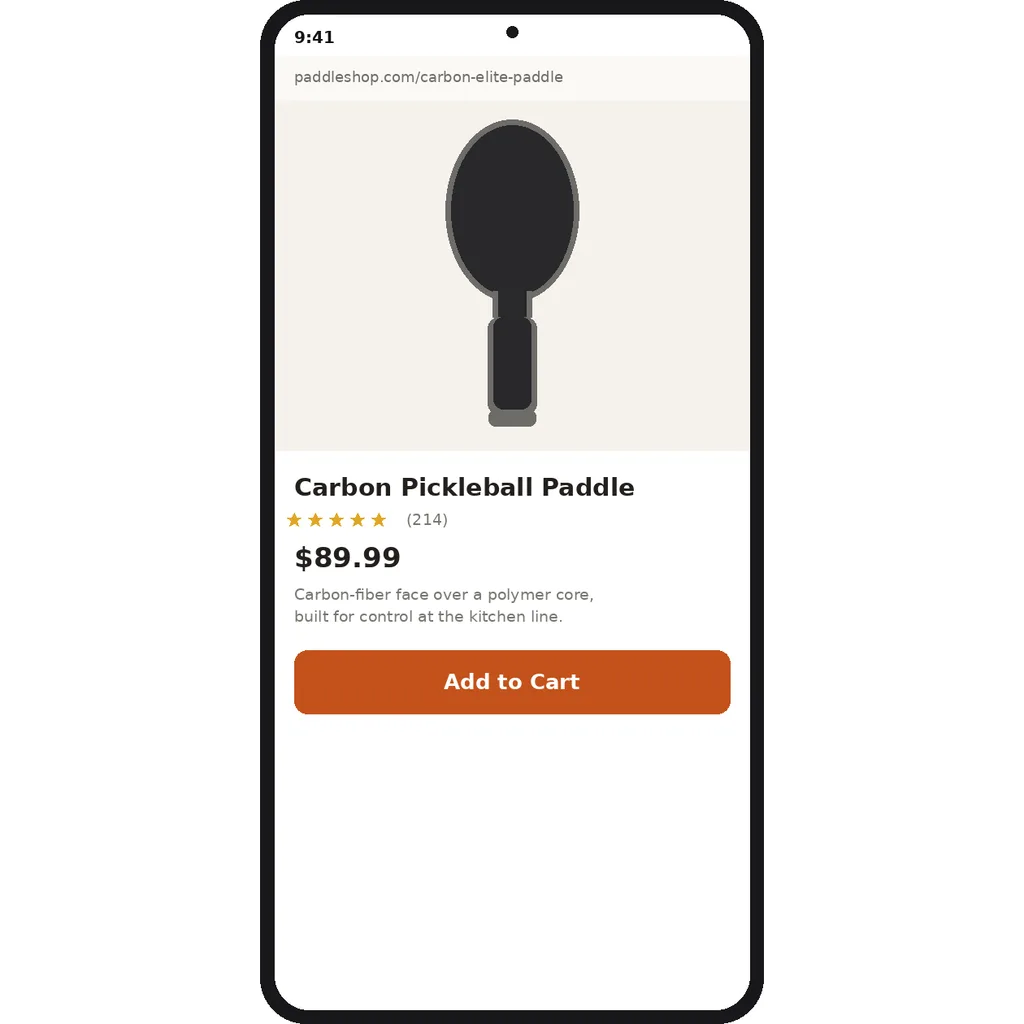
Next, test it yourself. Pull your phone out right at your desk and scan the code straight off the screen. Watch it open on mobile exactly the way someone who picks up your paddle recommendation would experience it.
When you’re ready to download, you’ve got two formats. PNG works for anything staying on a screen, including social posts, thumbnails, and email. SVG is the one to reach for when you need the code to stay sharp at larger sizes for print, signage, or other design work.
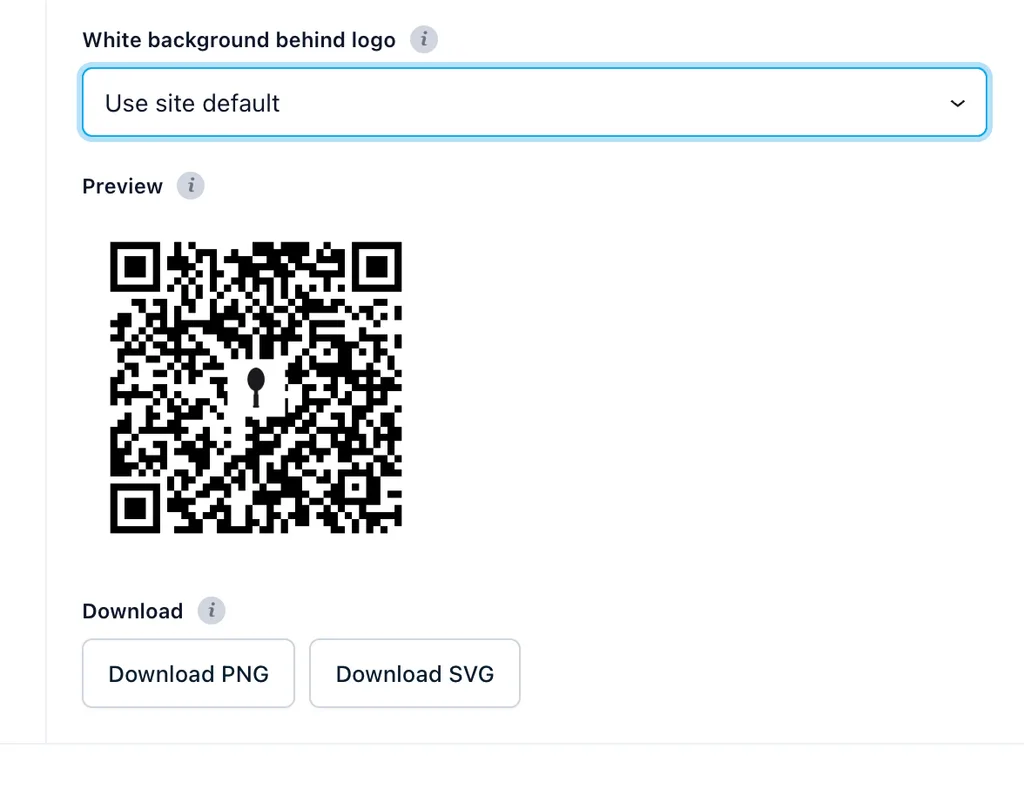
There is one catch: SVG is vector-only, so if you added a logo in Step 3, it won’t come with it. Want the logo? Download PNG.
What a QR Code Scan Looks Like in Your Click Data
Your QR code is really just a pretty link wearing a different hat. Any time someone scans it, that scan gets recorded exactly like a click on any other pretty link, landing in the same PrettyLinks dashboard alongside everything else you’re tracking. No separate QR dashboard to check.
That means the test scan you ran back in Step 4 should already be in your click data. Click Pretty Links in your WordPress sidebar; that opens straight to the Dashboard, and Carbon Pickleball Paddle should already be sitting in Recent Links.
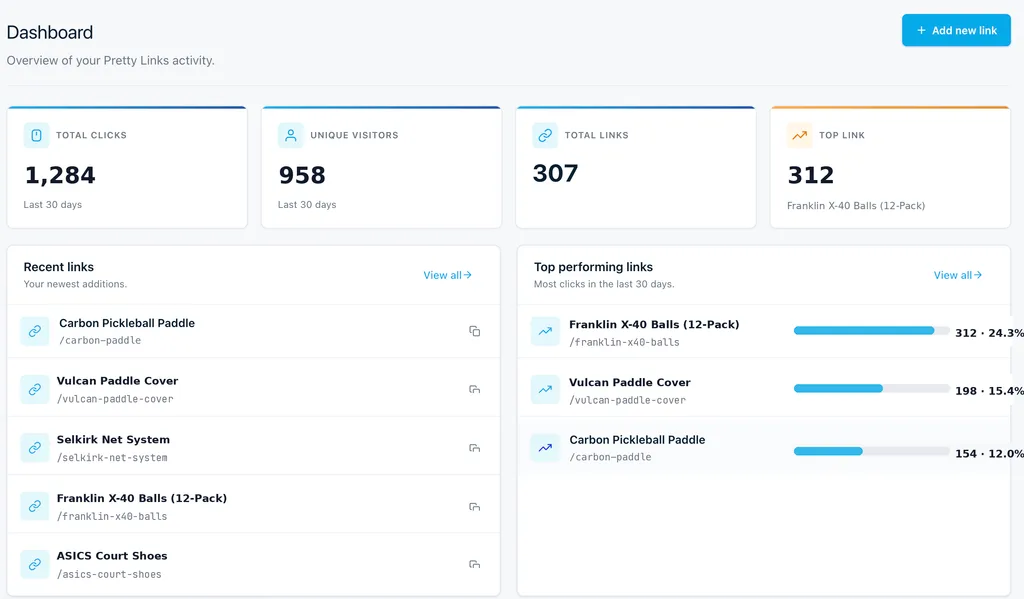
If you want QR scans tracked separately from regular clicks, create a second version of the same link just for the QR code. Duplicate the original link, keep the same target URL, and change only the slug to something like /carbon-paddle-qr.
Both links still send people to the same product page, but PrettyLinks treats them as two separate links in your reports. That way, clicks on /carbon-paddle stay with the original link, while scans of the QR code using /carbon-paddle-qr are recorded separately.
Conclusion
That’s it! One long affiliate link goes in. A cleaner, pretty link and a ready-to-share QR code come out, both much easier to promote than the raw URL you started with.
Also, your paddle link doesn’t have to be the only thing wearing a code. Point one at your homepage for general brand awareness, a specific product roundup or resource page when you want the code tied to something narrower, or an opt-in form if you’re building your list instead of driving a sale.
Haven’t tried PrettyLinks QR Codes yet? That’s the fastest way to see everything the feature can do. For the finer details on setup, formats, and use cases, the QR Codes documentation covers it.






Leave a Reply