
Available on the Super Affiliate plan.
Once you’ve built a product or a group, you can drop it into any post, page, sidebar, or page builder layout. Three ways to insert: the Gutenberg block, the shortcode, and via Link in Bio’s Cards template.
This guide is part of the Pretty Links Product Displays, the entry point for the Product Displays add-on.
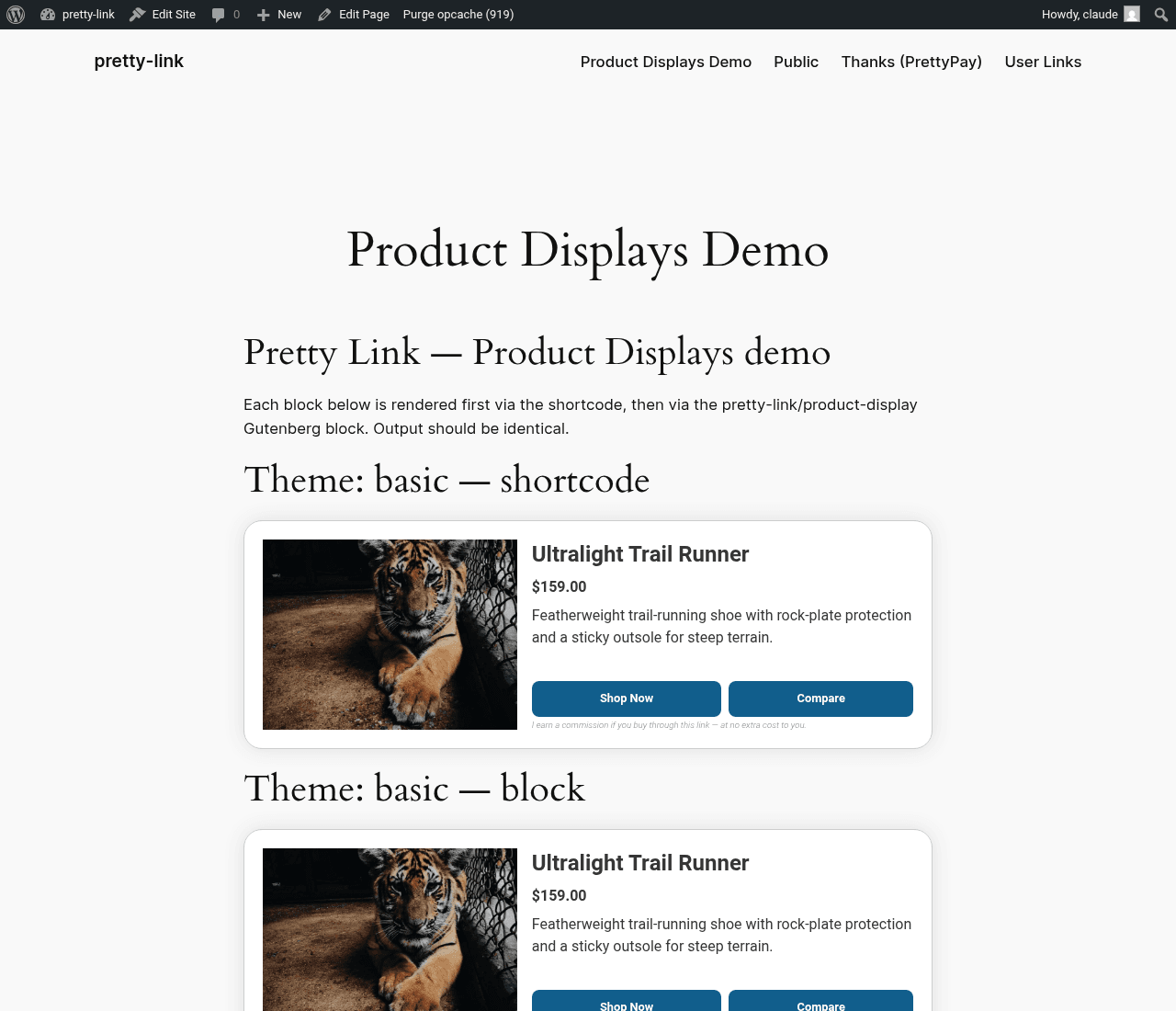
Method 1: The Gutenberg Block
The block is the most direct way to insert a display in a standard post or page.
- Edit the post or page where you want the display.
- Click the + button to add a new block.
- Search for Pretty Links Product Display.
- Insert the block.
- In the block sidebar, choose:
- Type — Group or Product
- Selection — Pick from a dropdown of your existing groups or products
The block renders a live preview right in the editor, so you can see exactly how the display will look before publishing.
Method 2: The Shortcode
When you can’t use a block — older themes, page builders, custom HTML widgets, sidebars — use the shortcode.
Insert a group:
[prli-product-display type="group" id="42"]Insert a single product:
[prli-product-display type="product" id="17"]Replace the id value with the actual ID of the group or product. You can find IDs in the admin: each row in the Groups or Products list shows its ID, and the URL when you’re editing also includes the ID.
The shortcode works anywhere shortcodes work in WordPress: post content, page content, text widgets, custom fields that are configured to render shortcodes, and most page builders.
Method 3: Page Builders
Page builders all handle shortcodes a little differently, but the pattern is the same:
- Elementor — Add a “Shortcode” widget and paste the shortcode into it;
- Beaver Builder — Add an “HTML” or “Text Editor” module and paste the shortcode;
- Divi — Add a “Code” module or “Text” module and paste the shortcode;
- Bricks — Add a shortcode element and paste in the shortcode.
Once inserted, the page builder renders the display the same as a normal block. Changes to the underlying group still flow through automatically.
Method 4: Link in Bio Cards Template
If you have both Product Displays and Link in Bio (Marketer plan unlocks Link in Bio; Super Affiliate plan unlocks Product Displays), the Cards template on a bio page integrates directly with Product Displays groups.
When you build a bio page using the Cards template, you can pick a product group as the source. The bio page automatically renders the group’s products as the card grid — using the same theme and layout you set in the group, just sized to fit the bio page.
This combination is worth using: build a “tools I recommend” group once, then use it on a blog post, a resources page, and your bio page. Update the group, all three update.
Updating Displays After Insertion
You don’t need to re-insert a display after editing the underlying group or product. Because the block and shortcode reference the group/product by ID, any changes you make in the admin — adding a product, changing a price, swapping the theme — flow through to every post showing that group automatically.
This means you can:
- Update a price once and watch every roundup post update;
- Add a new product to a group and have it appear instantly across the site;
- Swap the theme to test a new visual style site-wide.
Tips for Placement
- Above the fold matters. Visitors are most likely to scroll past content they haven’t engaged with yet. If the display is the point of the post, put it (or a teaser of it) high up;
- One display per post is usually enough. Multiple displays compete for attention. If you must have several, separate them with strong written sections so each gets its own visual breathing room;
- Match the layout to the content width. Grid layouts need wide content areas to look good. If your theme has narrow content, lists usually read better than grids;
- Test on mobile. Most affiliate traffic is mobile. Open the post on your phone and confirm the cards look good and the buttons are easy to tap.