
The Pretty Links bookmarklet is a small browser button you can install in your bookmarks bar. Click it on any web page and it instantly creates a pretty link pointing to that page — without you ever leaving the page or opening WordPress admin.
What the Bookmarklet Does
When you click the bookmarklet on, say, an article you want to share:
- It captures the current page’s URL.
- It opens a small popup connecting back to your WordPress site.
- It creates a new pretty link pointing at that URL, using your default settings.
- It shows you the resulting pretty URL, ready to copy and share.
It’s a quick way to turn any URL on the web into a trackable, branded short URL.
Installing the Bookmarklet
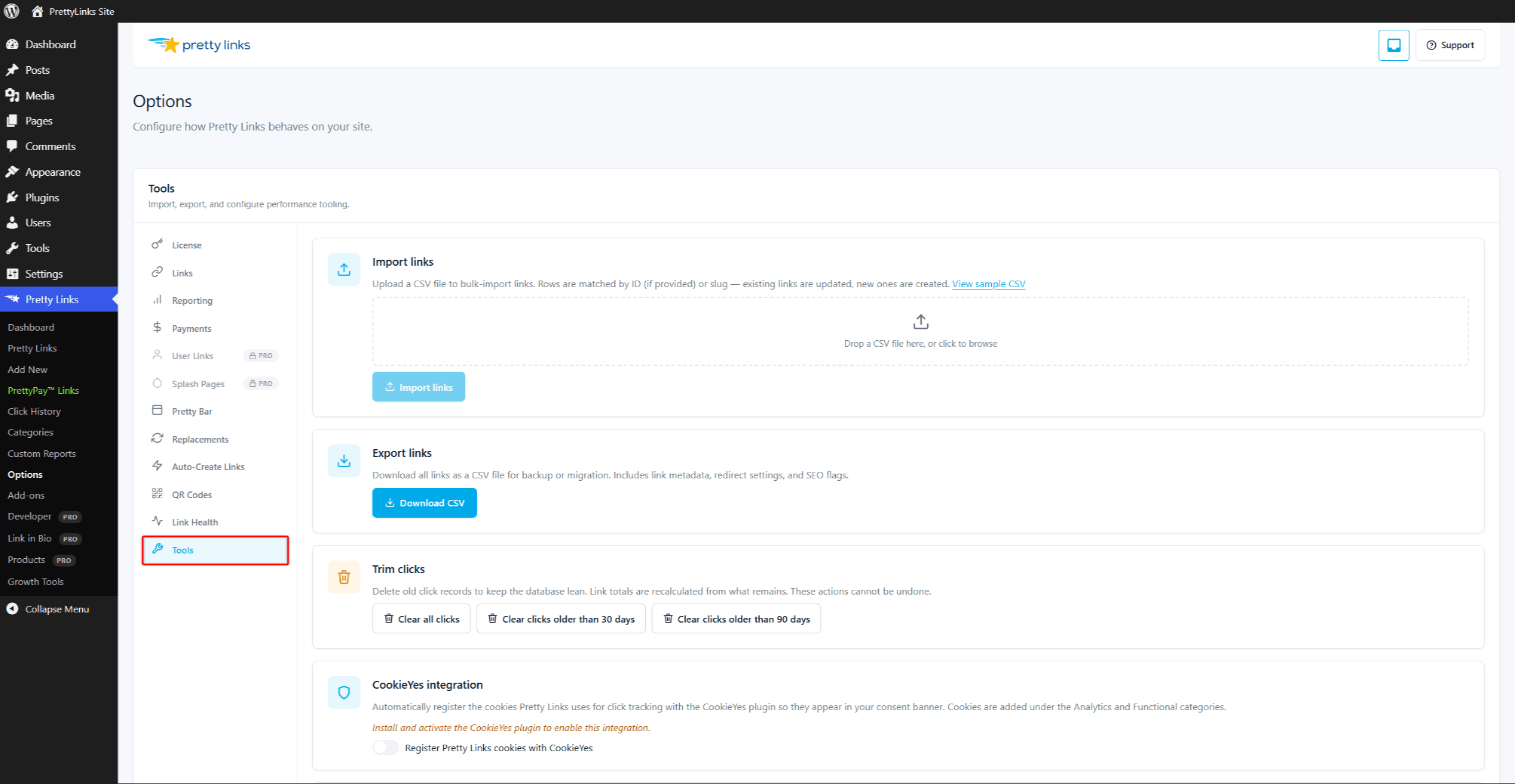
Go to Dashboard > Pretty Links > Options > Tools in your WordPress admin and find the Bookmarklet card.
You’ll see a button labeled something like Pretty Link It!. To install it:
- Make sure your browser’s bookmarks bar is visible. (In Chrome: Ctrl+Shift+B / Cmd+Shift+B. Other browsers have similar shortcuts.)
- Drag the bookmarklet button onto your bookmarks bar.
- Release. The bookmarklet now lives in your bookmarks.
That’s it — no installer, no extension, no permissions to grant.
Using the Bookmarklet
Browse to any page on the web. Click the bookmarklet in your bookmarks bar.
A small popup appears (it’s actually a window connecting to your WordPress site). It shows:
- The captured URL (the one you were viewing).
- A title (auto-extracted from the page).
- Optional fields you can edit before saving — slug, category, redirect type.
- A button to create the link.
Click the button. The pretty link is created and the popup shows you the pretty URL. Copy and use it anywhere.
Pre-Assigned Categories
You can configure the bookmarklet to pre-assign one or more categories to every link it creates. This helps if you use the bookmarklet primarily for one type of link — for example, “Bookmarklet” or “Curated articles” — so you can find all bookmarklet-created links later.
Pre-assignment is set on the bookmarklet card at Dashboard > Pretty Links > Options > Tools. Pick the categories from the multi-select control before dragging the bookmarklet to your bookmarks bar.
The category IDs are baked into the bookmarklet URL at drag time. If you change the selected categories later, you must re-drag the button to update your saved copy — the existing bookmark in your bookmarks bar still has the old categories baked in.
How Authentication Works
Because the bookmarklet runs from a webpage you’re visiting (not from inside your WordPress admin), it needs to authenticate back to your site. Pretty Links does this with a token: a 40-character random string baked into the bookmarklet’s URL at install time.
When you click the bookmarklet, it sends the token along with the request. Your WordPress site checks three things before creating the link: the token matches, you have an active WordPress session in that browser, and your user account has permission to manage Pretty Links.
This means:
- You must stay logged in to WordPress in the same browser — the token alone is not enough; the bookmarklet only creates a link when there’s a valid session.
- The token is site-wide, not per-user. It’s shared across every admin who installs the bookmarklet from this WordPress site.
- If the token leaks, regenerating it invalidates every saved copy of the bookmarklet across every browser and every teammate. Each person then has to re-install.
Regenerating the Token
To invalidate an existing bookmarklet — for example, after a teammate leaves, or if you’ve installed it on a shared computer:
- Go to Dashboard > Pretty Links > Options > Tools and find the Bookmarklet card.
- Click Regenerate Token.
- Re-install the bookmarklet by dragging the new button to your bookmarks bar (replacing the old one).
After regeneration, the old bookmarklet stops working everywhere it was installed. Every teammate who had the old version installed will need to re-install from the Tools page.
Things to Know
- One site-wide token — The bookmarklet token is shared across all admins on this WordPress site. Links are attributed to whichever WordPress user is logged in when the bookmarklet runs (since a logged-in session is required);
- HTTPS pages only — Some HTTPS sites block bookmarklets that try to talk to other sites. If the bookmarklet doesn’t work on a particular page, that’s why; copy the URL manually and use the regular Pretty Links UI;
- Doesn’t work in incognito — Most browsers don’t carry your bookmarks bar (or its bookmarklets) into incognito mode by default;
- Mobile — Most mobile browsers don’t have a bookmarks bar in the same way. The bookmarklet is mainly a desktop tool.
Use Cases
- Curating articles — Build a collection of curated pretty links to share with your audience;
- Affiliate prospecting — When you find a page worth promoting, immediately create the trackable pretty link;
- Research — As you browse for a project, save pages as pretty links so you have a clean record (with click tracking if you share them later);
- Quick share — When someone sends you a long URL, paste it into your browser, click the bookmarklet, and reply with the pretty version.
Tips
- Set a clear default category so bookmarklet-created links don’t get lost in your main list;
- Regenerate the token when you change devices, or once a year as a hygiene practice;
- Use a memorable category name like “Bookmarklet” — easy to spot and clean up later if needed.