
Available on the Marketer plan and above.
The API key is the password your other tools use to talk to your Pretty Links REST API. Your site has one API key — generated automatically when Developer Tools is activated, and you can regenerate it any time.
This guide is part of the Pretty Links Developer Tools Add-on Overview, the entry point for the Developer Tools add-on.
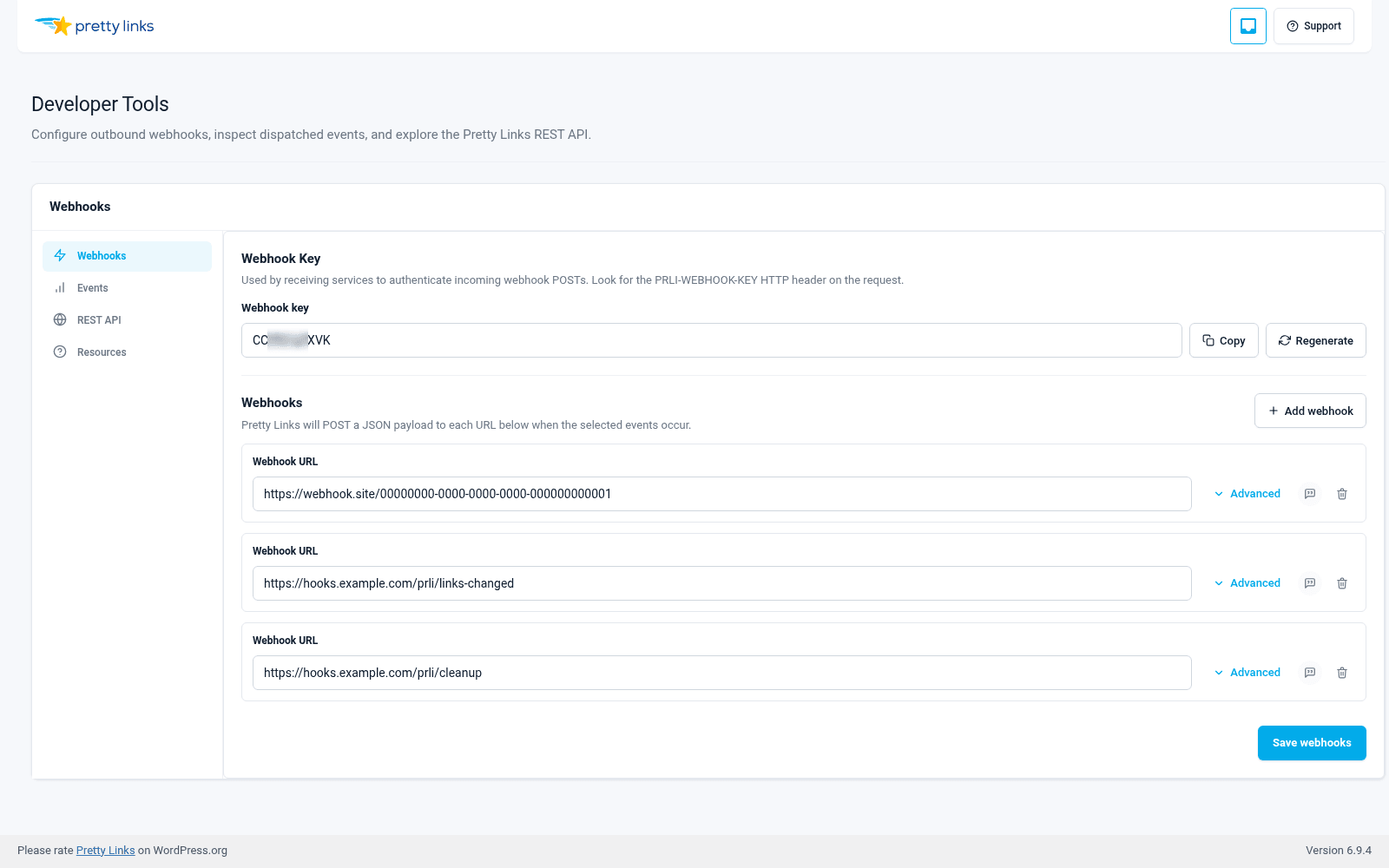
Finding and Copying Your Key
- In the WordPress admin, go to Dashboard > Pretty Links > Developer Tools.
- Open the API Key section.
- Your current key is displayed on screen. Click Copy to copy it to your clipboard.
The key is a 10-character alphanumeric string (mix of upper-case, lower-case, and digits). Paste it into whichever tool needs to call the API.
Sending the Key on a Request
The REST API accepts the key in either of two HTTP headers:
PRLI-API-KEY: yourkeyhere;Authorization: yourkeyhere.
Most tools have a field labeled “API Key” or “Authorization” — paste your key there. The in-app Docs tab (in Dashboard > Pretty Links > Developer Tools > Docs) shows the exact header format and a curl example you can copy.
Storing the Key Safely
Treat the API key like a password:
- Don’t paste it into public places like Slack channels, support tickets, or GitHub issues. Anyone with the key can read and modify your Pretty Links;
- Store it in a password manager or your team’s secrets vault. Don’t write it on a sticky note;
- Don’t commit it to a repository. If your integration code lives in git, read the key from an environment variable or a secrets manager — never hard-code it.
Regenerating the Key
If the key is leaked, lost, or you want a fresh one, regenerate it:
- Go to Dashboard > Pretty Links > Developer Tools.
- In the API Key section, click Regenerate.
- Confirm the action.
Regeneration immediately invalidates the old key and replaces it with a new one. Any system still using the old key will start getting authentication errors — update those systems with the new key as soon as possible.
When to Regenerate
You should rotate or regenerate the key when:
- An employee with access to the key leaves the team;
- The key was accidentally posted somewhere it shouldn’t have been;
- An integration is being decommissioned and you want to lock it out;
- You’re following a periodic rotation policy (every 90 or 180 days, for example).
There’s no “wrong” reason to regenerate. If you have any doubt about whether the key is still secure, regenerate it.
One Key Per Site
Developer Tools uses a single API key for the whole site rather than per-integration keys. That keeps the admin simple, but it does mean rotating the key affects every integration at once — so plan a rotation when you can update all your downstream tools (Zapier, scripts, dashboards) in the same session.