
Disponible avec la formule « Marketer » et les formules supérieures.
La clé API est le mot de passe utilisé par vos autres outils pour communiquer avec l'API REST de Pretty Links. Votre site dispose d'une seule clé API — générée automatiquement lors de l'activation des outils de développement — et vous pouvez la régénérer à tout moment.
Ce guide fait partie de la Présentation de l'extension « Pretty Links Developer Tools », la page d'accueil de l'extension « Developer Tools ».
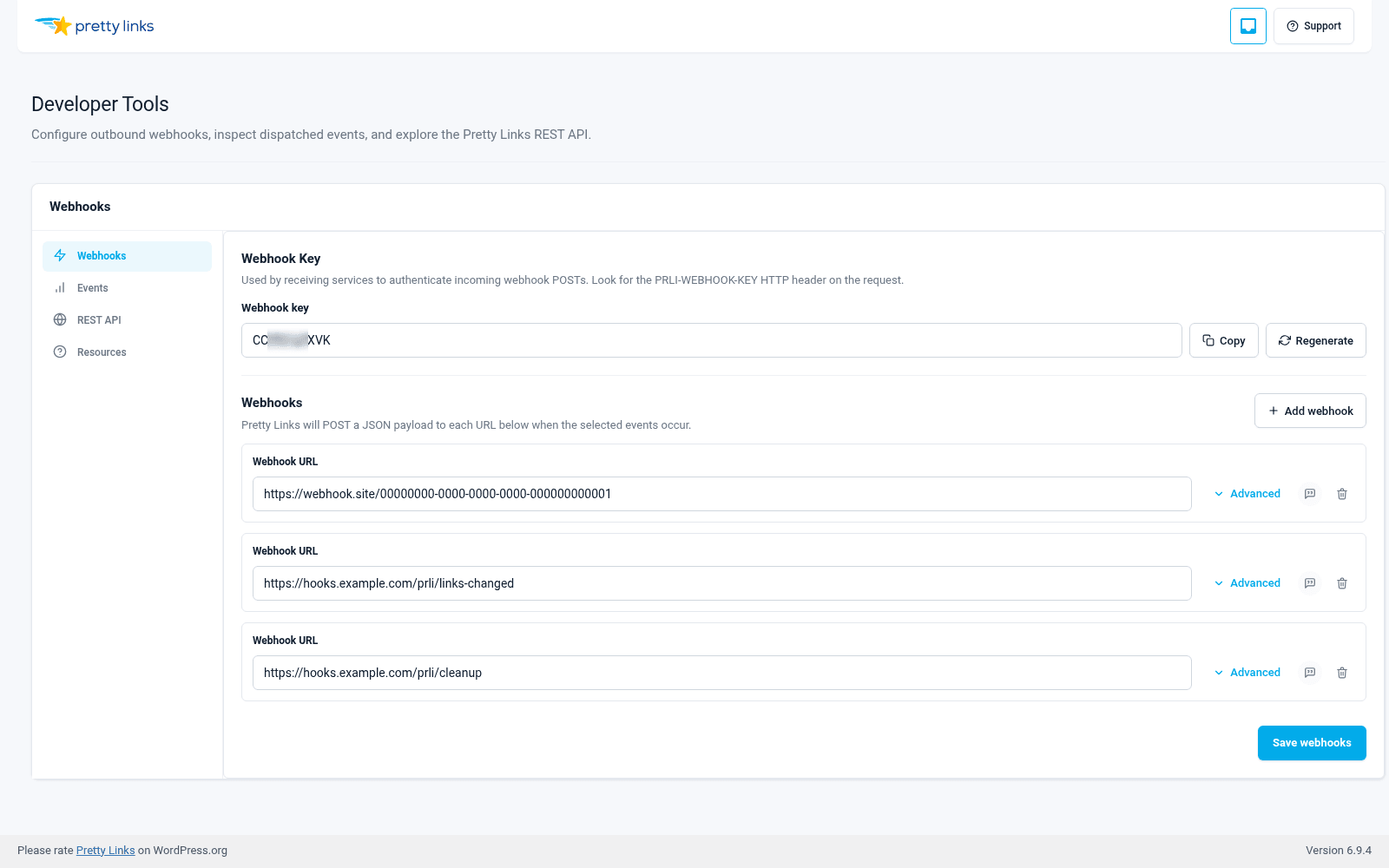
Rechercher et copier votre clé
- Dans l'interface d'administration de WordPress, rendez-vous dans Tableau de bord > Pretty Links > Outils de développement.
- Ouvrez le Clé API section.
- Votre clé actuelle s'affiche à l'écran. Cliquez sur Copier pour le copier dans votre presse-papiers.
La clé est une chaîne alphanumérique de 10 caractères (composée de majuscules, de minuscules et de chiffres). Collez-la dans l'outil qui doit appeler l'API.
Envoi de la clé en réponse à une requête
L'API REST accepte la clé dans l'un ou l'autre des deux en-têtes HTTP suivants :
PRLI-API-KEY : votre-clé-ici;Autorisation : yourkeyhere.
La plupart des outils comportent un champ intitulé “ Clé API ” ou “ Autorisation ” : collez-y votre clé. Dans l'application Docs onglet (dans Tableau de bord > Pretty Links > Outils de développement > Documentation) présente le format exact de l'en-tête ainsi qu'un exemple de commande curl que vous pouvez copier.
Conserver la clé en toute sécurité
Considérez la clé API comme un mot de passe :
- Ne l'affichez pas dans les lieux publics comme les canaux Slack, les tickets d'assistance ou les tickets GitHub. Toute personne disposant de la clé peut consulter et modifier vos Pretty Links ;
- Enregistrez-le dans un gestionnaire de mots de passe ou dans le coffre-fort des secrets de votre équipe. Ne l’écrivez pas sur un post-it ;
- Ne le validez pas dans un dépôt. Si votre code d'intégration est hébergé sur Git, lisez la clé à partir d'une variable d'environnement ou d'un gestionnaire de secrets — ne l'intégrez jamais directement dans le code.
Régénération de la clé
Si la clé a été divulguée, perdue ou si vous souhaitez en obtenir une nouvelle, régénérez-la :
- Aller à Tableau de bord > Pretty Links > Outils de développement.
- Dans le cadre de la Clé API section, cliquez sur Régénérer.
- Confirmez l'action.
La régénération invalide immédiatement l'ancienne clé et la remplace par une nouvelle. Tout système utilisant encore l'ancienne clé commencera à renvoyer des erreurs d'authentification — mettez à jour ces systèmes avec la nouvelle clé dès que possible.
Quand procéder à la régénération ?
Vous devez renouveler ou régénérer la clé dans les cas suivants :
- Un collaborateur ayant accès à la clé quitte l'équipe ;
- La clé a été laissée par inadvertance à un endroit où elle n'aurait pas dû se trouver ;
- Une intégration est en cours de mise hors service et vous souhaitez la verrouiller ;
- Vous appliquez une politique de rotation périodique (tous les 90 ou 180 jours, par exemple).
Il n'y a pas de “ mauvaise ” raison de régénérer une clé. Si vous avez le moindre doute quant à la sécurité de votre clé, régénérez-la.
Une clé par site
Developer Tools utilise une seule clé API pour l'ensemble du site, plutôt que des clés spécifiques à chaque intégration. Cela simplifie la gestion administrative, mais cela signifie également que la rotation de la clé affecte toutes les intégrations simultanément. Prévoyez donc une rotation lorsque vous pouvez mettre à jour tous vos outils en aval (Zapier, scripts, tableaux de bord) au cours d'une même session.