
Disponible avec la formule « Marketer » et les formules supérieures.
Les webhooks permettent à Pretty Links de savoir autres systèmes lorsqu'un événement se produit. Chaque fois qu'un lien est ajouté, modifié, supprimé, restauré ou retiré, Pretty Links envoie une requête HTTP POST à l'URL que vous avez indiquée, avec un corps JSON décrivant l'événement.
Ce guide fait partie de la Présentation de l'extension « Pretty Links Developer Tools », la page d'accueil de l'extension « Developer Tools ».
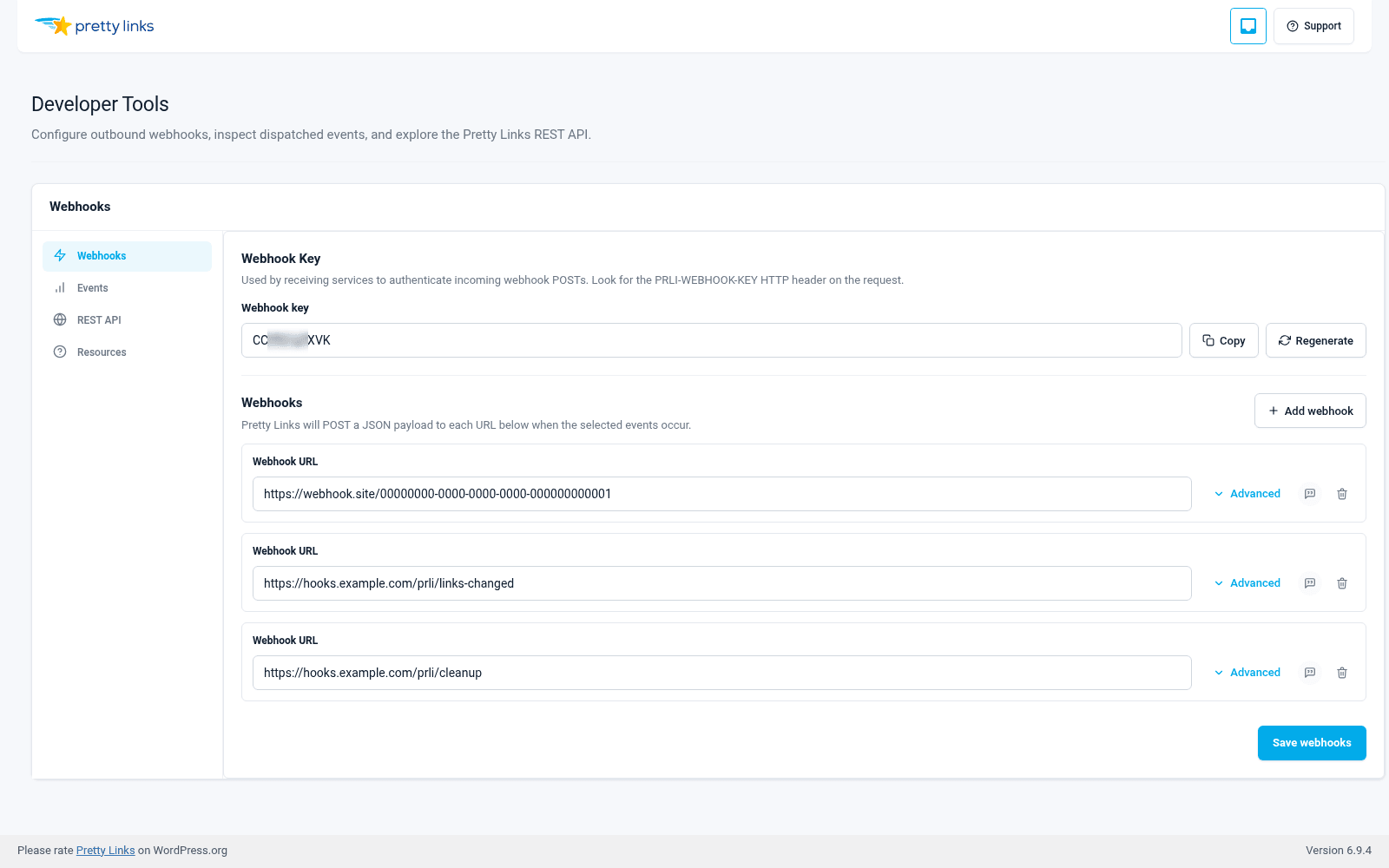
Ajouter un abonnement
- Aller à Tableau de bord > Pretty Links > Outils de développement > Webhooks.
- Cliquez sur Ajouter un abonnement.
- Veuillez remplir :
- URL cible — L'URL HTTPS complète vers laquelle les « Pretty Links » doivent envoyer une requête POST. Il s'agit généralement d'une URL de webhook fournie par Zapier, Make, n8n, votre point de terminaison personnalisé ou un webhook entrant de Slack/Teams ;
- Types d'événements — Quels événements doivent déclencher ce webhook (voir ci-dessous) ;
- Description — Libellé facultatif pour vous rappeler à quoi sert cet abonnement.
- Cliquez sur Économiser.
L'abonnement est désormais actif. La prochaine fois qu'un événement correspondant se produira, votre URL cible recevra une requête POST.
Types d'événements
Vous pouvez vous abonner à un événement, à plusieurs événements ou à tous les événements.
| Événement | Se déclenche lorsque |
|---|---|
lien ajouté | Un nouveau Pretty Link est créé |
lien-mis à jour | Un « Pretty Link » existant est modifié |
lien supprimé | Un « Pretty Link » a été déplacé vers la corbeille |
lien-rétabli | Un Pretty Link supprimé est restauré depuis la corbeille |
lien supprimé | Un « Pretty Link » est définitivement supprimé |
tous | Tout ce qui précède (vous recevrez toutes les notifications de lien) |
Choisir tous Si vous souhaitez un abonnement unique pour tout couvrir, ou sélectionner des événements spécifiques si votre système en aval ne s'intéresse, par exemple, qu'à la création de nouveaux liens.
Sécurité des webhooks : l'en-tête PRLI-WEBHOOK-KEY
Votre site ne comporte qu'un seul clé de webhook — présenté dans Tableau de bord > Pretty Links > Outils de développement ainsi que la clé API. Pretty Links envoie cette clé dans le PRLI-WEBHOOK-KEY en-tête de chaque requête POST qu'il envoie vers une URL cible, quel que soit l'abonnement qui a déclenché l'action.
Votre point de terminaison récepteur doit vérifier cet en-tête. Si la valeur correspond à la clé indiquée par Pretty Links dans l'interface d'administration, la requête est authentique. Si elle ne correspond pas (ou est absente), la requête est falsifiée et votre point de terminaison doit l'ignorer.
Tout comme pour la clé API, vous pouvez régénérer la clé de webhook depuis l'interface d'administration si celle-ci venait à être divulguée. La régénérer implique de mettre à jour la valeur de comparaison dans chaque récepteur que vous avez configuré.
Voici comment protéger votre terminal contre les personnes qui envoient de fausses charges utiles de type “ lien ajouté ” vers votre URL. Sans cette vérification de clé, toute personne qui devinerait l'URL de votre webhook pourrait déclencher votre automatisation en aval.
La plupart des récepteurs de webhooks (Zapier, Make, code personnalisé) vous permettent de consulter les en-têtes des messages entrants. Comparez PRLI-WEBHOOK-KEY à la valeur attendue avant de traiter la charge utile.
Journal des événements
Chaque envoi de webhook — qu'il ait abouti ou non — est consigné dans le journal des événements de l'écran « Webhooks ». Pour chaque envoi, vous pouvez consulter :
- Le type d'événement ;
- L'URL de destination vers laquelle il a été envoyé ;
- Le code de réponse HTTP renvoyé par votre point de terminaison ;
- La charge utile complète qui a été envoyée.
Cela s'avère très utile pour le débogage. Si un Zap ne se déclenche pas, consultez le journal des événements : Pretty Links a-t-il bien envoyé le webhook ? Votre point de terminaison a-t-il renvoyé un code 200 ou un code 500 ? La charge utile correspondait-elle à ce que vous attendiez ?
Envoi test
À côté de chaque abonnement se trouve un Envoi test action. Cliquez dessus et Pretty Links envoie immédiatement un exemple de charge utile à votre URL cible, sans attendre qu'un événement réel se produise.
Utilisez la fonction « Envoi test » pour :
- Vérifier que le raccordement d'un nouvel abonnement est correct ;
- Vérifiez que l'URL cible est accessible ;
- Observez la forme de la charge utile dans votre outil en aval ;
- Refaites le test après avoir modifié l'URL cible.
Configurations courantes des webhooks
Alerte Slack lors de la création d'un lien de campagne : Abonnez-vous à lien ajouté et configurez l'URL de destination pour qu'elle pointe vers un webhook entrant de Slack (souvent via Zapier ou Make pour la mise en forme).
Archiver automatiquement dans la feuille de calcul lorsque le lien est supprimé : Abonnez-vous à lien supprimé et configurez l'URL de destination pour qu'elle pointe vers un webhook Zapier qui ajoute une ligne à une feuille Google Sheet intitulée “ Liens supprimés ”.
Synchronisation avec un CRM personnalisé : Abonnez-vous à tous et configurez l'URL cible pour qu'elle pointe vers le point de terminaison d'entrée de votre CRM. Utilisez le champ « type d'événement » dans la charge utile pour déterminer les actions à effectuer de chaque côté.
Nouvelles tentatives et échecs
Si votre point de terminaison renvoie un code de réponse autre que 2xx (ou ne répond pas du tout), la transmission est enregistrée comme ayant échoué. Vérifiez votre point de terminaison, corrigez le problème, puis utilisez la fonction « Test d'envoi » pour vous assurer qu'il fonctionne à nouveau. Les événements réels survenus pendant l'interruption de service ne sont pas automatiquement rejoués ; assurez-vous donc que votre point de terminaison est fiable avant de vous appuyer sur les webhooks pour des workflows critiques.