
Verfügbar ab dem „Marketer“-Tarif.
Der API-Schlüssel ist das Passwort, mit dem Ihre anderen Tools mit Ihrer Pretty Links REST-API kommunizieren. Ihre Website verfügt über einen API-Schlüssel – dieser wird bei der Aktivierung der Entwicklertools automatisch generiert und kann jederzeit neu generiert werden.
Dieser Leitfaden ist Teil der Übersicht über das Add-on „Pretty Links Developer Tools“, der Einstiegspunkt für das Add-on „Developer Tools“.
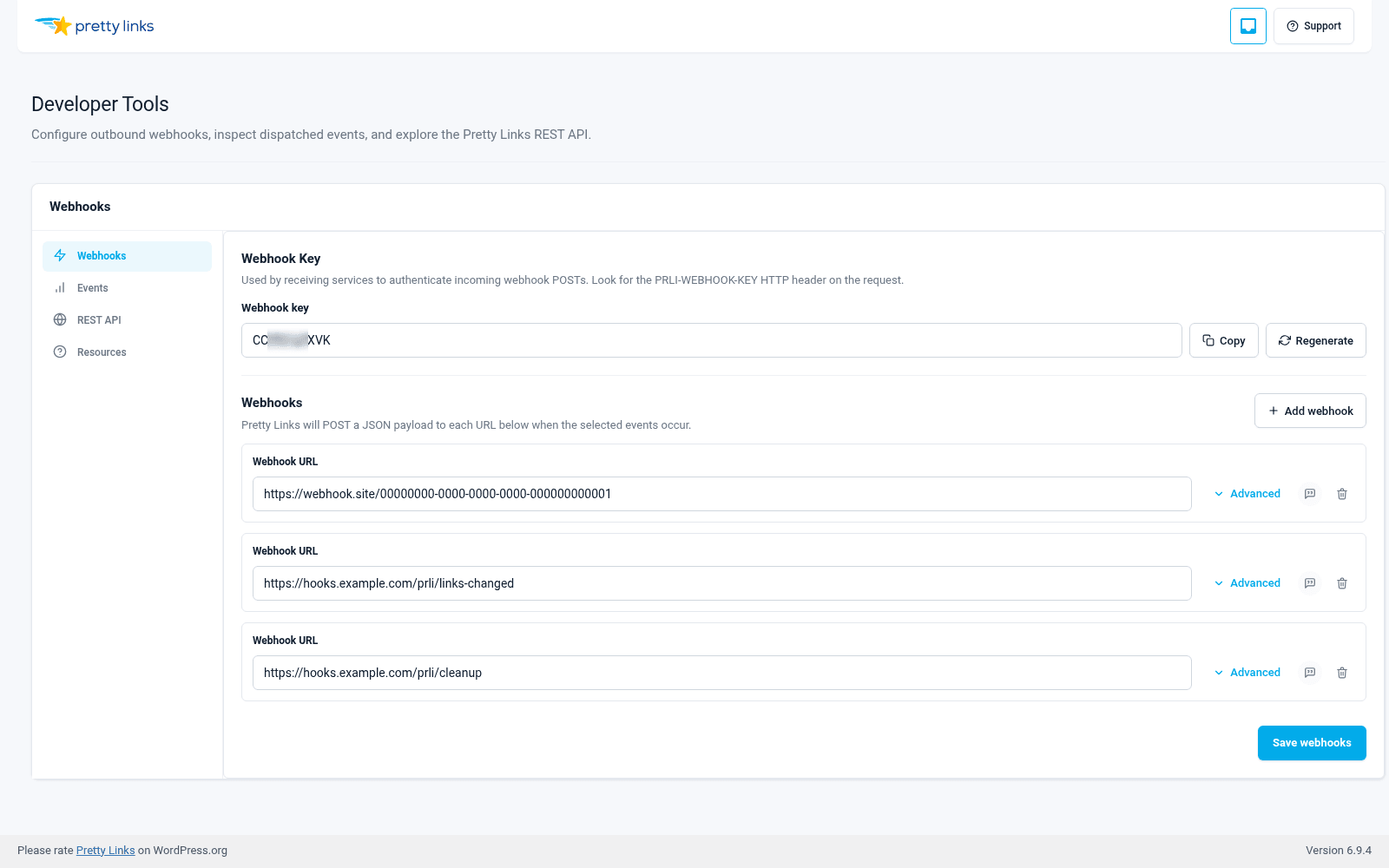
So finden und kopieren Sie Ihren Schlüssel
- Gehen Sie im WordPress-Adminbereich zu Dashboard > Pretty Links > Entwickler-Tools.
- Öffnen Sie die API-Schlüssel Abschnitt.
- Ihr aktueller Schlüssel wird auf dem Bildschirm angezeigt. Klicken Sie auf Kopieren um es in die Zwischenablage zu kopieren.
Der Schlüssel ist eine alphanumerische Zeichenfolge mit 10 Zeichen (eine Mischung aus Großbuchstaben, Kleinbuchstaben und Ziffern). Fügen Sie ihn in das Tool ein, das die API aufrufen soll.
Übermittlung des Schlüssels auf Anfrage
Die REST-API akzeptiert den Schlüssel in einem der beiden folgenden HTTP-Header:
PRLI-API-KEY: IhrSchlüsselhier;Autorisierung: yourkeyhere.
Die meisten Tools verfügen über ein Feld mit der Bezeichnung “API-Schlüssel” oder “Autorisierung” – fügen Sie Ihren Schlüssel dort ein. Die In-App- Dokumente Registerkarte (in Dashboard > Pretty Links > Entwicklertools > Dokumentation) zeigt das genaue Header-Format und ein Curl-Beispiel, das Sie kopieren können.
Sichere Aufbewahrung des Schlüssels
Behandeln Sie den API-Schlüssel wie ein Passwort:
- Kleben Sie es nicht an öffentlichen Orten auf wie Slack-Kanäle, Support-Tickets oder GitHub-Issues. Jeder, der über den Schlüssel verfügt, kann Ihre Pretty Links lesen und bearbeiten;
- Speichern Sie es in einem Passwort-Manager oder in den Geheimarchiv Ihres Teams. Schreiben Sie es nicht auf einen Haftzettel;
- Lege es nicht in einem Repository ab. Wenn sich Ihr Integrationscode in Git befindet, lesen Sie den Schlüssel aus einer Umgebungsvariablen oder einem Secrets-Manager aus – geben Sie ihn niemals fest ein.
Den Schlüssel neu generieren
Falls der Schlüssel offengelegt wurde, verloren gegangen ist oder Sie einen neuen benötigen, generieren Sie ihn neu:
- Gehe zu Dashboard > Pretty Links > Entwickler-Tools.
- In der API-Schlüssel Abschnitt, klicken Sie auf Regenerieren.
- Bestätigen Sie die Aktion.
Durch die Regeneration wird der alte Schlüssel sofort ungültig und durch einen neuen ersetzt. Bei allen Systemen, die noch den alten Schlüssel verwenden, treten Authentifizierungsfehler auf – aktualisieren Sie diese Systeme daher so schnell wie möglich mit dem neuen Schlüssel.
Wann sollte man regenerieren?
Sie sollten den Schlüssel wechseln oder neu generieren, wenn:
- Ein Mitarbeiter, der Zugang zum Schlüssel hat, verlässt das Team;
- Der Schlüssel wurde versehentlich an einem Ort abgelegt, an dem er nicht hätte liegen sollen;
- Eine Integration wird außer Betrieb genommen, und Sie möchten sie sperren;
- Sie befolgen eine Richtlinie zur regelmäßigen Rotation (beispielsweise alle 90 oder 180 Tage).
Es gibt keinen “falschen” Grund für die Neuerstellung eines Schlüssels. Wenn Sie Zweifel daran haben, ob der Schlüssel noch sicher ist, erstellen Sie ihn neu.
Ein Schlüssel pro Standort
Developer Tools verwendet einen einzigen API-Schlüssel für die gesamte Website anstelle von Schlüsseln für jede einzelne Integration. Das vereinfacht die Verwaltung, bedeutet aber auch, dass eine Schlüsselrotation sich auf alle Integrationen gleichzeitig auswirkt – planen Sie eine Rotation daher so, dass Sie alle nachgelagerten Tools (Zapier, Skripte, Dashboards) in derselben Sitzung aktualisieren können.