The Pretty Links Developer Tools is a Pretty Links add-on. The add-on allows you to integrate Pretty Links with third-party platforms and plugins using REST API and webhook events.
This document covers the basics of Developer Tools and their capabilities.
Installing Pretty Links Developer Tools Add-on
You can install the Developer Tools add-on from your website Dashboard:
- Login to your website as an administrator, and navigate to Dashboard > Pretty Links > Add-ons.
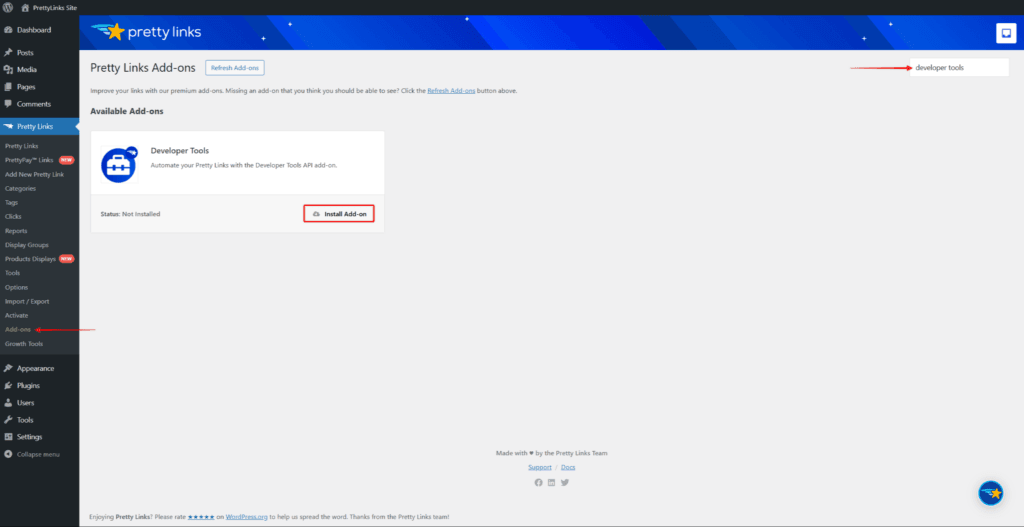
- Search for Developer Tools or browse the add-ons list.
- Click on the Install Add-on button.
Once the plugin is installed, you can access the Developer Tools options at Dashboard > Pretty Links > Developer.
Here, you will find the add-on menu with the following options:
- Webhooks
- Events
- REST API
Webhooks
Each integration you create requires a webhook URL for Pretty Links to communicate with a third-party platform or plugin. The list of webhook URLs for all your integrations is under the Webhooks menu.
To add webhook URL for any new integration, follow these steps:
- Navigate to Dashboard > Pretty Links > Developer > Webhooks.
- Click on the “+” icon.
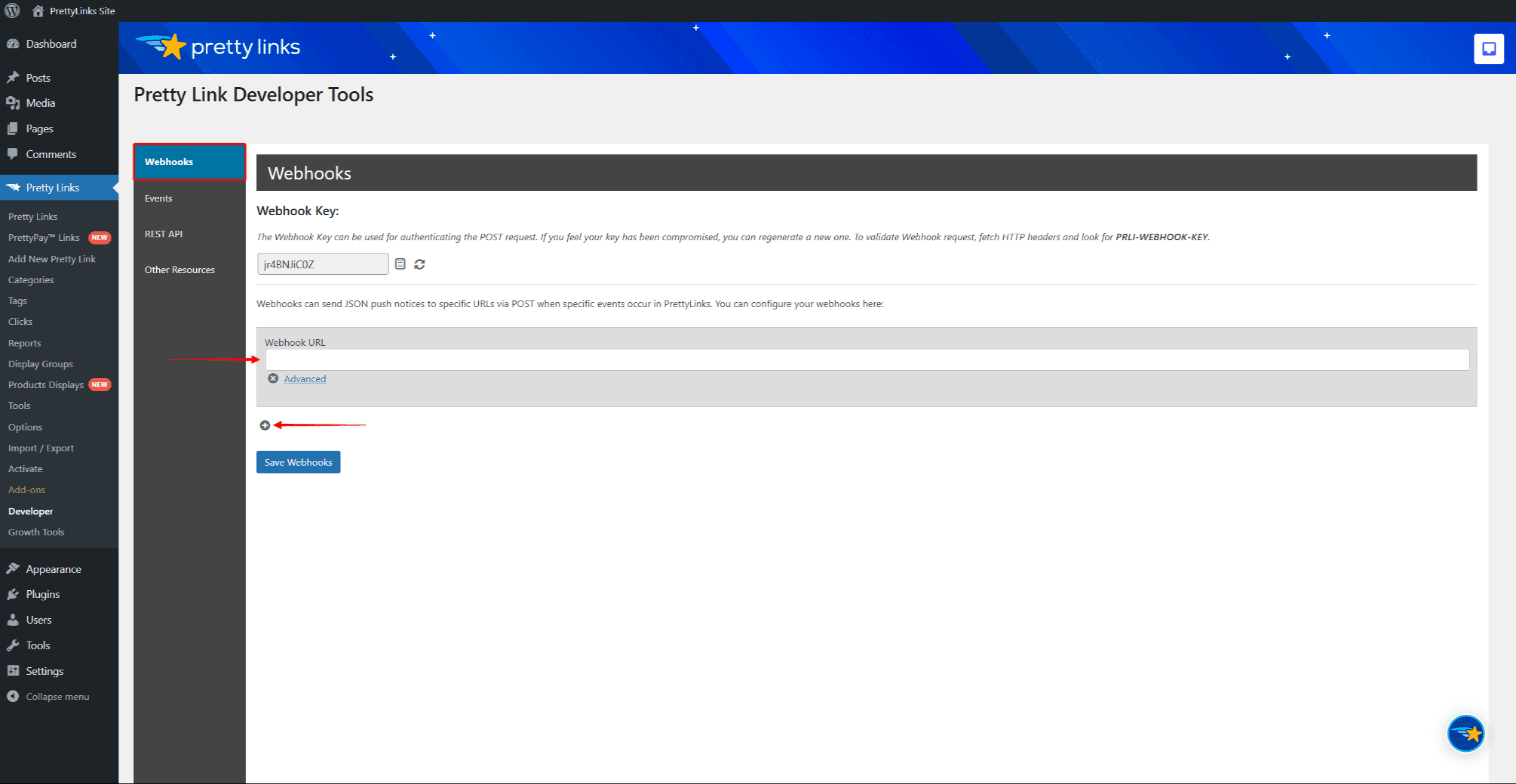
- Add the URL.
- Click the Advanced option to select events that should be sent to this webhook. You can choose All Events or specific events needed for that webhook.
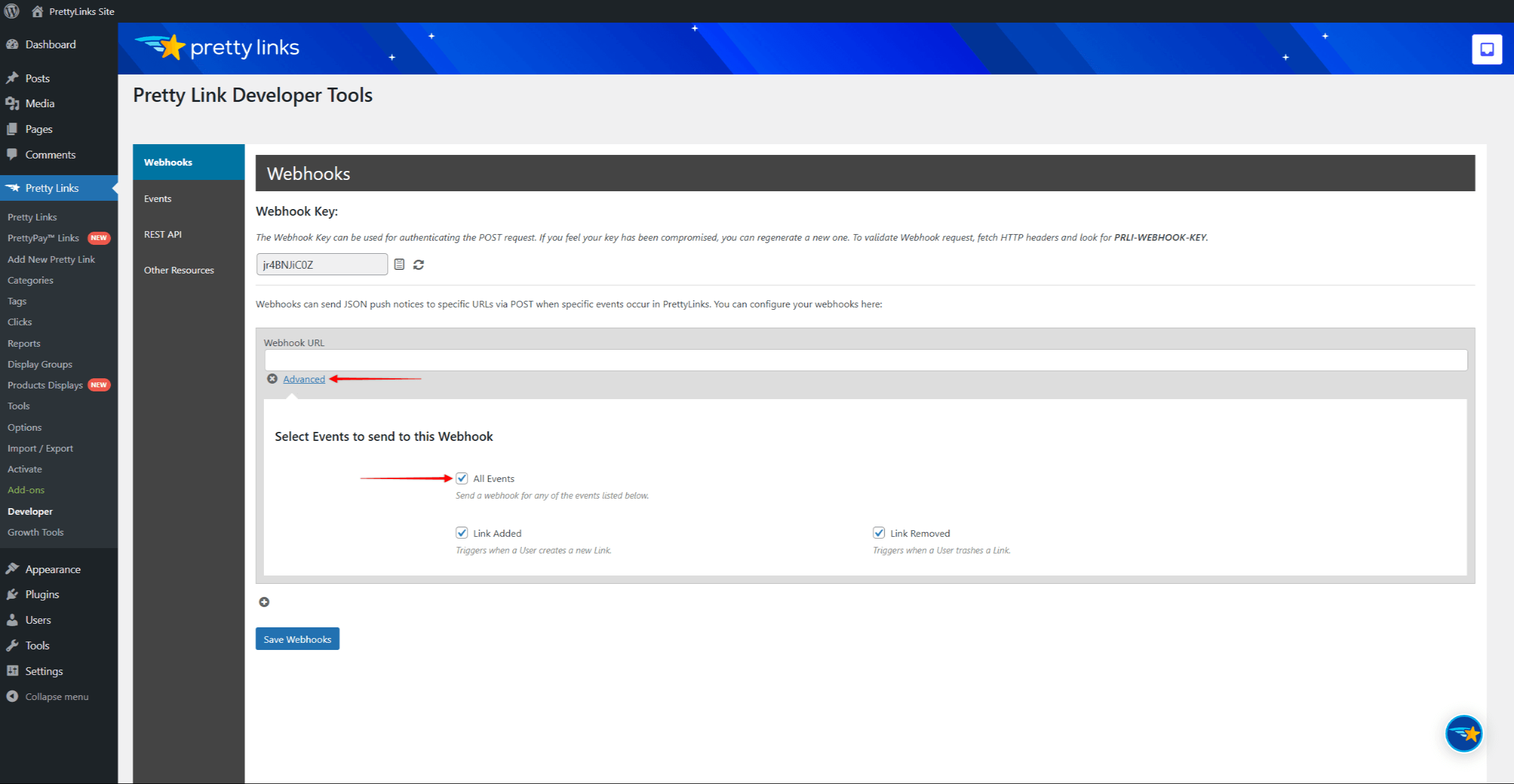
- Click the Save Webhooks button to save changes.
Webhook Key
The add-on generates the Webhook key automatically, which you can use to authenticate the POST requests.
To validate the webhook request, fetch the HTTP headers and look for the PRLI-WEBHOOK-KEY header.
Events
Under the Events menu, you can select any event to get details about it. Here, you can find information on when that event is triggered and a sample of the associated JSON response.
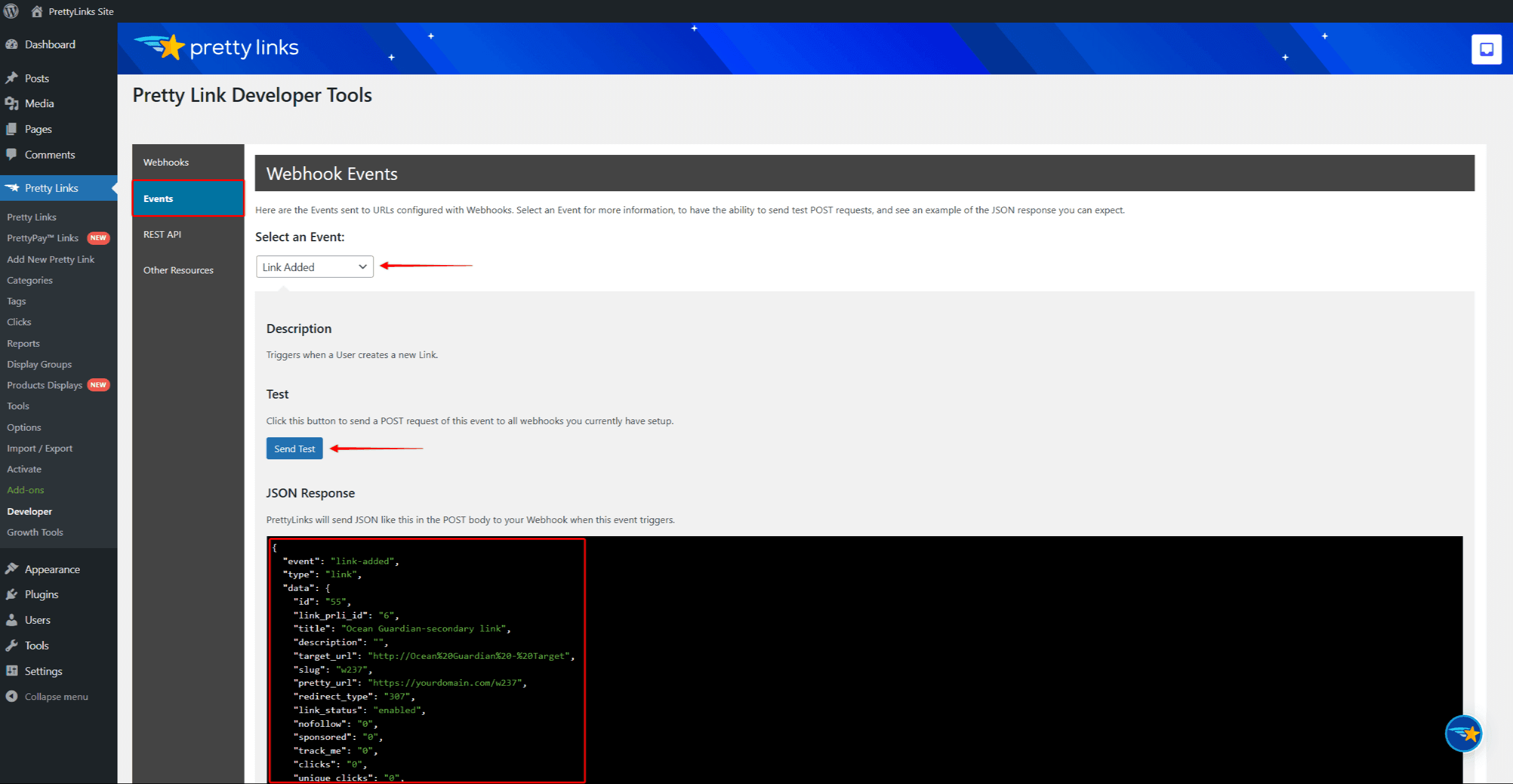
You can also test the event by clicking the Send Test button. This way, you’ll send the POST request to all webhooks using this event.
REST API
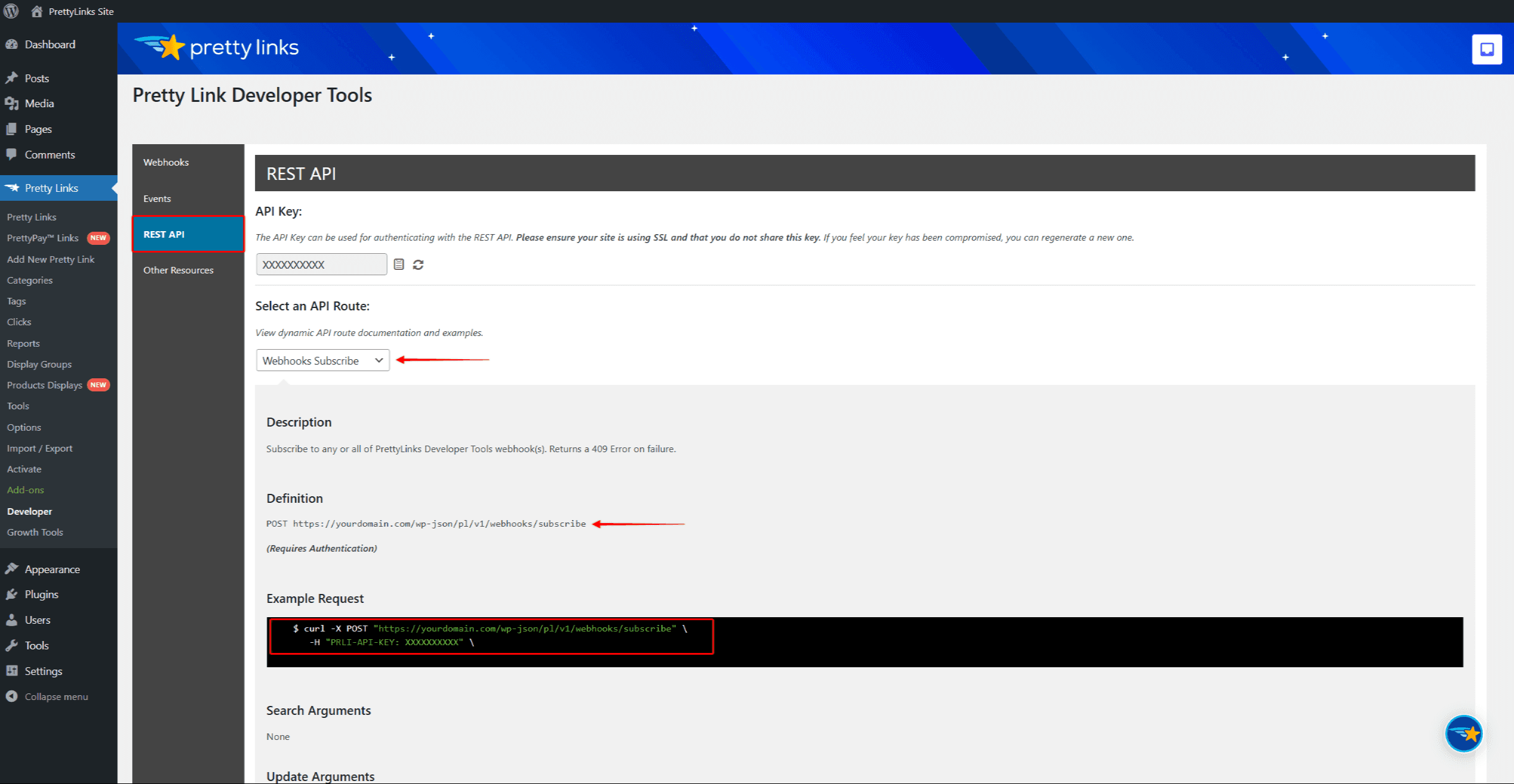
You can find Pretty Links API routes and your API key under the REST API menu option.
Like webhook keys, Developer Tools automatically generates a unique API key for authenticating with the REST API. If needed, you can regenerate the API key by clicking the spinning arrows icon.
Select the API route you need to check the related details:
- URL: the REST API route;
- Example request: an example of how the request should look like for the selected event;
- Arguments: the list of available search and update arguments;
- Example response: an example of the proper response you should receive for the selected event.