
Pretty Links turns long, ugly URLs into short, branded ones you can share anywhere.
Adding a New Link
From your WordPress admin, go to Dashboard > Pretty Links > Add New Link.
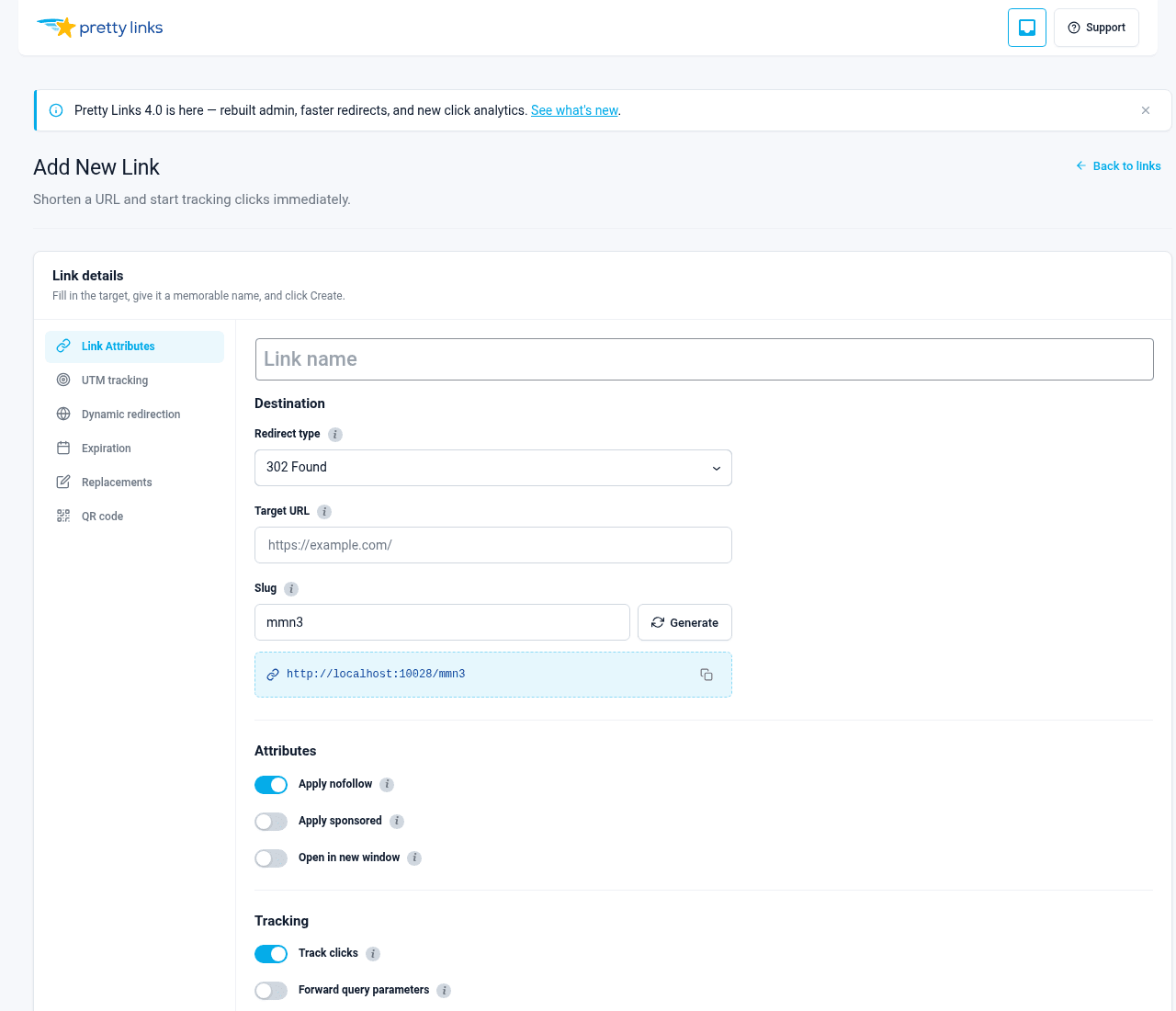
You’ll see a form with three required fields:
- Target URL — The destination you want visitors to end up on (for example, an affiliate link or a long landing page URL);
- Pretty Link — The short slug that comes after your domain. You can let Pretty Links auto-generate one or type your own;
- Name — A friendly label so you can recognize the link later in your dashboard.
Click Create link and your new link is ready to share.
Slug Conventions
By default, Pretty Links generates a random slug for you (something like xY7q2). If you’d rather use a memorable word like /sale or /newsletter, type it into the Pretty Link field.
By default, auto-generated slugs are 4 characters long. You can change that at Dashboard > Pretty Links > Options > Links (look for Slug character count; minimum is 2). Shorter slugs are easier to remember; longer slugs are harder to guess.
If you type a slug that’s already in use, Pretty Links will let you know so you can pick a different one.
Editing a Link
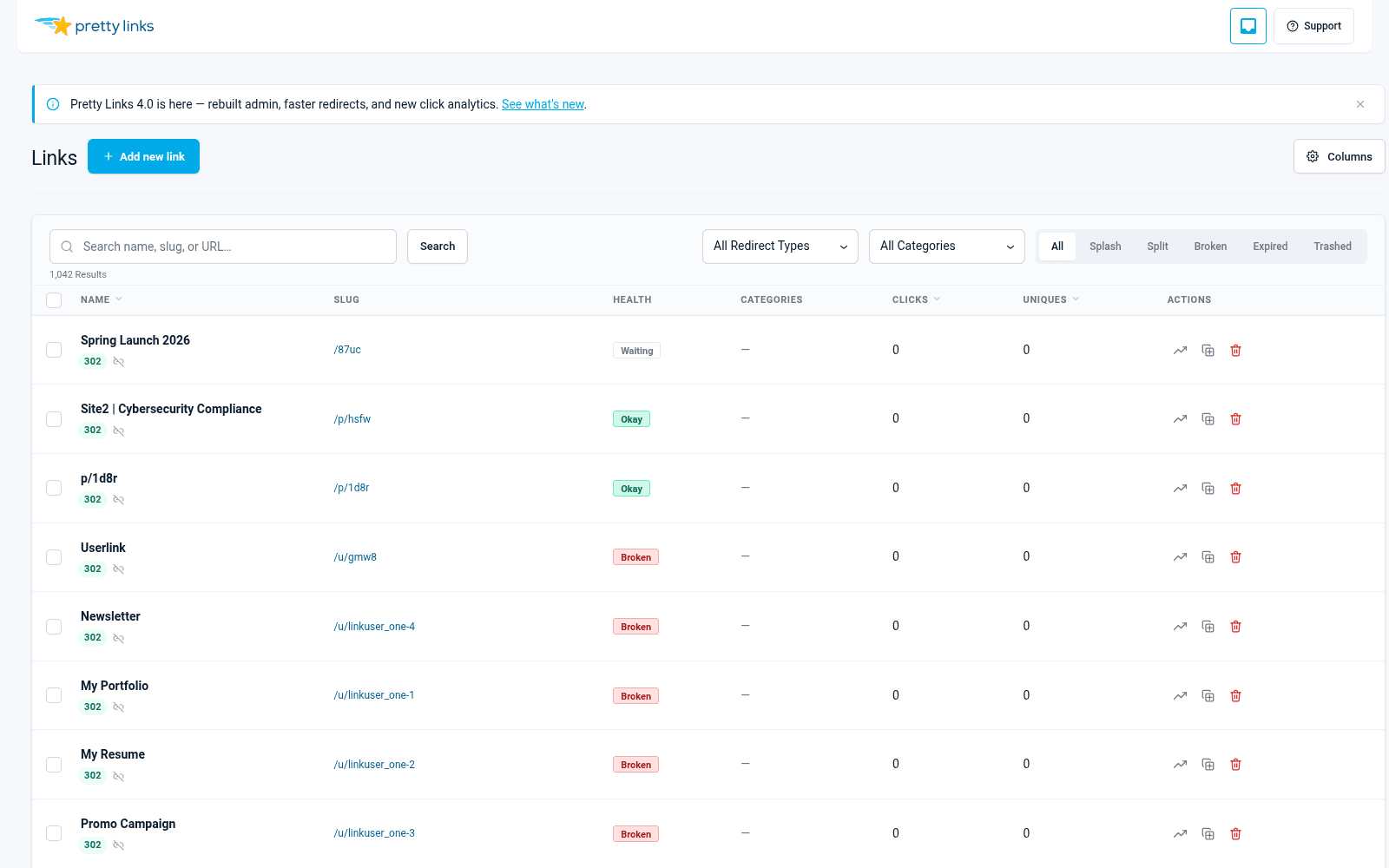
Go to Dashboard > Pretty Links > Pretty Links to see your full list. Hover over any link and click Edit, or click the link’s title.
You can change the target URL, slug, name, redirect type, and any of the link options at any time. Changes take effect immediately — visitors who click your link from that moment forward will be sent to the new destination.
Deleting and Restoring
To delete a link, hover over it in the list and click Trash. Trashed links stop redirecting visitors right away.
To get a link back, click the Trash filter at the top of the links list, hover over the link, and click Restore. To permanently remove a link, click Delete Permanently from the trash view.
Bulk Operations
Need to change a lot of links at once? Tick the checkboxes next to the links you want to update (or the header checkbox to select all on the page), then pick an action from the Bulk Actions dropdown:
- Move to trash — Trash multiple links at once;
- Restore — Restore trashed links;
- Delete permanently — Hard-delete from the trash view;
- Enable / Disable nofollow — Flip the nofollow flag in bulk;
- Enable / Disable sponsored — Flip the sponsored flag in bulk;
- Enable / Disable tracking — Turn click tracking on or off in bulk.
Confirm the action in the dialog to run it.
Search and Filter
Use the search box at the top of the links list to find links by name, slug, or target URL. You can also filter by redirect type or status using the dropdowns above the table.
The filters stack so you can drill down to exactly the links you want.