
Pretty Links verwandelt lange, unansehnliche URLs in kurze, markenspezifische Links, die Sie überall teilen können.
Einen neuen Link hinzufügen
Gehen Sie in Ihrem WordPress-Adminbereich zu Dashboard > Pretty Links > Neuen Link hinzufügen.
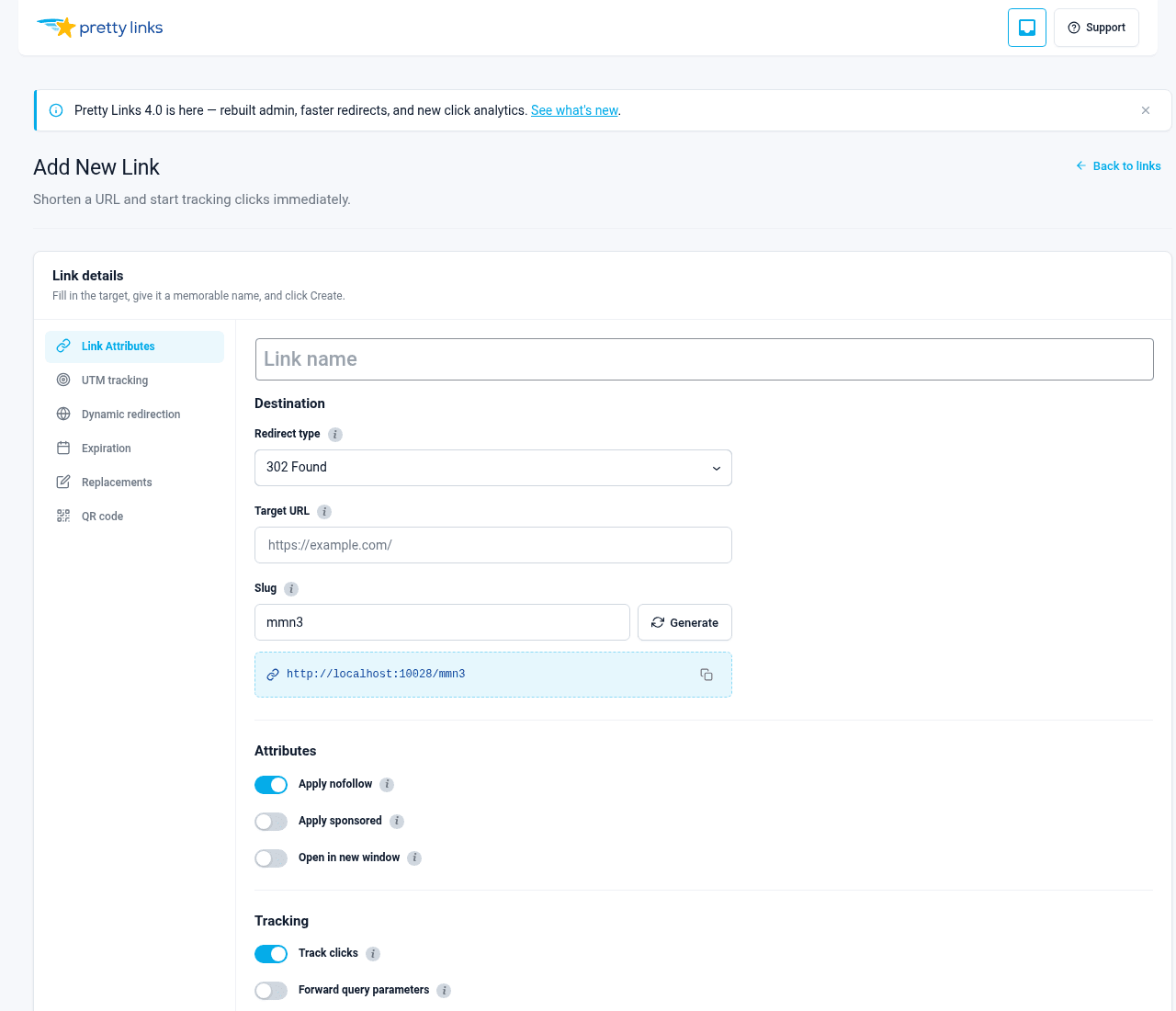
Es erscheint ein Formular mit drei Pflichtfeldern:
- Ziel-URL — Die Seite, auf der die Besucher landen sollen (zum Beispiel ein Affiliate-Link oder die URL einer langen Landingpage);
- Hübscher Link — Der kurze Linktext, der auf Ihre Domain folgt. Sie können ihn von Pretty Links automatisch generieren lassen oder selbst eingeben;
- Name — Eine aussagekräftige Bezeichnung, damit Sie den Link später in Ihrem Dashboard wiedererkennen können.
Klicken Sie auf Link erstellen Und schon ist dein neuer Link bereit zum Teilen.
Konventionen für Slugs
Standardmäßig generiert Pretty Links einen zufälligen Slug für dich (etwa xY7q2). Wenn Sie lieber ein einprägsames Wort wie /Verkauf oder /Newsletter, gib es in das Hübscher Link Feld.
Standardmäßig sind automatisch generierte Slugs 4 Zeichen lang. Das kannst du unter Dashboard > Pretty Links > Optionen > Links (suche nach Anzahl der Zeichen in der Laufzeile; mindestens 2). Kürzere Slugs lassen sich leichter merken; längere Slugs sind schwerer zu erraten.
Wenn Sie einen Slug eingeben, der bereits vergeben ist, weist Sie Pretty Links darauf hin, damit Sie einen anderen auswählen können.
Einen Link bearbeiten
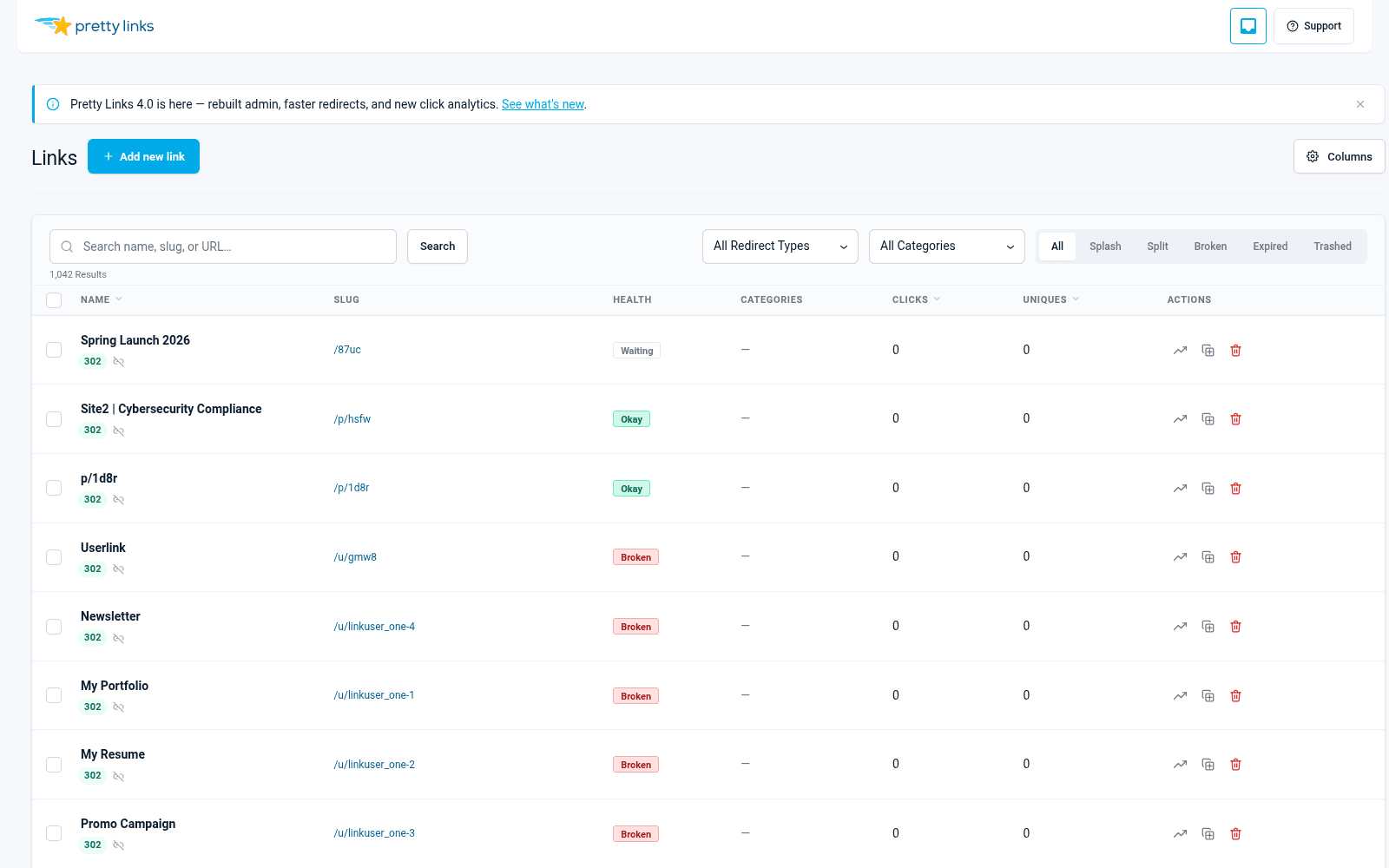
Gehe zu Armaturenbrett > Pretty Links > Pretty Links um die vollständige Liste anzuzeigen. Bewegen Sie den Mauszeiger über einen beliebigen Link und klicken Sie darauf bearbeiten, oder klicken Sie auf den Titel des Links.
Sie können die Ziel-URL, den Slug, den Namen, die Weiterleitungsart und alle Link-Optionen jederzeit. Die Änderungen treten sofort in Kraft – Besucher, die ab diesem Zeitpunkt auf Ihren Link klicken, werden zur neuen Zielseite weitergeleitet.
Löschen und Wiederherstellen
Um einen Link zu löschen, bewegen Sie den Mauszeiger in der Liste darüber und klicken Sie darauf Müll. Defekte Links leiten Besucher nicht mehr weiter.
Um einen Backlink zu erhalten, klicken Sie auf den Müll Wählen Sie den Filter oben in der Linkliste aus, bewegen Sie den Mauszeiger über den Link und klicken Sie darauf Wiederherstellen. Um einen Link dauerhaft zu entfernen, klicken Sie auf Endgültig löschen aus der Papierkorbansicht.
Massenoperationen
Möchten Sie viele Links auf einmal ändern? Aktivieren Sie die Kontrollkästchen neben den Links, die Sie aktualisieren möchten (oder das Kontrollkästchen in der Kopfzeile, um alle Links auf der Seite auszuwählen), und wählen Sie dann eine Aktion aus der Massenaktionen Dropdown:
- In den Papierkorb verschieben — Mehrere Links gleichzeitig löschen;
- Wiederherstellen — Gelöschte Links wiederherstellen;
- Endgültig löschen — Endgültiges Löschen aus dem Papierkorb;
- „nofollow“ aktivieren / deaktivieren — Das „nofollow“-Flag in großen Mengen umschalten;
- Gesponserte Inhalte aktivieren / deaktivieren — Die „Gesponsert“-Markierung in großen Mengen umschalten;
- Tracking aktivieren / deaktivieren — Klicks nachverfolgen – in großen Mengen aktivieren oder deaktivieren.
Bestätigen Sie die Aktion im Dialogfeld, um sie auszuführen.
Suchen und Filtern
Verwenden Sie das Suchfeld oben in der Linkliste, um Links nach Name, Slug oder Ziel-URL zu finden. Über die Dropdown-Menüs oberhalb der Tabelle können Sie außerdem nach Weiterleitungstyp oder Status filtern.
Die Filter lassen sich miteinander kombinieren, sodass Sie genau die gewünschten Links herausfiltern können.