
O Pretty Links transforma URLs longas e feias em URLs curtas e com a marca da sua empresa, que você pode compartilhar em qualquer lugar.
Adicionando um novo link
No painel de administração do WordPress, acesse Painel > Links bonitos > Adicionar novo link.
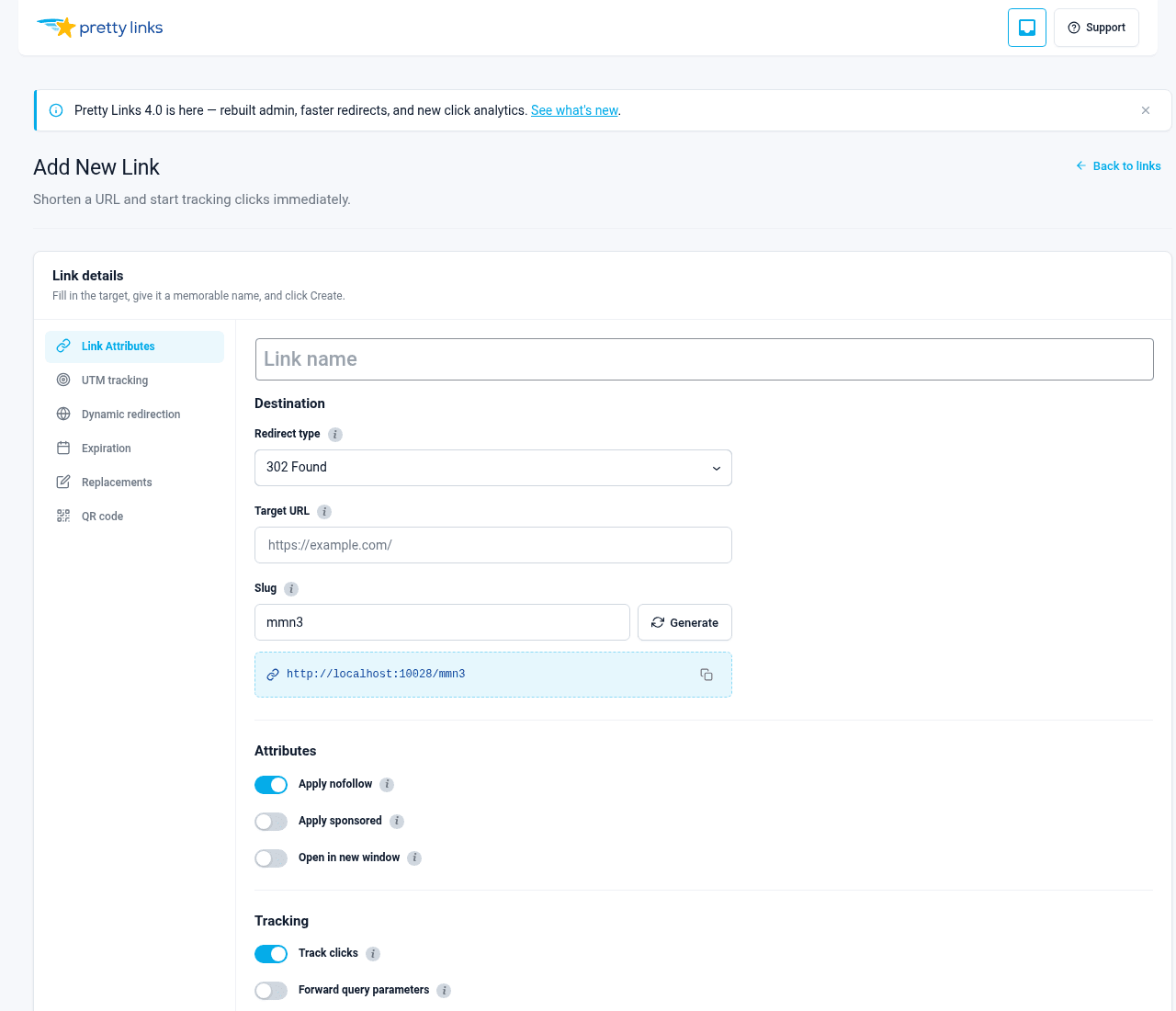
Você verá um formulário com três campos obrigatórios:
- URL de destino — O destino para o qual você deseja que os visitantes sejam direcionados (por exemplo, um link de afiliado ou uma URL longa de uma página de destino);
- Link bonito — O pequeno texto que vem depois do seu domínio. Você pode deixar que o Pretty Links gere um automaticamente ou digitar o seu próprio;
- Nome — Um nome descritivo para que você possa reconhecer o link mais tarde no seu painel.
Clique em Criar link e seu novo link está pronto para ser compartilhado.
Convenções de slugs
Por padrão, o Pretty Links gera um slug aleatório para você (algo como xY7q2). Se você preferir usar uma palavra fácil de lembrar, como /promoção ou /boletim informativo, digite no Link bonito campo.
Por padrão, os slugs gerados automaticamente têm 4 caracteres. Você pode alterar isso em Painel > Pretty Links > Opções > Links (procure por Contagem de caracteres do título; o mínimo é 2). Slugs mais curtos são mais fáceis de lembrar; slugs mais longos são mais difíceis de adivinhar.
Se você digitar um slug que já esteja em uso, o Pretty Links avisará para que você possa escolher outro.
Editando um link
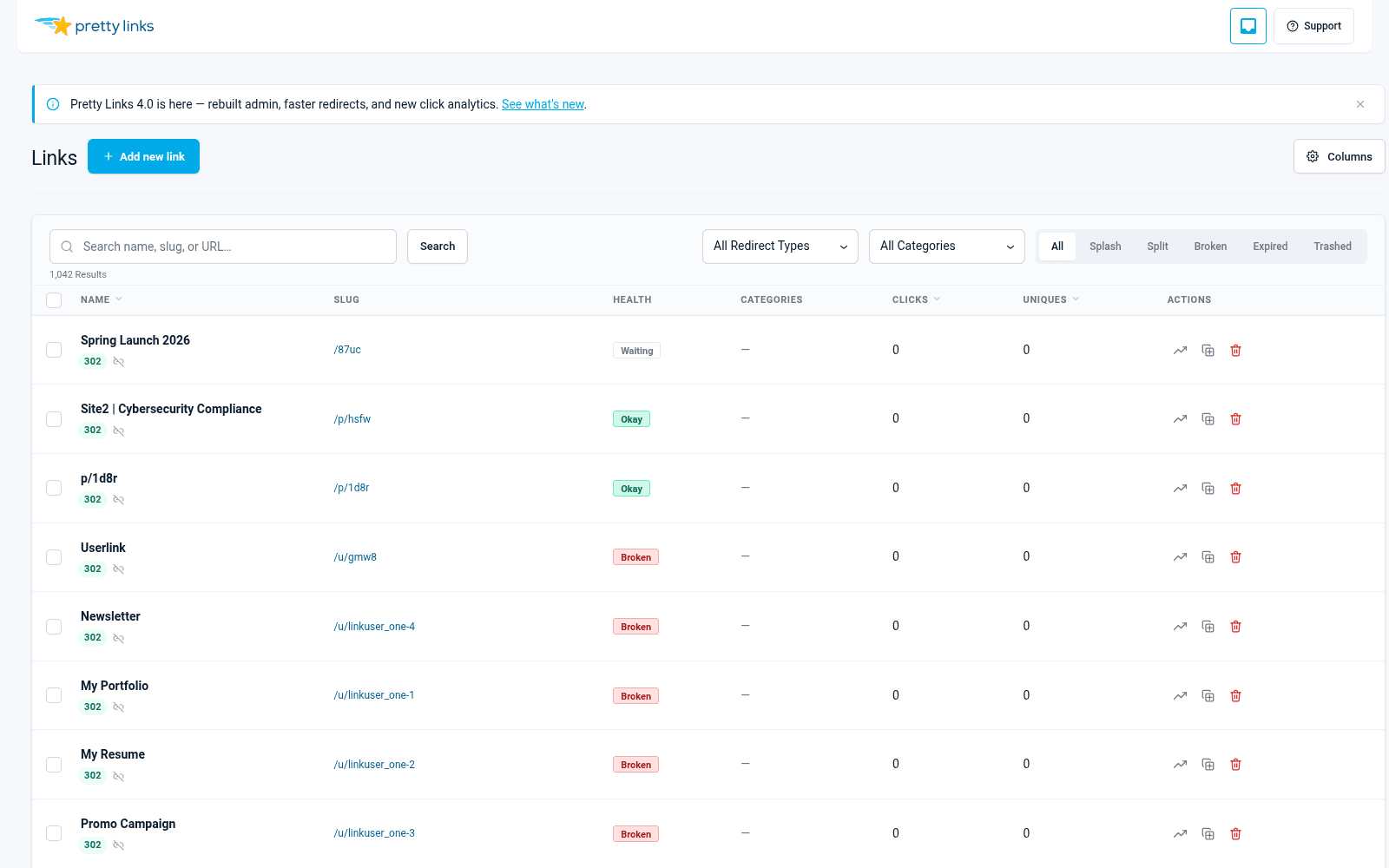
Ir para Painel de controle > Pretty Links > Pretty Links para ver a lista completa. Passe o mouse sobre qualquer link e clique Editar, ou clique no título do link.
Você pode alterar a URL de destino, o slug, o nome, o tipo de redirecionamento e qualquer um dos opções de link a qualquer momento. As alterações entram em vigor imediatamente — os visitantes que clicarem no seu link a partir desse momento serão redirecionados para o novo destino.
Exclusão e restauração
Para excluir um link, passe o mouse sobre ele na lista e clique Lixo. Links inválidos deixam de redirecionar os visitantes imediatamente.
Para obter um link de retorno, clique no Lixo filtre na parte superior da lista de links, passe o mouse sobre o link e clique Restaurar. Para remover definitivamente um link, clique em Excluir definitivamente na visualização da lixeira.
Operações em massa
Precisa alterar vários links de uma só vez? Marque as caixas de seleção ao lado dos links que deseja atualizar (ou a caixa de seleção no cabeçalho para selecionar todos na página) e, em seguida, escolha uma ação na Ações em massa lista suspensa:
- Mover para a lixeira — Excluir vários links de uma só vez;
- Restaurar — Recuperar links excluídos;
- Excluir definitivamente — Exclusão definitiva da visualização da lixeira;
- Ativar/Desativar o atributo nofollow — Alterar o atributo “nofollow” em massa;
- Ativar / Desativar conteúdo patrocinado — Alterar a marcação de “patrocinado” em massa;
- Ativar/Desativar o rastreamento — Ativar ou desativar o rastreamento de cliques em massa.
Confirme a ação na caixa de diálogo para executá-la.
Pesquisar e filtrar
Use a caixa de pesquisa na parte superior da lista de links para localizar links por nome, slug ou URL de destino. Você também pode filtrar por tipo de redirecionamento ou status usando os menus suspensos acima da tabela.
Os filtros são acumuláveis, permitindo que você filtre exatamente os links que deseja.