
Pretty Links convierte las URL largas y poco atractivas en otras cortas y personalizadas con tu marca, que puedes compartir en cualquier sitio.
Añadir un nuevo enlace
Desde el panel de administración de WordPress, ve a Panel de control > Pretty Links > Añadir nuevo enlace.
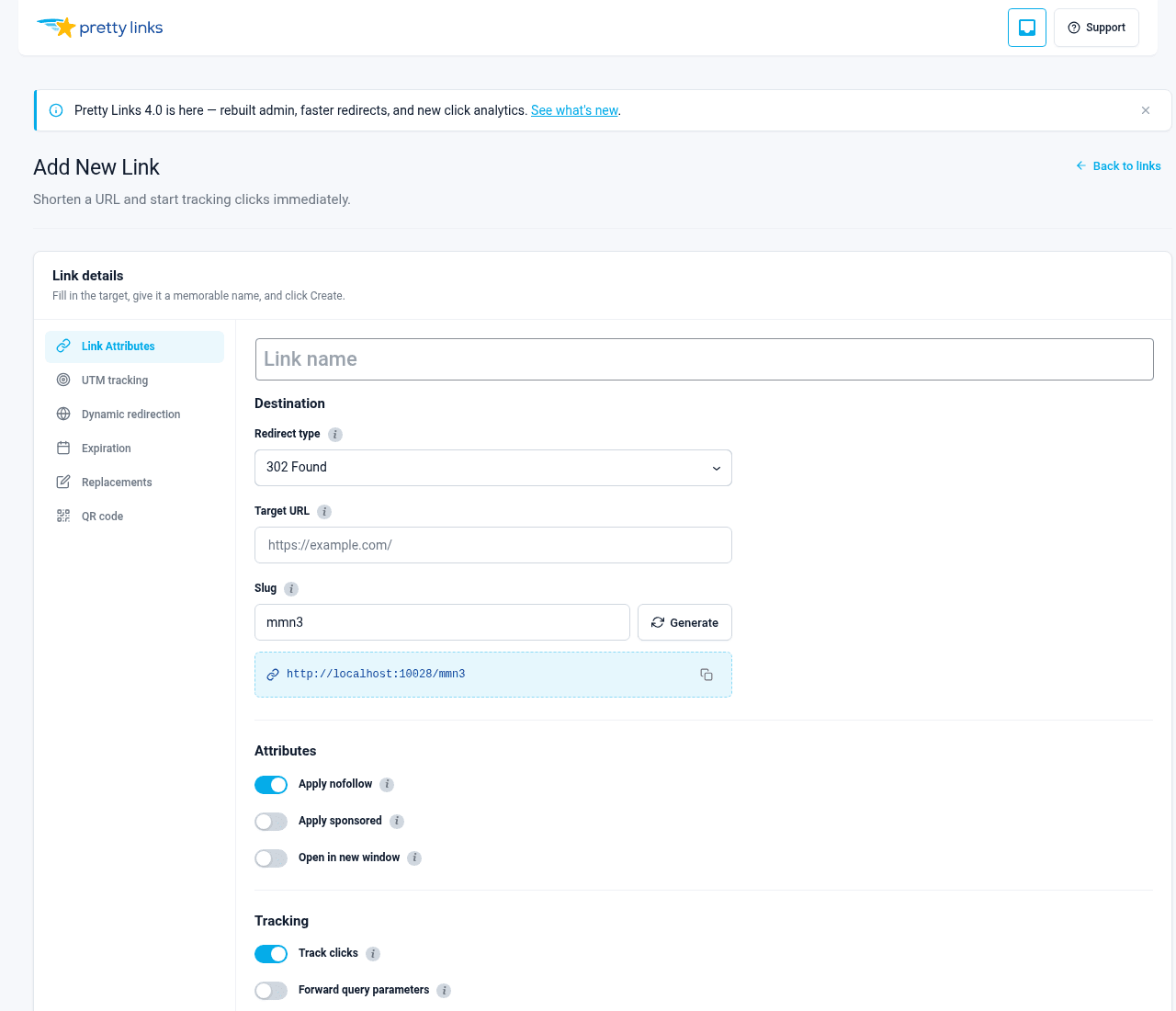
Verás un formulario con tres campos obligatorios:
- URL de destino — El destino al que quieres que lleguen los visitantes (por ejemplo, un enlace de afiliado o la URL completa de una página de destino);
- Enlace bonito — La breve cadena que aparece después de tu dominio. Puedes dejar que Pretty Links genere una automáticamente o escribirla tú mismo;
- Nombre — Una etiqueta descriptiva para que puedas reconocer el enlace más adelante en tu panel de control.
Haga clic en Crear enlace Y ya tienes tu nuevo enlace listo para compartir.
Convenciones de «slug»
Por defecto, Pretty Links genera un slug aleatorio (algo así como xY7q2). Si prefieres utilizar una palabra fácil de recordar como /rebajas o /boletín informativo, escríbelo en el Enlace bonito campo.
Por defecto, los slugs generados automáticamente tienen 4 caracteres. Puedes cambiarlo en Panel de control > Pretty Links > Opciones > Enlaces (busca Recuento de caracteres del slug; el mínimo es 2). Las cadenas más cortas son más fáciles de recordar; las más largas son más difíciles de adivinar.
Si escribes un slug que ya está en uso, Pretty Links te lo indicará para que puedas elegir otro.
Editar un enlace
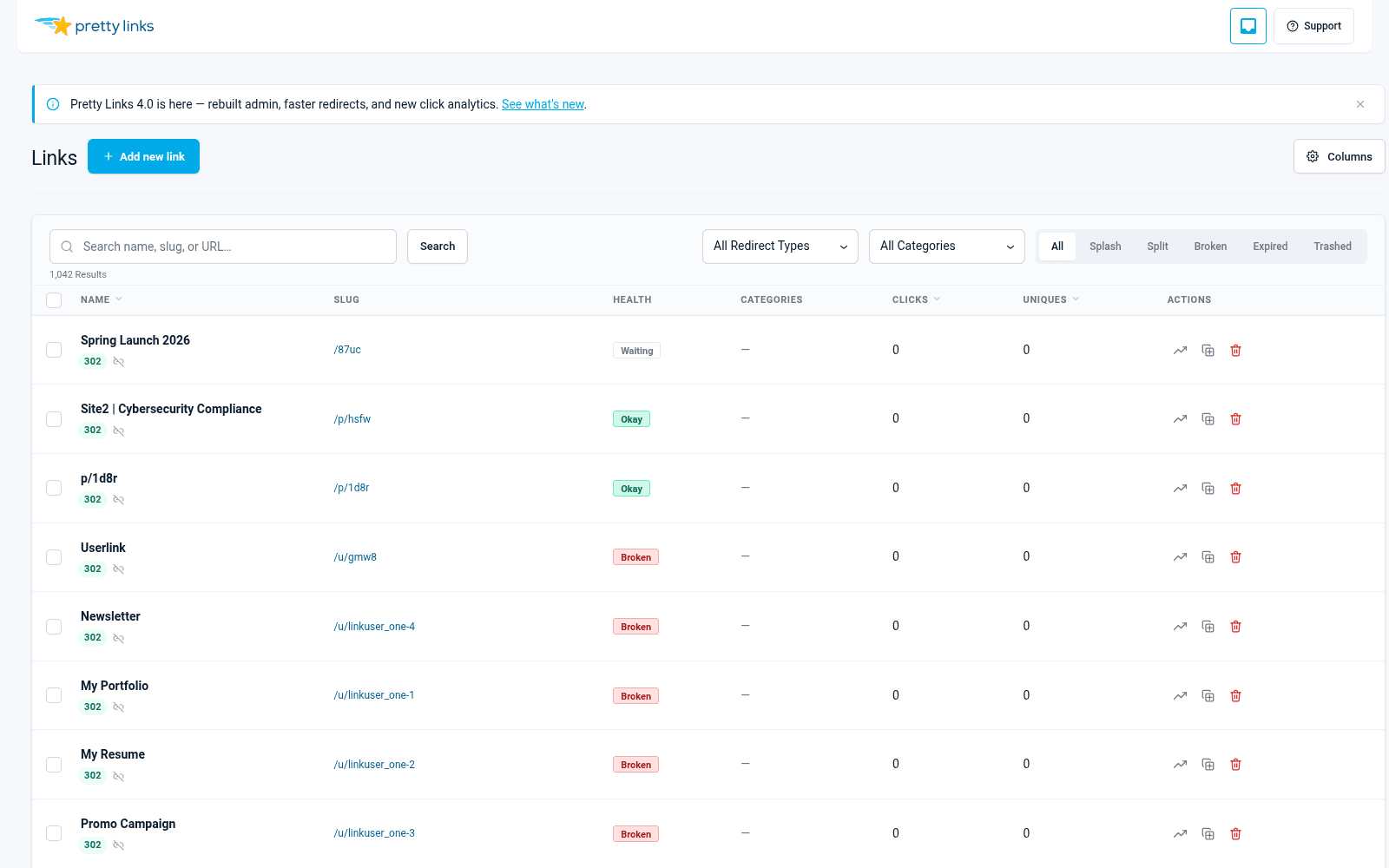
Ir a Cuadro de mandos > Pretty Links > Pretty Links para ver la lista completa. Pasa el cursor por encima de cualquier enlace y haz clic Editar, o haz clic en el título del enlace.
Puedes modificar la URL de destino, el slug, el nombre, el tipo de redirección y cualquiera de los opciones de enlace en cualquier momento. Los cambios surten efecto de inmediato: los visitantes que hagan clic en tu enlace a partir de ese momento serán redirigidos al nuevo destino.
Eliminación y restauración
Para eliminar un enlace, pasa el cursor por encima de él en la lista y haz clic Basura. Los enlaces rotos dejan de redirigir a los visitantes de inmediato.
Para obtener un enlace de vuelta, haz clic en el Basura utiliza el filtro situado en la parte superior de la lista de enlaces, pasa el cursor por encima del enlace y haz clic Restaurar. Para eliminar un enlace de forma definitiva, haz clic en Eliminar definitivamente desde la vista de la papelera.
Operaciones en masa
¿Necesitas modificar muchos enlaces a la vez? Marca las casillas situadas junto a los enlaces que quieras actualizar (o la casilla de la cabecera para seleccionar todos los de la página) y, a continuación, elige una acción de la Acciones masivas desplegable:
- Mover a la papelera — Eliminar varios enlaces a la vez;
- Restaurar — Recuperar enlaces eliminados;
- Eliminar definitivamente — Eliminación definitiva desde la vista de la papelera;
- Activar/Desactivar «nofollow» — Desactivar la etiqueta «nofollow» de forma masiva;
- Activar / Desactivar los anuncios patrocinados — Cambiar el estado de «patrocinado» de forma masiva;
- Activar/Desactivar el seguimiento — Activar o desactivar el seguimiento de clics de forma masiva.
Confirma la acción en el cuadro de diálogo para ejecutarla.
Buscar y filtrar
Utiliza el cuadro de búsqueda situado en la parte superior de la lista de enlaces para buscar enlaces por nombre, slug o URL de destino. También puedes filtrar por tipo de redirección o estado utilizando los menús desplegables situados encima de la tabla.
Los filtros se pueden combinar para que puedas filtrar exactamente los enlaces que te interesan.