
Once Pretty Links Pro is installed, a new Pretty Links item appears in your WordPress admin sidebar. Here’s a quick map of what’s behind each menu item, so you know where to go when you want to do a specific thing.
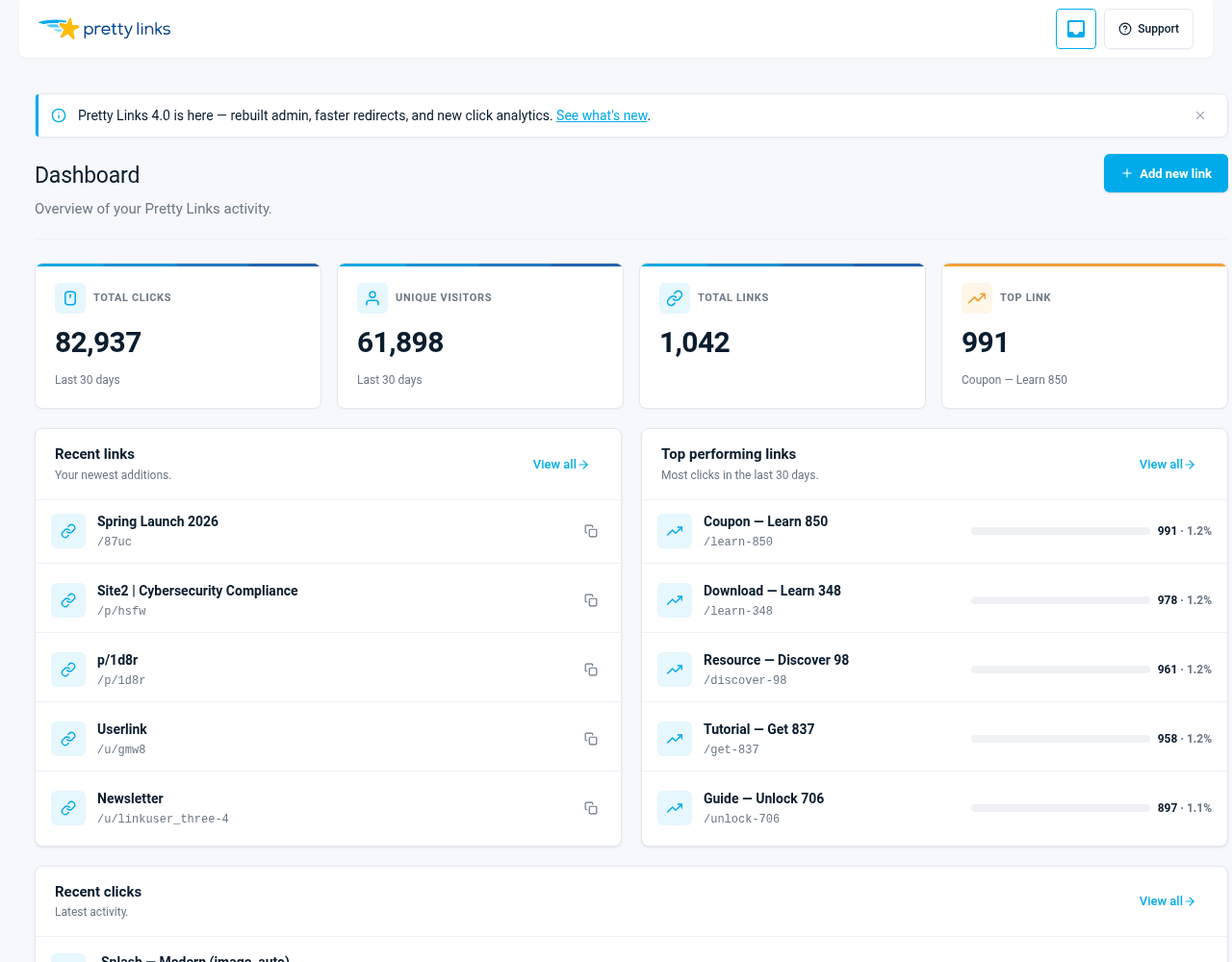
Pretty Links Menu
Dashboard
Your home base. Shows recent click activity, top-performing links, quick stats, and shortcuts to common actions like creating a new link or jumping into reports. Start here when you log in.
Pretty Links
The full list of every pretty link on your site. From here you can:
- Search and filter your links;
- Edit any link by clicking its title;
- Bulk-delete or bulk-edit;
- Copy a link’s short URL with one click;
- See click counts at a glance.
Add New
The Add New Link screen — paste in a target URL, customize your slug, pick a redirect type, and save. See Creating Your First Pretty Link for a full walkthrough.
PrettyPay
Manage paid links and the Stripe Connect account they charge through. Only relevant if you sell products or accept payments through Pretty Links — otherwise you can ignore it.
Click History
Every click on every link, with timestamps, IP addresses, referring URLs, browser, device, and location data. Filter by link, date range, or other criteria to dig into how specific links are performing. Hidden if you’ve set the tracking mode to Simple, since Simple mode doesn’t store per-click rows.
Options
All your plugin settings, organized into tabs:
- License — your license key, plan tier, and renewal info;
- Links — link defaults (redirect type, slug pattern, nofollow / sponsored, etc.);
- Reporting — click tracking mode and click-history retention;
- Payments — Stripe Connect status and PrettyPay defaults;
- Tools — import / export and other maintenance tools.
Add-ons
Browse, install, and activate the add-ons included with your plan. The list shows what’s available based on your license tier (Beginner, Marketer, or Super Affiliate), and any new add-ons that are added to your plan show up here automatically.
Pro Submenus
Pretty Links Pro adds more items under the Pretty Links menu when it’s active: Categories for organizing links, Custom Reports for saved click-history views, and Tags. The Tags submenu appears only once at least one tag exists.
Add-on Surfaces
Add-ons integrate in different places, not all as sidebar submenus:
- Link in Bio — adds a Link in Bio submenu for managing your bio pages;
- Product Displays — adds a Product Displays submenu for the products you show;
- UTMs — adds a UTM tab to the Add/Edit Link form (no submenu, no presets);
- User Links — adds a User Links tab on the Options page;
- Splash Pages — adds a Splash tab on the Options page, plus a per-link splash report opened from the links list.
Only the add-ons you’ve installed appear, so your sidebar stays clean.
A Few Tips
- Mouse over any menu item to see if it has submenus you haven’t explored;
- Bookmark the Dashboard — it’s the fastest way back into the plugin;
- Use the search box on the Pretty Links screen rather than scrolling once you have more than a handful of links.