
Available on the Marketer plan and above.
Link in Bio ships with three templates. Each one supports the same Profile, Buttons, and Social settings — they just present them differently. Pick the template that matches your goal.
This guide is part of the Pretty Links Link in Bio Add-on, the entry point for the Link in Bio add-on.
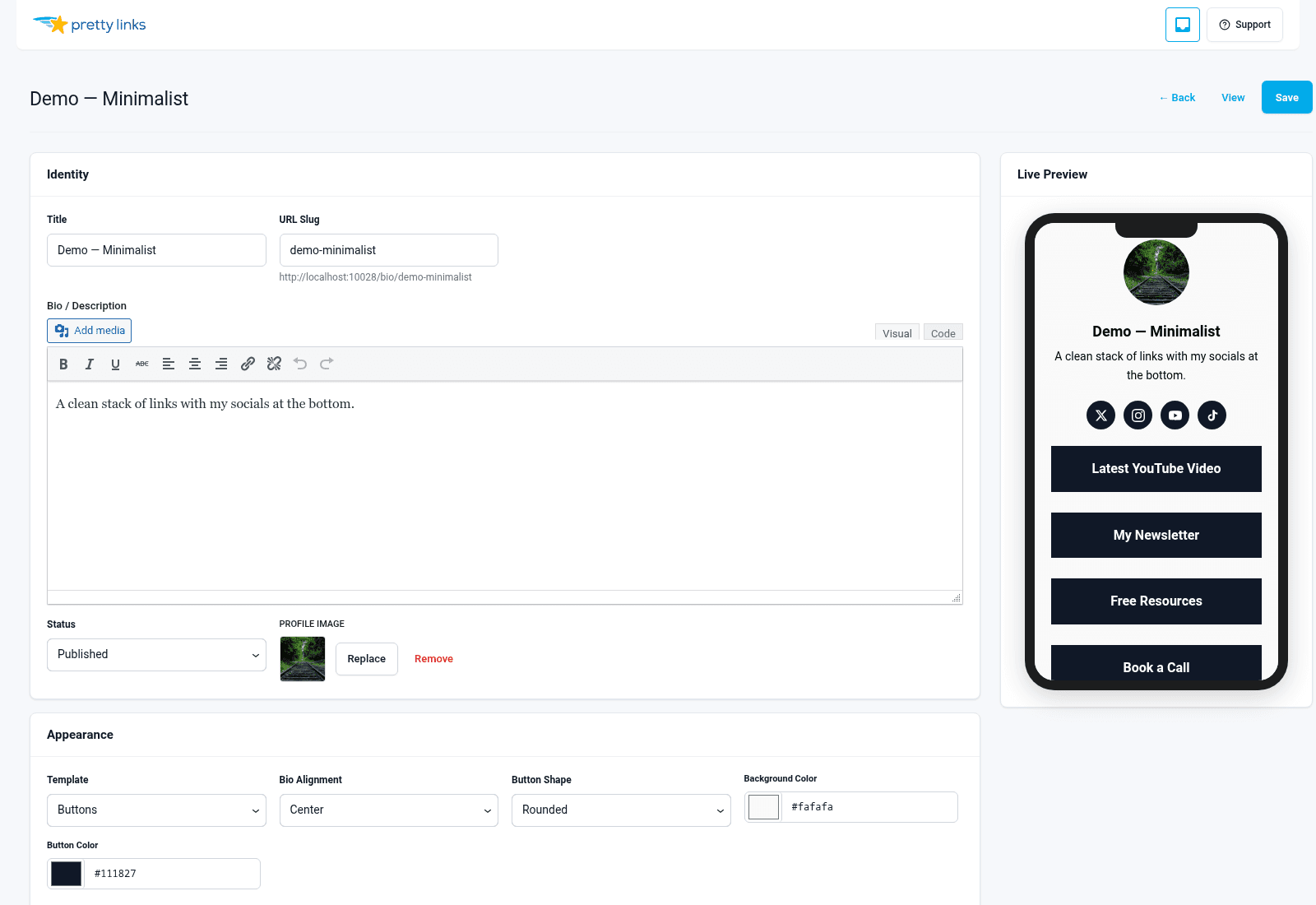
Buttons Template
The classic “link in bio” look: profile photo at the top, name and tagline beneath it, then a vertical stack of full-width buttons.
Best for: Creators, influencers, podcasters — anyone whose visitors are tapping through on a phone and want to get somewhere fast.
Visual style: Minimalist. Plenty of whitespace, clear tap targets, no distractions. The buttons are the page.
Contact form? No.
Product grid? No.
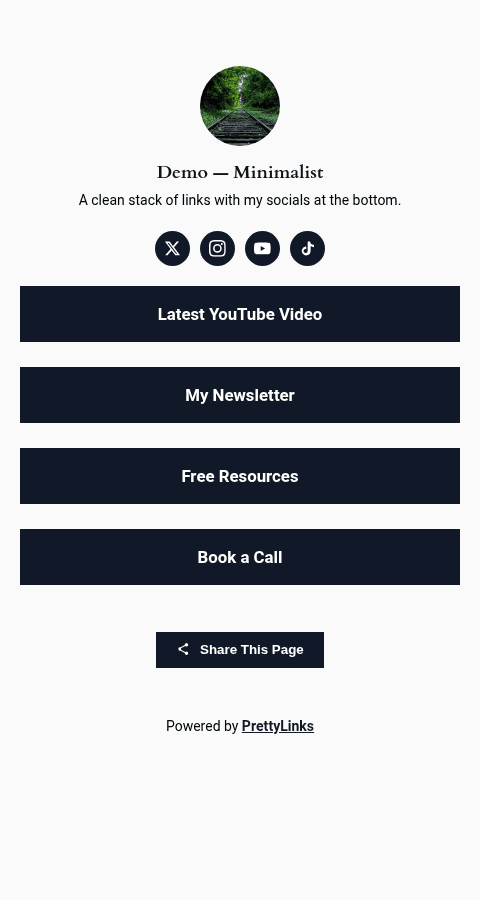
Content Template
A richer layout with tabs across the top. Visitors land on the main tab (your buttons), but you can add additional tabs for things like an “About” section, a contact form, or extra content.
Best for: Consultants, coaches, freelancers, conference speakers, anyone who needs more than just buttons — bios, schedules, FAQs, contact info.
Visual style: Magazine-like. Tabs let you compartmentalize content without making the page feel cluttered.
Contact form? Yes — this is the only template that supports the built-in contact form. See Contact Form.
Product grid? No.
Cards Template
A grid of cards instead of stacked buttons. Each card can hold an image, title, description, and CTA — perfect for showing off a portfolio, a product range, or a curated list.
Best for: Product launches, affiliate roundups, portfolios, “shop my favorites” pages.
Visual style: Visual-first. Lots of imagery, less text. Reads like a Pinterest board or a product catalog.
Contact form? No.
Product grid? Yes — integrates directly with the Product Displays add-on (Super Affiliate plan), so you can drop in a product group you’ve already built and it appears as a styled card grid.
Side-by-Side Comparison
| Feature | Buttons | Content | Cards |
|---|---|---|---|
| Profile section | Yes | Yes | Yes |
| Button stack | Yes | Yes | Yes |
| Social icons | Yes | Yes | Yes |
| Tabs | No | Yes | No |
| Contact form | No | Yes | No |
| Product Displays grid | No | No | Yes |
| Best for | Creators, fast taps | Consultants, multi-section pages | Product launches, affiliate roundups |
| Visual density | Low | Medium | High |
Switching Templates Later
You can change templates at any time. Open your bio page, choose a different template, and click save. None of your buttons, social links, or profile content is lost in the switch — only the layout changes.
That makes it cheap to experiment. Try Buttons for a week, switch to Content if you find you need more room, and roll back if it doesn’t perform.