
Available on the Super Affiliate plan.
A splash page is a branded interstitial — a stop along the way between someone clicking your shortlink and arriving at the destination. Instead of redirecting silently, your link first shows a page with your branding, a message, and one or more call-to-action buttons.
Why Use a Splash Page?
Splash pages turn a redirect into a touchpoint. Some of the most common reasons people use them:
Affiliate Disclosure
Many affiliate programs (and the FTC) require you to disclose the affiliate relationship. A splash page is one of the cleanest ways to do it: visitor clicks your link, sees a quick “this is an affiliate link, here’s the product” page, and proceeds. No surprises.
Video Gates
Want visitors to watch a 30-second pitch before they land on your sales page? Drop the video on the splash page and require them to click through. Useful for course launches, product previews, and webinars.
Choose-Your-Destination
One link, multiple destinations. Visitor clicks /free-resources, lands on a splash page that asks “What are you looking for?” with two CTA buttons — say, “Beginner guide” and “Advanced cheat sheet” — each pointing at a different real URL.
Branded Handoff
Sending visitors to an affiliate site, a partner, or a third-party tool? A splash page gives them a clean “you’re now leaving Brand X” moment so they don’t feel teleported.
Lead Gate
Use the splash page itself to capture interest. CTA1 = “Join the newsletter,” CTA2 = “Continue to the resource.” Soft, opt-in, non-blocking.
How It Fits With Regular Pretty Links
A splash link is a Pretty Link with the Splash redirect type. Every other Pretty Link feature still applies:
- The shortlink slug works the same way (
/yourslug); - Click tracking still records visits;
- You can edit the link, change the destination, or archive it, all the usual ways;
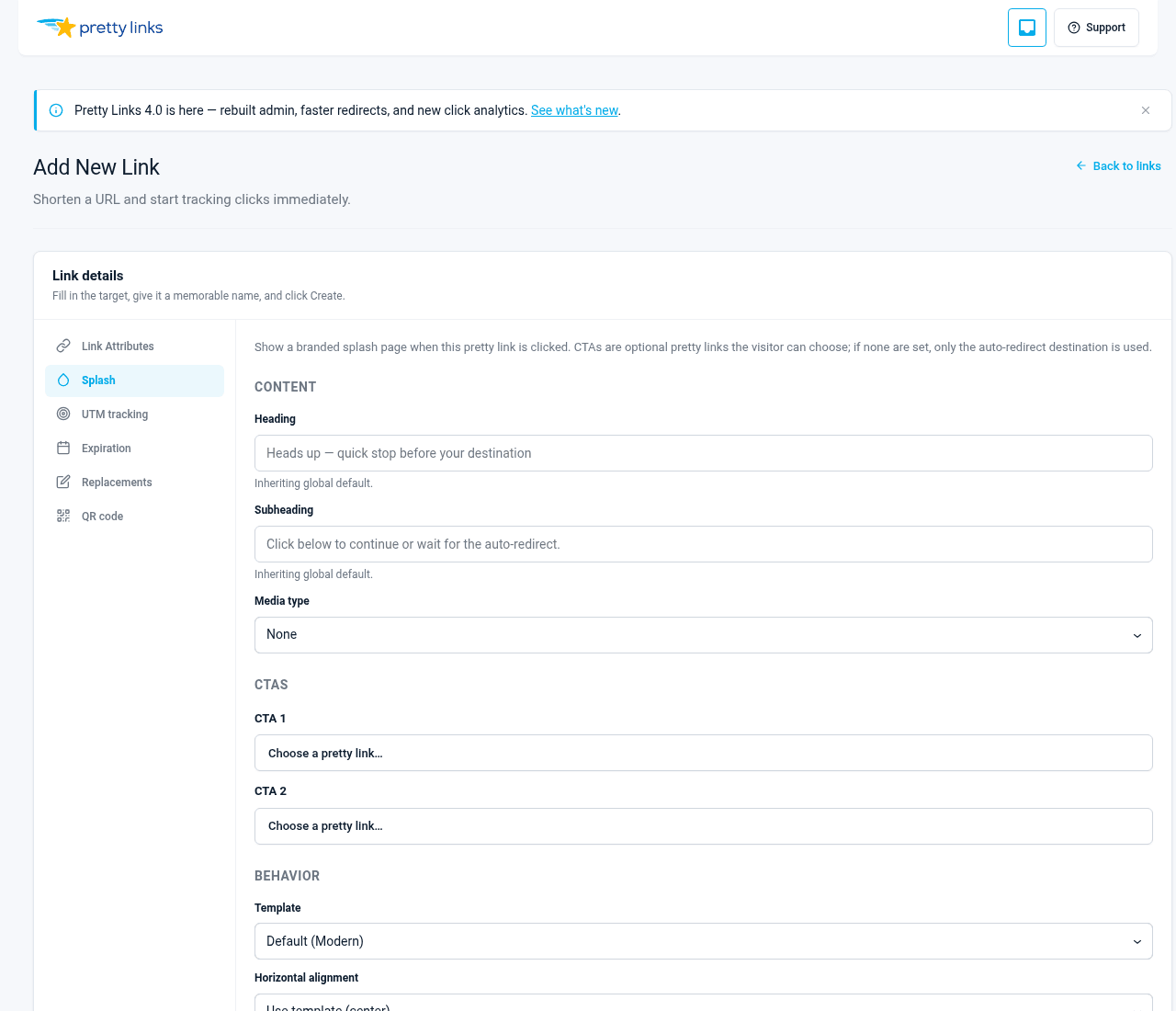
- The splash configuration lives in a dedicated Splash tab in the link editor.
Splash isn’t a separate kind of object — it’s one more redirect type alongside 301, 302, 307, pixel, metarefresh, and javascript. Every Pretty Link can be a splash link if you want.
What You Can Configure
Each splash link has:
- Heading — The big text at the top of the page;
- Subheading — A line of supporting copy underneath;
- Media — An uploaded image or a video URL (YouTube, Vimeo, etc.) embedded right on the splash page;
- CTA1 — Primary call-to-action button (label and URL);
- CTA2 — Optional secondary call-to-action button;
- Template — One of four visual styles (Modern, Bold, Minimal, Classic);
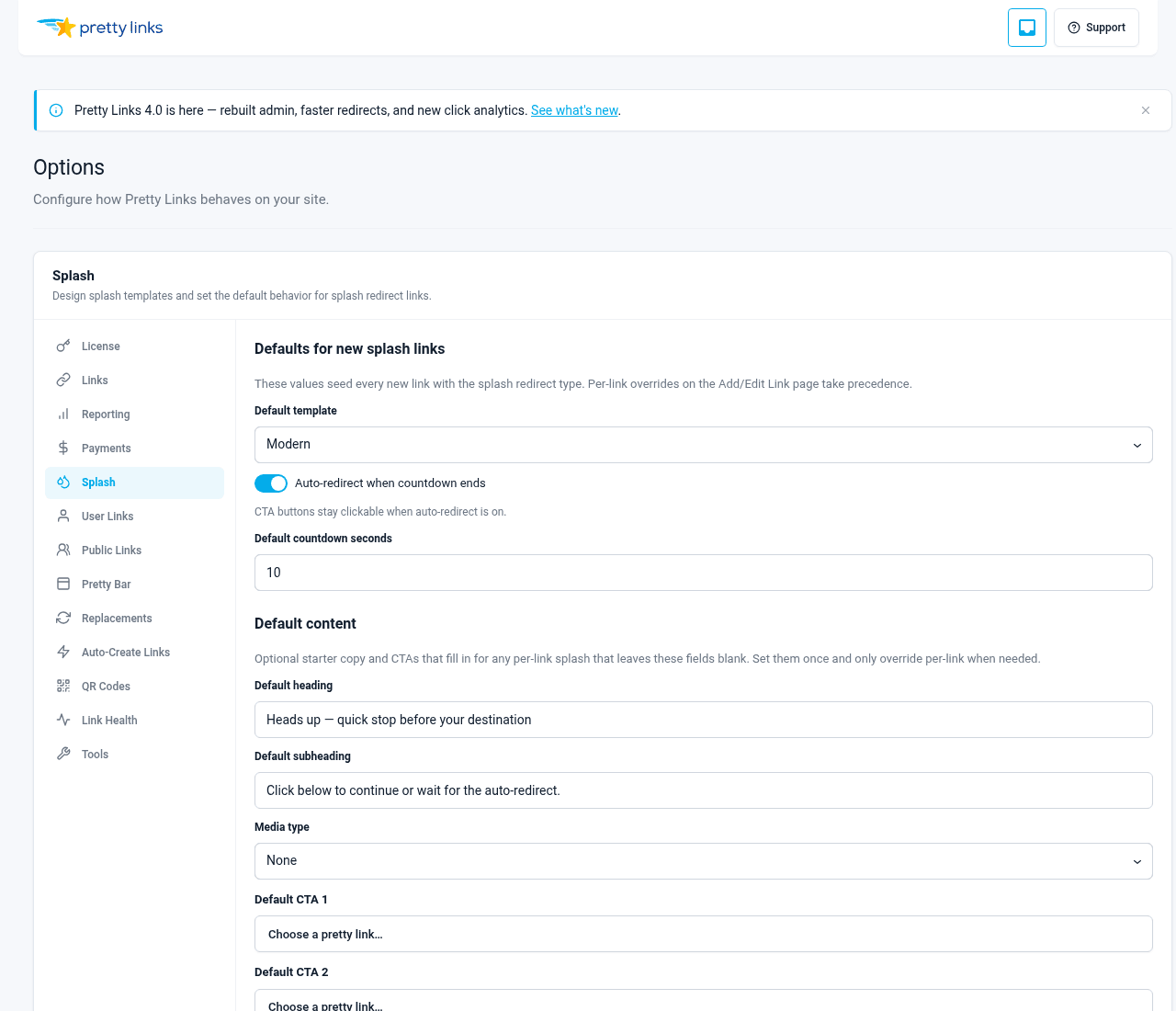
- Behavior — Auto-redirect after a delay, or gate behind CTA clicks (with optional visible countdown, 3-60 seconds).
Behavior Modes
The behavior setting controls what happens after the visitor lands on the splash page.
- Auto-redirect — Show the splash for the countdown duration (3-60 seconds), then redirect to the target URL automatically. The countdown can be displayed as a visible timer. Good for affiliate disclosure and branded handoff;
- Gate behind CTAs — Don’t redirect at all. The visitor only proceeds if they click a CTA. Good for choose-your-destination and lead gates. You can still show a visible countdown alongside the CTAs as a soft cue.
Auto-redirect and gate-CTAs are mutually exclusive per link, but you can mix the two across different links — affiliate disclosures might be 5-second auto-redirects, while a video gate might require a CTA click.
Bots bypass the splash. When a bot user agent hits a splash link, the add-on hands the request back to the engine, which 302-redirects straight to the target URL. Crawlers, previewers, and link-checkers never see the splash and never count toward funnel metrics.
Reporting
Splash pages have their own funnel report (a droplet icon on the link’s row in the Pretty Links list). It shows views, CTA1 conversions, CTA2 conversions, auto-redirects, bounces, and overall conversion rate — so you know how each splash is performing, not just whether the link is being clicked.
See Splash Funnel Report for details.
Ready to build one? Head to Creating a Splash Link.