
Una vez instalado Pretty Links Pro, aparecerá un nuevo Pretty Links La opción aparece en la barra lateral de administración de WordPress. A continuación te ofrecemos una breve descripción de lo que hay detrás de cada opción del menú, para que sepas adónde acudir cuando quieras realizar una acción concreta.
Menú de Pretty Links
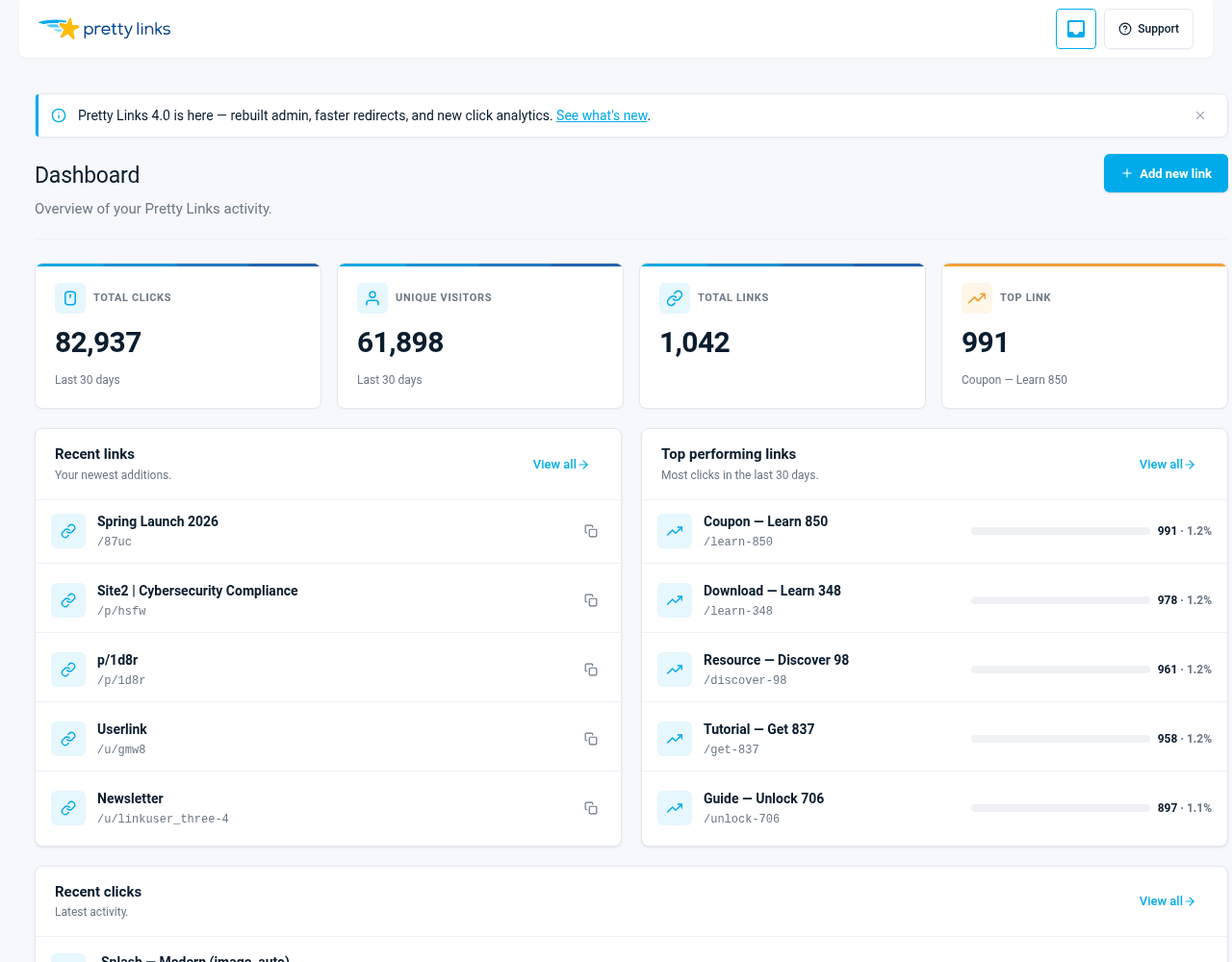
Cuadro de mandos
Tu página de inicio. Muestra la actividad reciente de clics, los enlaces con mejor rendimiento, estadísticas rápidas y accesos directos a acciones habituales, como crear un nuevo enlace o acceder a los informes. Empieza por aquí cuando inicies sesión.
Pretty Links
La lista completa de todos los enlaces bonitos de tu página web. Desde aquí puedes:
- Busca y filtra tus enlaces;
- Para editar cualquier enlace, haz clic en su título;
- Eliminación o edición masiva;
- Copia la URL corta de un enlace con un solo clic;
- Consulta el número de clics de un vistazo.
Añadir nuevo
La pantalla «Añadir nuevo enlace»: pega la URL de destino, personaliza el slug, elige un tipo de redireccionamiento y guarda. Consulta Crear su primer enlace bonito para ver una guía paso a paso completa.
PrettyPay
Gestiona los enlaces de pago y la cuenta de Stripe Connect a través de la cual se cobran. Solo es relevante si vendes productos o aceptas pagos a través de Pretty Links; de lo contrario, puedes ignorarlo.
Historial de clics
Cada clic en cada enlace, con marcas de tiempo, direcciones IP, URL de referencia, navegador, dispositivo y datos de ubicación. Filtra por enlace, intervalo de fechas u otros criterios para analizar el rendimiento de enlaces concretos. Se oculta si has configurado el modo de seguimiento en «Simple», ya que este modo no almacena filas por clic.
Opciones
Todos los ajustes de tu plugin, organizados en pestañas:
- Licencia — tu clave de licencia, el nivel de tu plan y la información sobre la renovación;
- Enlaces — valores predeterminados de los enlaces (tipo de redirección, patrón de slug, «nofollow» / «patrocinado», etc.);
- Informes — el modo de seguimiento de clics y la conservación del historial de clics;
- Pagos — Estado de conexión de Stripe y valores predeterminados de PrettyPay;
- Herramientas — Herramientas de importación, exportación y otras tareas de mantenimiento.
Complementos
Explora, instala y activa los complementos incluidos en tu plan. La lista muestra lo que está disponible en función de tu nivel de licencia (Principiante, Profesional del marketing o Superafiliado), y cualquier nuevo complemento que se añada a tu plan aparecerá aquí automáticamente.
Submenús profesionales
Pretty Links Pro añade más opciones al menú «Pretty Links» cuando está activo: Categorías para organizar los enlaces, Informes personalizados para las visitas del historial de clics guardado, y Etiquetas. El submenú «Etiquetas» solo aparece cuando hay al menos una etiqueta.
Superficies adicionales
Los complementos se integran en distintos lugares, no todos como submenús de la barra lateral:
- Enlace en la biografía — añade un Enlace en la biografía submenú para gestionar tus páginas de biografía;
- Expositores de productos — añade un Expositores de productos submenú para los productos que muestras;
- UTM — añade un UTM pestaña del formulario «Añadir/Editar enlace» (sin submenú ni opciones predefinidas);
- Enlaces para usuarios — añade un Enlaces para usuarios pestaña de la página «Opciones»;
- Páginas de presentación — añade un Splash pestaña de la página «Opciones», además de un informe de visitas por enlace que se abre desde la lista de enlaces.
Solo aparecen los complementos que hayas instalado, por lo que la barra lateral se mantiene despejada.
Algunos consejos
- Pasa el cursor por encima de cualquier elemento del menú para ver si tiene submenús que aún no hayas explorado;
- Añadir el panel de control a los favoritos — es la forma más rápida de volver al complemento;
- Utiliza el cuadro de búsqueda de la pantalla «Pretty Links» en lugar de tener que desplazarte por la pantalla cuando hay más de un puñado de enlaces.