
O Bar bonito é uma barra de ferramentas com a sua marca que fica na parte superior (ou inferior) da página de destino quando um visitante clica em um dos seus links personalizados. Abaixo da barra, a página de destino é carregada na íntegra — mas os visitantes veem a sua marca, a sua mensagem e a sua chamada à ação exibidas de forma permanente.
É uma alternativa mais visível ao Redirecionamento Cloak e uma ferramenta para manter seu público conectado à sua marca, mesmo quando ele estiver acessando conteúdo externo.
O que o Pretty Bar pode oferecer
Você pode configurar a Pretty Bar com:
- Seu logotipo ou título do site — Ancorado à esquerda;
- Uma mensagem personalizada — Um título, slogan ou chamada à ação;
- Um botão — Links para sua página inicial, formulário de inscrição ou qualquer URL;
- Ícones de compartilhamento nas redes sociais — Incentivar os visitantes a compartilhar o que estão vendo;
- Um botão para fechar — Assim, os visitantes que quiserem usar a tela inteira podem fechar a barra.
Você controla as cores, o texto e o layout nas configurações gerais.
Configurando o Pretty Bar
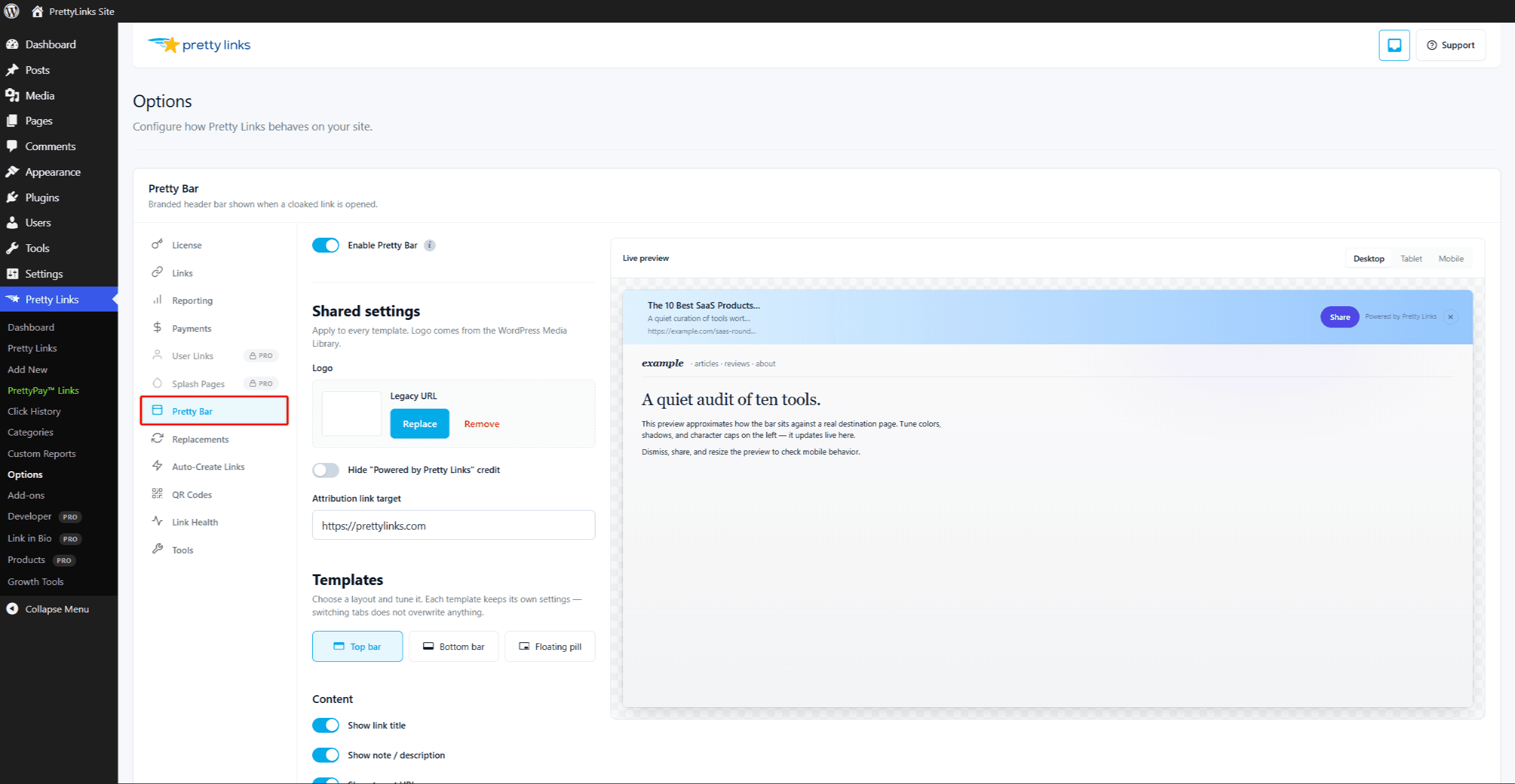
Configurações globais do Pretty Bar disponíveis em Painel > Pretty Links > Opções > Pretty Bar. Lá você pode configurar:
- Posição da barra (parte superior ou inferior da página);
- Altura e cores do balcão;
- Envio do logotipo;
- Texto padrão do título e do botão;
- Opções de compartilhamento nas redes sociais;
- Comportamento padrão para novos links do tipo “pretty-bar”.
Quando suas configurações globais estiverem do jeito que você quer, defina o tipo de redirecionamento de qualquer link como Bar bonito usar esse estilo.
Quando usar o Pretty Bar
- Links de afiliados — Mantenha sua marca em destaque ao direcionar visitantes para a página de um parceiro;
- Compartilhamento de conteúdo selecionado — Quando você compartilha artigos de terceiros com seu público, a barra lembra a eles de onde esses artigos vieram;
- Captura de leads — Adicione um botão de adesão ou de “inscrição” que acompanhe o visitante até a página externa;
- Campanhas promocionais — Adicione uma barra com código de desconto ou um banner de oferta por tempo limitado acima de qualquer página de destino.
Recurso de fallback automático
Curta Redirecionamento Cloak, O Pretty Bar funciona carregando o site de destino dentro de um quadro abaixo da barra. Alguns sites não permitem que sejam exibidos em quadros por motivos de segurança.
Quando isso acontece, o Pretty Links recorre automaticamente a um redirecionamento 302 comum, de modo que o visitante ainda chega ao destino — só que sem a barra. Você não precisa fazer nada; o recurso alternativo é automático.
Substituição por link
Embora as configurações globais definam a aparência padrão, você também pode personalizar a barra individualmente para cada link na tela de edição do link. Por exemplo, você pode usar a barra padrão para links de afiliados, mas personalizar uma barra específica com uma mensagem relacionada a uma campanha para uma promoção de fim de ano.
Pontos a serem lembrados
- Celular — A barra “The Pretty Bar” pode ocupar uma área significativa da tela nos celulares. Teste como ela fica em telas pequenas antes de decidir usá-la;
- Regras do programa de afiliados — Alguns programas de afiliados proíbem o uso de sobreposições, frames ou modificações em suas páginas de destino. Leia os termos do seu programa antes de usar o Pretty Bar em links de afiliados;
- Interações com a página — Os formulários, as janelas modais e as experiências em tela cheia na página de destino funcionam, mas podem ficar visualmente apertados devido à barra. Teste a experiência real;
- HTTPS — Tanto o seu site quanto o site de destino devem estar em HTTPS para que a página emoldurada seja carregada.
Configurando um link para o Pretty Bar
- Edite o link.
- No Tipo de redirecionamento menu suspenso, selecione Bar bonito.
- (Opcional) Personalize o título da barra, o botão ou outras configurações para este link específico.
- Clique em Atualização.
Teste o link em uma sessão do navegador sem estar conectado para ver como a barra aparece com suas configurações reais.
Combinação com outros recursos
A Pretty Bar trabalha com:
Não é compatível com Redirecionamento Cloak — ambas se baseiam em frames, e você só pode usar uma de cada vez. Escolha a experiência de marca que melhor se adequar ao seu objetivo.