
Verfügbar ab dem „Marketer“-Tarif. Das Kontaktformular ist Teil der Content-Vorlage.
Das Kontaktformular ist eine integrierte Funktion der Inhaltsvorlage unter „Link in Bio“. So können Besucher Kontakt aufnehmen, ohne Ihre Bio-Seite verlassen zu müssen – nützlich für Medienanfragen, Buchungsanfragen, Partnerschaftsvorschläge oder allgemeine Fragen.
Dieser Leitfaden ist Teil der Pretty Links Link in Bio Add-on, der Einstiegspunkt für das Add-on „Link in Bio“.
Wo es zu finden ist
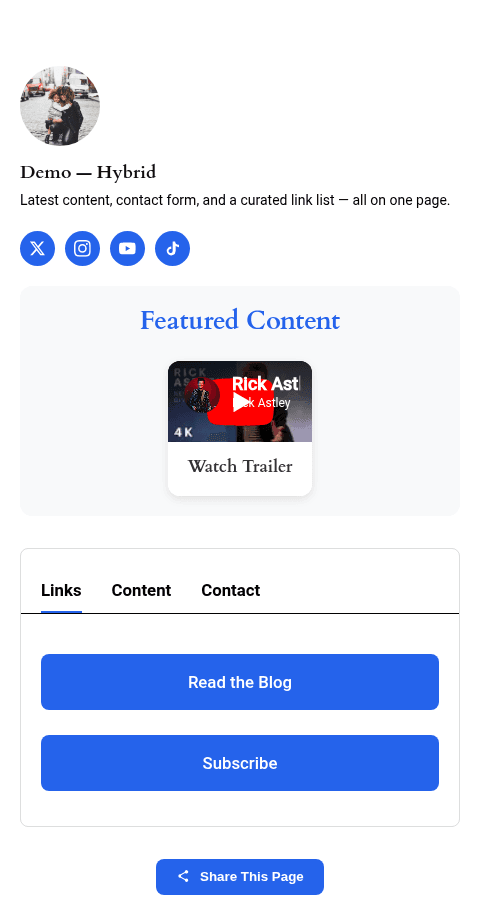
Das Kontaktformular ist nur in der Vorlage „Content“ verfügbar. Wenn Sie die Vorlage „Buttons“ oder „Cards“ verwenden, wechseln Sie zunächst zur Vorlage „Content“, um auf das Kontaktformular zuzugreifen. Ihre Schaltflächen, Social-Media-Links und Profilinhalte bleiben beim Wechsel erhalten.
Sobald Sie sich in der Inhaltsvorlage befinden, wird das Kontaktformular als eine der Registerkarten neben Ihren Schaltflächen angezeigt. Besucher tippen auf die Kontakt Tab, um das Formular zu öffnen.
Das Formular konfigurieren
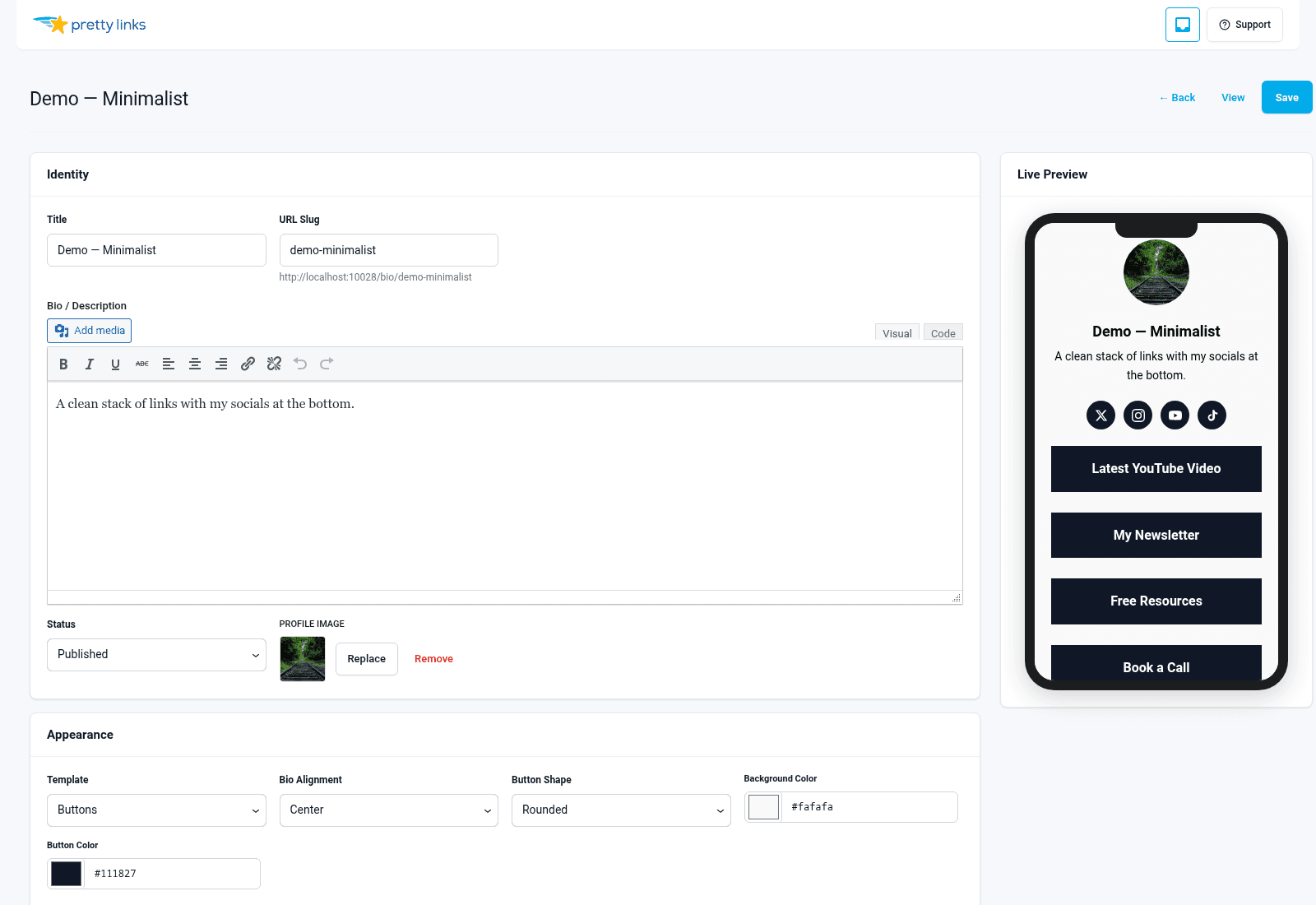
Scrollen Sie im Editor der Biografie-Seite zum Abschnitt „Kontaktformular“.
- E-Mail-Adresse des Empfängers — Die E-Mail-Adresse, an die Formularübermittlungen gesendet werden. Dies kann jede E-Mail-Adresse sein, auf die Sie Zugriff haben. Verwenden Sie eine eigens dafür vorgesehene Adresse (wie
bio@yoursite.com) falls Sie die Einsendungen in einen eigenen Ordner filtern möchten; - Aktivieren / Deaktivieren — Schalten Sie das Formular ein oder aus, ohne dass Ihre Einstellungen verloren gehen.
Formularfelder
Das Kontaktformular enthält eine festgelegte Anzahl von Feldern, die bewusst kurz gehalten wurde, um die Ausfüllquote zu maximieren:
- Name — Erforderlich;
- E-Mail — Erforderlich, als echte E-Mail-Adresse validiert;
- Betreff — Optional, hilft Ihnen bei der Einstufung eingehender Nachrichten;
- Nachricht — Erforderlich: der Hauptteil der Anfrage.
Es ist wichtig, das Formular kurz zu halten. Jedes zusätzliche Feld senkt den Prozentsatz der Besucher, die es ausfüllen. Für eine Biografie-Seite reichen vier Felder völlig aus.
Entgegennahme von Einreichungen
Wenn ein Besucher das Formular absendet, wird eine E-Mail an die von Ihnen konfigurierte Empfängeradresse gesendet. Die E-Mail enthält:
- Der Name und die E-Mail-Adresse des Besuchers (damit Sie auf „Antworten“ klicken können);
- Der Betreff, den sie eingegeben haben (oder ein Standardwert, falls sie das Feld leer gelassen haben);
- Die vollständige Nachricht.
Die Antwort auf die E-Mail wird direkt an den Besucher weitergeleitet – ganz ohne zusätzliche Schritte.
Hinweise zu Missbrauch und Spam
Öffentliche Kontaktformulare ziehen Spam an. Hier sind einige Punkte, die Sie beachten sollten:
- Verwenden Sie eine eigene Empfängeradresse. Wenn Sie das Formular auf Ihren Haupt-Posteingang ausrichten, landet dort auch Spam. Eine separate Adresse (die sich filtern und überwachen lässt) ist wesentlich sicherer;
- Achte auf Muster. Wenn Sie plötzlich eine Flut von Beiträgen minderer Qualität erhalten, ist das ein Zeichen dafür, dass ein Bot Ihr Formular entdeckt hat. Meistens bleibt das Volumen überschaubar;
- Veröffentlichen Sie die Empfängeradresse nicht. Das Formular hält Ihre Adresse verborgen – die übermittelten Daten werden über Ihre Website weitergeleitet und nicht direkt versendet. Machen Sie dies nicht zunichte, indem Sie die Adresse an anderer Stelle auf der Seite angeben;
- Ziehen Sie einen externen E-Mail-Filter in Betracht. Dienste wie der Spamfilter von Gmail oder ein spezieller E-Mail-Anbieter fangen den Großteil des Formular-Spams automatisch ab.
Sollte Spam zu einem echten Problem werden, können Sie das Formular vorübergehend deaktivieren, stattdessen auf eine Schaltfläche “Termin vereinbaren” umstellen, die zu Ihrem Terminplaner führt, oder die Empfängeradresse durch eine neue ersetzen.
Wann sollte das Formular verwendet werden (und wann nicht)?
Verwenden Sie das Formular, wenn:
- Sie möchten, dass Besucher auf unkomplizierte Weise Kontakt aufnehmen können;
- Sie sind Kreativer oder Berater, und Anfragen sind ein wichtiger Teil Ihrer Auftragsakquise;
- Sie führen eine Produkteinführung durch und müssen Presse- oder Kooperationsanfragen bearbeiten.
Das Formular überspringen, wenn:
- Du möchtest lieber alles über einen Kalender-Buchungslink abwickeln (verwende stattdessen eine Schaltfläche);
- Sie haben bereits eine eigene Kontaktseite auf Ihrer Website (verlinken Sie diese über eine Schaltfläche);
- Du erhältst unglaublich viel Spam, und über eine Schaltfläche in deinem Terminplaner lässt sich dieser besser herausfiltern.
Das Kontaktformular ist ein Hilfsmittel, keine Pflicht. Nutzen Sie es, wenn es Ihnen passt.