
Verfügbar ab dem „Marketer“-Tarif.
Deine Biografie-Seite sollte so aussehen: Sie — nicht wie die Standardvorlage. Mit „Link in Bio“ hast du direkte Kontrolle über Farben, Bilder, die Gestaltung der Schaltflächen und die angezeigten Inhalte – dank einer Live-Vorschau siehst du jede Änderung sofort, während du sie vornimmst.
Dieser Leitfaden ist Teil der Pretty Links Link in Bio Add-on, der Einstiegspunkt für das Add-on „Link in Bio“.
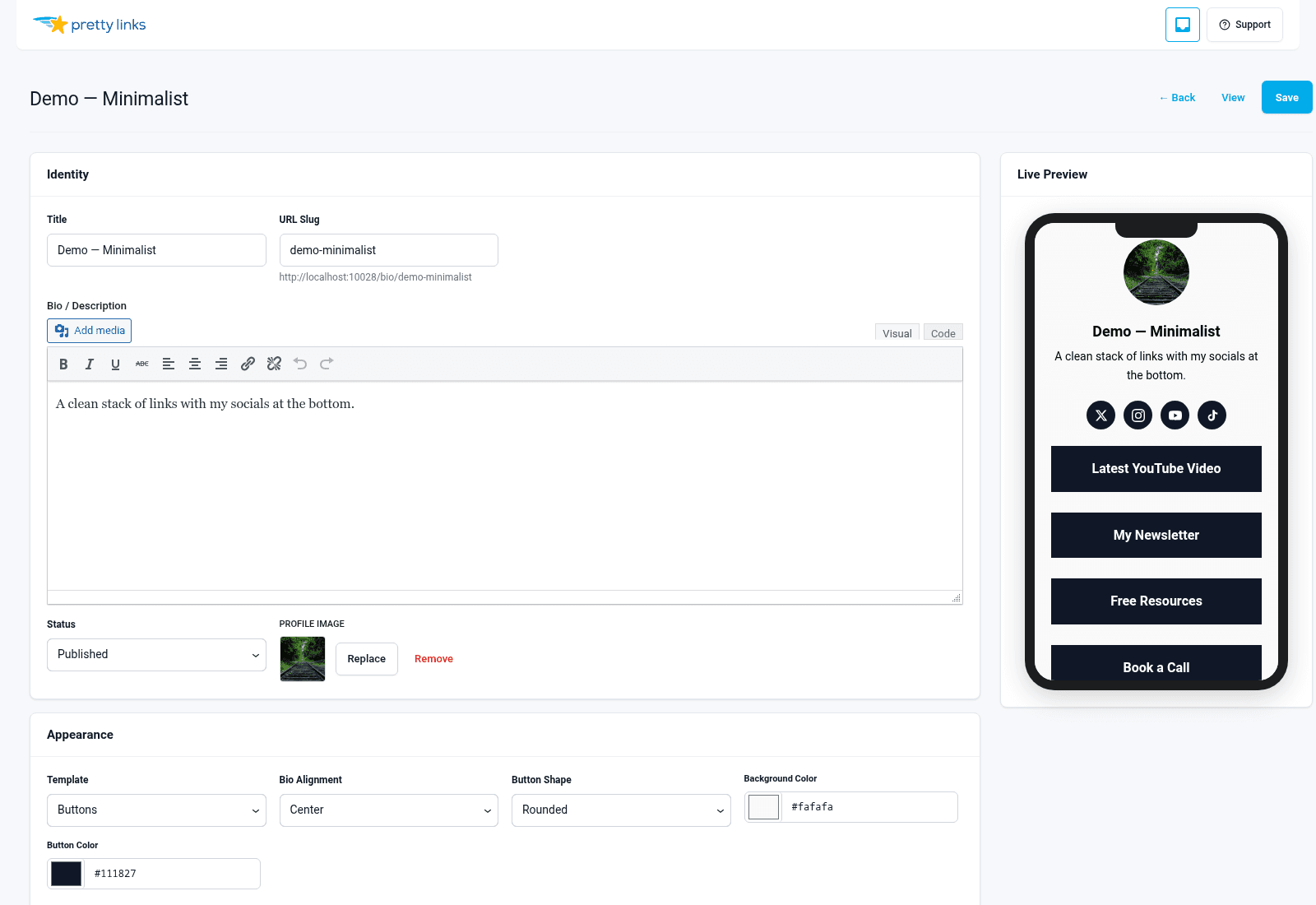
Hintergrund
Legen Sie fest, wie der Bereich hinter Ihren Inhalten aussehen soll.
- Einfarbig — Wählen Sie eine Hex-Farbe aus oder nutzen Sie die Farbauswahl. Ideal für klare, markengerechte Designs;
- Hintergrundbild — Laden Sie ein beliebiges Bild hoch. Eignet sich gut für Stimmungs-, Lifestyle- oder Markenfotografie. Das Bild wird automatisch skaliert und zentriert.
Bei Bildern solltest du die Dateigröße nach Möglichkeit unter 500 KB halten – Profilseiten werden oft über mobiles Datenvolumen aufgerufen, daher sorgen kleinere Dateien für eine schnellere Ladezeit.
Profilbild
Ihr Porträtfoto oder Ihr Logo. Quadratische Bilder liefern das beste Ergebnis – die meisten Vorlagen schneiden das Bild auf einen Kreis zu. Die empfohlene Größe beträgt 400 × 400 Pixel oder mehr.
Wenn Sie ein rechteckiges Bild hochladen, wird der mittlere Bereich verwendet und die Ränder werden abgeschnitten. Schneiden Sie Ihr Foto vor dem Hochladen zu, falls Ihnen ein bestimmter Bildausschnitt wichtig ist.
Farben und Form der Schaltflächen
Schaltflächen verfügen über eigene Gestaltungsoptionen:
- Hintergrundfarbe — Die Füllfarbe der Schaltfläche;
- Textfarbe — Die Farbe des Etiketts;
- Farbe bei Mauszeiger-Überfahrt — Optional, für Desktop-Besucher, die mit der Maus darüberfahren;
- Form — Abgerundete Ecken, vollständig abgerundete Ecken (Pill-Form) oder eckige Ecken.
Wählen Sie Kombinationen, die zum Markenimage passen. Ein klares Erscheinungsbild erzielen Sie mit weißen Schaltflächen auf farbigem Hintergrund oder farbigen Schaltflächen auf weißem Hintergrund. Vermeiden Sie Kombinationen mit geringem Kontrast (beispielsweise hellgrauer Text auf weißem Hintergrund) – diese sind auf Smartphones bei Sonnenlicht schwer lesbar.
Empfohlene Inhalte
Einige Vorlagen bieten oben auf der Seite einen “Featured”-Bereich an – dort können Sie Ihren wichtigsten Link oder Ihr wichtigstes Video platzieren. Das könnte zum Beispiel Folgendes sein:
- Ein angeheftetes Video (dein neuester YouTube-Upload, eine Produktdemo, eine Kursvorschau);
- Ein angehefteter Button, der sich im Stil von den übrigen unterscheidet;
- Eine Produktkarte im Fokus (nur bei der Vorlage „Karten“).
Nutzen Sie den hervorgehobenen Bereich gezielt. Er ist das Erste, was Besucher sehen – machen Sie ihn also zum eine das, was sie tun sollen.
Live-Vorschau
Auf der rechten Seite des Editors wird eine Live-Vorschau angezeigt, die sich bei jeder Änderung der Einstellungen aktualisiert. Sie können in der Vorschau zwischen der Desktop- und der Mobilansicht wechseln, um zu sehen, wie die Seite in den jeweiligen Ansichten aussieht.
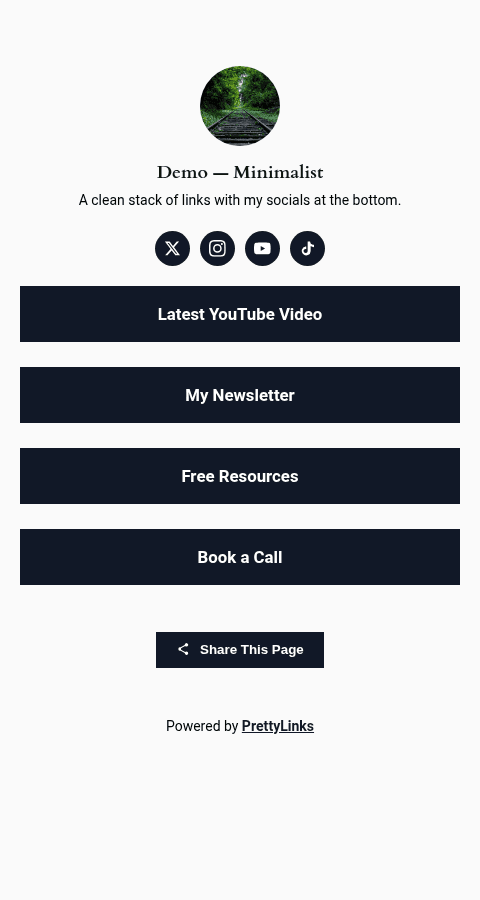
Das ist der schnellste Weg, um zu iterieren. Passen Sie eine Farbe an, sehen Sie sich die Vorschau an, nehmen Sie weitere Anpassungen vor. Speichern und neu laden Sie nicht – bearbeiten Sie das Bild so lange, bis es richtig aussieht, und speichern Sie es dann erst am Ende.
QR-Code herunterladen
Jede Biografie-Seite erhält einen eigenen QR-Code. Finden Sie den QR-Code herunterladen Schaltfläche im Editor der Biografie-Seite.
Der QR-Code verweist auf die URL deiner Profilseite. Nutze ihn für:
- Gedruckte Visitenkarten;
- Konferenz-Umhängebänder und Namensschilder;
- Produktverpackung;
- Präsentationen (“siehe Ressourcenliste”);
- Aufkleber für Schaufenster;
- Messe-Banner.
Der QR-Code wird als hochauflösende PNG-Datei heruntergeladen, die sich in jeder Größe drucken lässt.
Tipps für eine ansprechende Seite
- Wähle höchstens drei Farben aus. Eine Hintergrundfarbe, eine Schaltflächenfarbe und eine Textfarbe reichen völlig aus. Bei mehr als das wirkt das Ganze schnell überladen;
- Halten Sie die Beschriftungen der Schaltflächen kurz. Versuchen Sie, sich auf zwei bis vier Wörter zu beschränken. “Den Newsletter abonnieren” ist besser als “Klicken Sie hier, um meinen wöchentlichen Newsletter zu abonnieren.”;
- Schaltflächen nach Wichtigkeit sortieren. Der erste Button erhält die meisten Klicks. Platzieren Sie den Link, den Besucher am ehesten anklicken sollen, ganz oben;
- Auf einem Smartphone testen. Der Großteil der Zugriffe auf die Bio-Seite erfolgt über Mobilgeräte. Öffne deine veröffentlichte Seite auf deinem Smartphone und tippe auf jede Schaltfläche, um sicherzustellen, dass sie funktioniert und sich gut anfühlt.