
Disponible en el plan «Super Affiliate».
Para configurar los enlaces de usuario hay que realizar dos ajustes: seleccionar la página que aloja el panel de control y (opcionalmente) establecer el prefijo de URL que utilizarán los enlaces creados por los usuarios. Se tarda cinco minutos en todo el proceso.
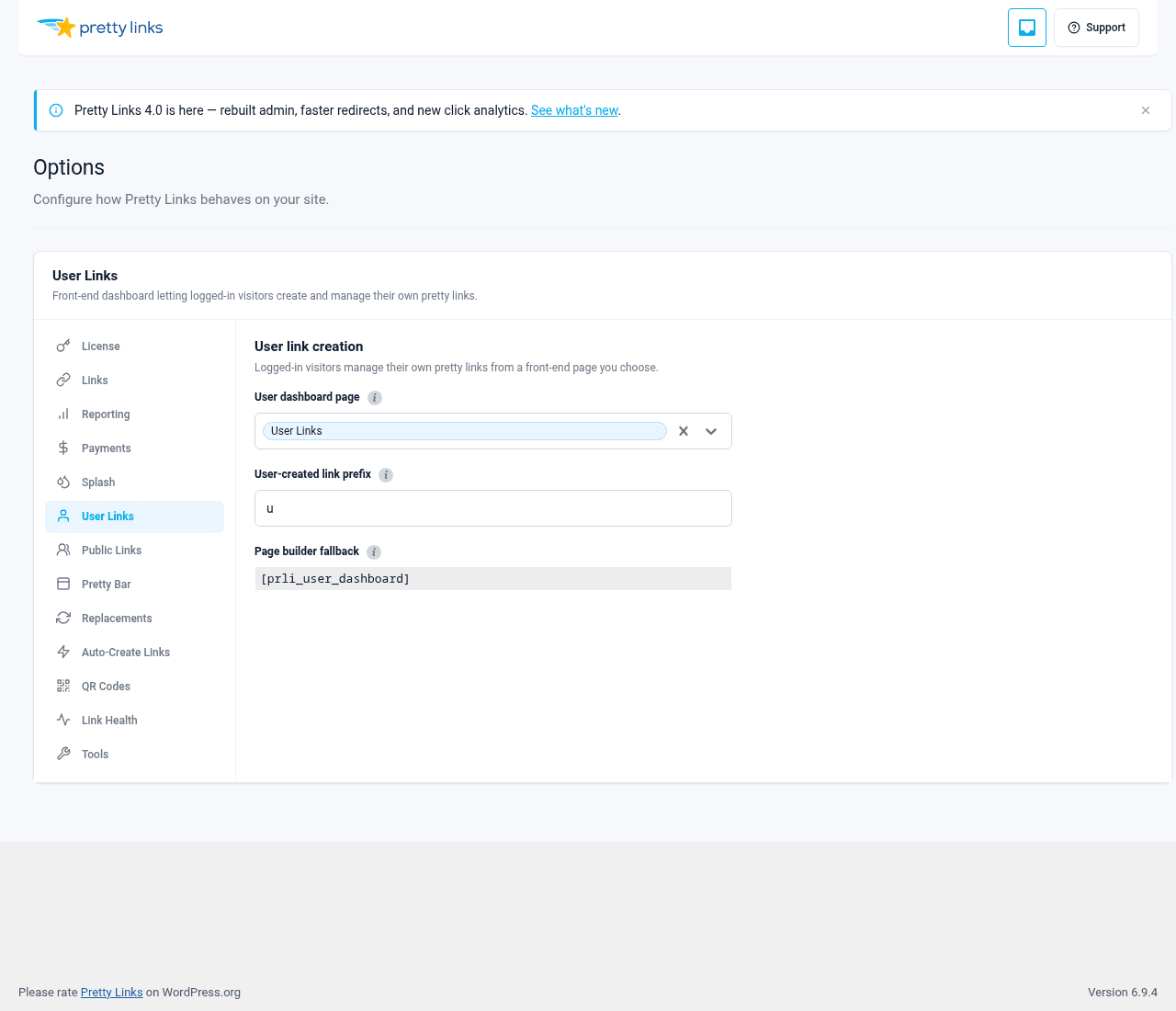
Paso 1: Abre las opciones de «Enlaces de usuario»
En la barra lateral de administración de WordPress, ve a Panel de control > Pretty Links > Opciones > Enlaces de usuario.
Verás dos opciones principales: un selector de páginas y un campo para el prefijo de la URL.
Paso 2: Selecciona la página del panel de control
El panel de control tiene que estar alojado en algún lugar de tu sitio web. Hay dos formas de configurarlo:
Utiliza una página específica
Crea una nueva página de WordPress —por ejemplo, “Mis enlaces” o “Panel de enlaces”—. Deja el contenido en blanco. En las opciones de «Enlaces de usuario», configura esta página como el panel de control. El complemento muestra automáticamente el panel de control en esa página.
Utilizar una sección del generador de páginas
Si prefieres integrar el panel de control en un panel de control de cliente o en un portal de miembros ya existente, crea la página en tu editor de páginas e inserta el código corto del panel de control «Enlaces de usuario» en la sección donde quieras que aparezca el panel:
[prli_user_dashboard]A continuación, configura esa página como panel de control en las opciones de «Enlaces de usuario».
La opción del código corto es la que utilizan la mayoría de los propietarios de sitios web de membresía, ya que permite integrar el panel de control en el mismo diseño (barra lateral, cabecera, imagen de marca) que el resto de la experiencia del miembro.
Configuración obligatoria
Es necesario configurar la página. Hasta que no elijas una página, el panel de control del front-end no se mostrará en ningún sitio. En cuanto guardes la selección de la página, el panel de control estará activo para cualquier usuario que haya iniciado sesión y pueda acceder a esa página.
Paso 3: Configurar el prefijo de la URL
Por defecto, los enlaces creados por los usuarios utilizan el prefijo u, por lo que el enlace de un usuario tiene este aspecto:
yoursite.com/u/their-slugEsto distingue los enlaces creados por los usuarios de los que creas tú como administrador, que utilizan el prefijo habitual de Pretty Links (a menudo ninguno, simplemente yoursite.com/su-slug).
Puedes cambiar el prefijo por el que quieras. Algunos ejemplos:
mpor “miembro”;enlaces;compartir;s;- Una palabra adecuada para los afiliados.
Si más adelante cambias el prefijo, nuevo Los enlaces de usuario utilizan el nuevo prefijo. Los enlaces de usuario existentes conservan sus antiguas URL para evitar que los enlaces compartidos dejen de funcionar; no hay migración automática.
¿Para qué sirve un prefijo?
Dos razones:
- Aislamiento de espacios de nombres. Los enlaces creados por el administrador y los creados por los usuarios pueden tener el mismo slug sin que se produzcan conflictos (
yoursite.com/promovstu-sitio.com/u/promo). - Diferenciación visual. Cualquiera que vea un
/u/El enlace sabe que procede de un usuario, lo cual resulta útil para la asistencia técnica, el análisis de datos y la gestión de casos de abuso.
Puedes dejar la configuración predeterminada u a menos que tengas una razón de peso para cambiarlo.
Paso 4 (opcional): Restringir el acceso
User Links, por sí solo, no restringe el acceso al panel de control: cualquier usuario que haya iniciado sesión puede utilizarlo. Si deseas limitar el acceso (solo a miembros de pago, solo a roles específicos o solo a un nivel de membresía concreto), utiliza un plugin de membresía para controlar quién puede acceder a la página del panel de control.
Maridajes habituales:
- MemberPress — Proteger la página del panel de control con una regla que exija una afiliación específica;
- Restrict Content Pro — Configurar la página para que requiera una suscripción activa;
- Suscripciones de pago Pro — Limitarlo a determinados niveles de afiliación;
- Suscripciones de WooCommerce — Vincular el acceso a la compra de un producto;
- Roles integrados de WordPress — Restringe el acceso a la página a los usuarios que hayan iniciado sesión y tengan roles específicos mediante las reglas basadas en roles de tu plugin de membresía.
Este es el lugar adecuado para gestionar el control de acceso. «User Links» da por hecho que cualquier persona que... puede acceder a la página. debe Consulta el panel de control; el complemento de membresía determina quién es.
Paso 5: Pruébalo
Cierra la sesión de WordPress (o abre una ventana de navegación privada) y:
- Inicia sesión como usuario normal (no con tu cuenta de administrador).
- Visita la página del panel de control.
- Comprueba que se muestra la vista de estado vacío con el botón “Crea tu primer enlace”.
- Haz clic en él, introduce una URL de destino y guarda los cambios.
- Comprueba que el enlace aparece en la lista.
- Haz clic en la URL optimizada del nuevo enlace para comprobar que redirige correctamente.
Si todo funciona, ya está. Informa a tus miembros sobre el panel de control.
Consejos
- Realiza la prueba desde una cuenta de usuario real, no desde la de administrador. Los administradores ven contenidos diferentes en WordPress debido a sus permisos de acceso más amplios. Prueba con una cuenta de usuario normal para ver lo que verán realmente tus miembros;
- No incluyas el panel de control en la URL de tu página de inicio. Una ruta específica como
/panel de controlo/mis-enlaceses más fácil de comunicar y más fácil de añadir a los favoritos para los usuarios; - ¿Qué tal una introducción del tipo “¿Es la primera vez que vienes?”?. Un breve párrafo situado encima del código abreviado del panel de control, en el que se explique lo que los usuarios pueden hacer aquí, reduce drásticamente las consultas al servicio de asistencia;
- Ten cuidado con las colisiones de las babosas. Dado que muchos usuarios crean enlaces, conviene que los slugs sean únicos. El sistema se encarga de ello automáticamente rechazando los duplicados, pero una nota de aviso (“si tu slug ya está en uso, prueba con una variante”) ayuda a los usuarios.