
Disponible en el plan «Super Affiliate».
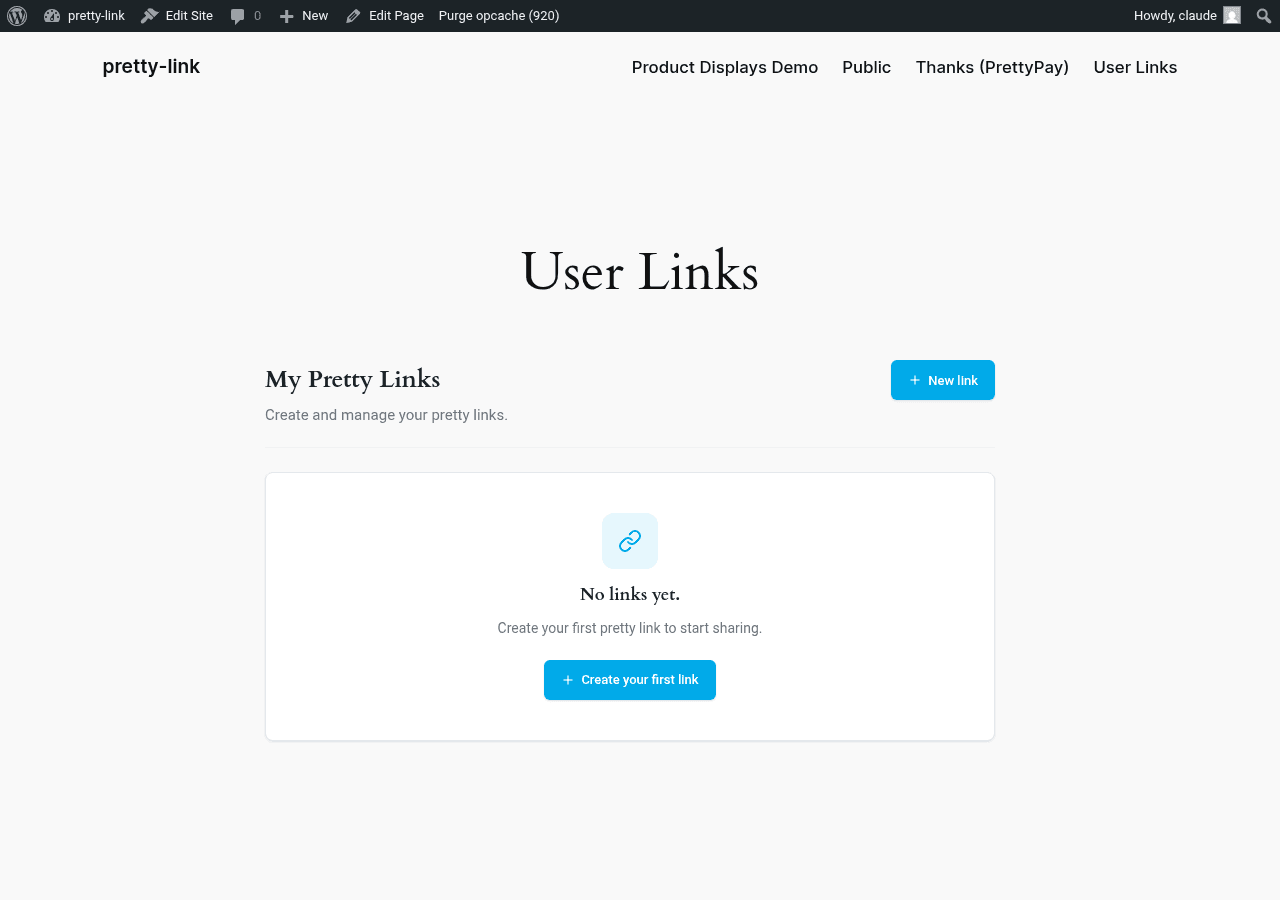
«User Links» permite a tus miembros gestionar sus propios «Pretty Links» desde un panel de control accesible desde la página web. Nunca ven el panel de administración de WordPress; solo ven una página sencilla en la que pueden añadir, editar y gestionar sus enlaces personales.
Para qué sirve
Debes designar una página de tu sitio web como el panel de control de «Enlaces de usuario». Cuando un usuario que haya iniciado sesión la visite, verá una lista de los suyos propios Enlaces cortos: ni los tuyos, ni los de nadie más. Pueden:
- Ver todos sus enlaces actuales;
- Añadir nuevos enlaces;
- Editar o eliminar los enlaces que hayan creado;
- Busca y ordena su lista.
Tus miembros disfrutan de una experiencia personalizada y con tu marca a la hora de gestionar enlaces. Tú mantienes el control sobre quién tiene acceso y cómo se presenta el panel de control, ya que se aloja en tu propio sitio web, en una página de tu propiedad.
A quién va dirigido
Plataformas SaaS
Gestionas una herramienta en la que los clientes necesitan enlaces cortos como parte de su flujo de trabajo: una plataforma de marketing, una herramienta de interacción comercial o un gestor de campañas. Integrar la gestión de enlaces directamente en el panel de control de tus clientes significa que no tienen que salir de tu producto para obtener un enlace corto.
Sitios de membresía
Tus miembros sacan partido de poder compartir enlaces rastreables: los afiliados de marketing, los creadores de cursos que comparten recursos o los organizadores de comunidades que realizan un seguimiento de las confirmaciones de asistencia a eventos. Ofrecer a cada miembro su propio panel de control de enlaces convierte la simple frase “puedes usar Pretty Links” en una ventaja tangible.
Plataformas de afiliados
Tienes un programa de afiliados. Cada afiliado dispone de su propio panel de control, al que accede tras iniciar sesión, donde puede generar enlaces rastreables para cualquier página de destino, consultar el número de clics y modificar los slugs para adaptarlos a su canal.
Herramientas internas para el equipo
Un equipo de marketing más amplio en el que cada redactor, gestor de redes sociales o responsable de campaña necesita generar enlaces cortos sin necesidad de acceso de administrador: User Links hace que ya no sea necesario que un administrador actúe como filtro.
Lo que puedes controlar
Como propietario del sitio web, tú decides:
- ¿En qué página se encuentra el panel de control?. Elige la página que quieras: una dedicada a...
/panel de controluna página, una sección de tu portal de miembros, una pestaña dentro de tu área de clientes actual; - ¿Qué prefijo de URL utilizan los enlaces de los usuarios?. Por defecto, los enlaces cortos de los miembros utilizan el prefijo
u/(por lo que un enlace de usuario tiene este aspecto:yoursite.com/u/their-slug), pero puedes cambiarlo por cualquier cosa que se adapte a tu esquema de URL; - ¿Quién tiene acceso?. Combina User Links con cualquier plugin de membresía para restringir el acceso a la página del panel de control mediante un muro de pago, una comprobación de roles o un nivel de membresía específico.
Lo que ve el usuario
Un usuario que ha iniciado sesión en la página del panel de control ve lo siguiente:
- Una lista de sus enlaces (y solo de sus enlaces): URL visible, URL de destino, nombre, fecha de creación;
- Un botón para añadir un nuevo enlace;
- Un cuadro de búsqueda y controles de ordenación;
- Botones de «Editar» y «Eliminar» en cada enlace.
No ven tu wp-admin. No ven el resto de la configuración de tu sitio web. Solo ven su enlaces, en una página que parece formar parte de tu sitio web corporativo.
Lo que se ha simplificado a propósito
«Enlaces de usuario» es una interfaz específica dirigida a los miembros, no una réplica exacta de la interfaz de «Pretty Links» del administrador. Se ha optado deliberadamente por no mostrar algunas funciones avanzadas a los usuarios del front-end:
- Solo los tipos de redirección 301 y 302. No se permiten redireccionamientos mediante píxeles, metarefresh, JavaScript, cloak o prettybar desde el panel de control del usuario;
- Sin códigos QR. El generador de códigos QR es de uso exclusivo del administrador;
- No se realizan pruebas A/B. Las pruebas A/B son exclusivas para administradores;
- Sin funciones avanzadas como categorías, sustituciones de palabras clave o fechas de caducidad.
El resultado es un panel de control sencillo y fácil de usar que tus miembros pueden dominar en 30 segundos. Si un miembro necesita algo más allá de añadir, editar o eliminar, de todos modos se pondrá en contacto contigo, y tú podrás gestionarlo desde el panel de administración.
Para ver el desglose completo de lo que los usuarios pueden y no pueden hacer, consulta Experiencia del usuario.
Por dónde empezar
La configuración se hace en dos minutos:
- Crea una página en tu sitio web (o elige una ya existente) para alojar el panel de control.
- En Panel de control > Pretty Links > Opciones > Enlaces de usuario, configura esa página como página de destino.
- Si lo deseas, puedes cambiar el prefijo de la URL.
Sigue el proceso paso a paso en Configuración de enlaces de usuario.