
Ve directamente a lo interesante
Tras cien entradas, tu sitio web ya no es solo una biblioteca de contenidos. También es una biblioteca de enlaces.
Algunos de esos enlaces ya están enmascarados y se realiza un seguimiento de ellos a través de PrettyLinks.
Otras son URL de afiliados sin formato que pegaste antes de disponer de un sistema mejor. Algunas generan ingresos en páginas que nunca han incluido ninguna declaración de transparencia. Y lo que es peor, algunas de las menciones a tus productos ni siquiera tienen ningún enlace.
Revisar todo el archivo de contenidos para corregirlo todo parece una tarea factible, hasta que te das cuenta de que el archivo no deja de crecer. La pila se hace más grande cada vez que publicas algo.
Recambios para el PrettyLinks te libera de ese proyecto, ya que un único motor ejecuta tres tareas distintas en cuanto terminas de configurarlo:
- Sustitución de palabras clave para Cobertura
- Sustitución de la URL para Control
- Divulgaciones para Cumplimiento normativo
Juntos detectan las oportunidades de enlaces que se te han escapado, incorporan tus URL antiguas a la gestión de PrettyLinks y se aseguran de que todo el contenido monetizado cuente con la información necesaria.
En este artículo, explicaremos qué función desempeña cada parte del motor PrettyLinks Replacements, cuándo conviene utilizarlo y de cuánto trabajo tedioso de mantenimiento de enlaces te librarás una vez que lo pongas en marcha.
¿Qué es la herramienta de sustitución PrettyLinks?
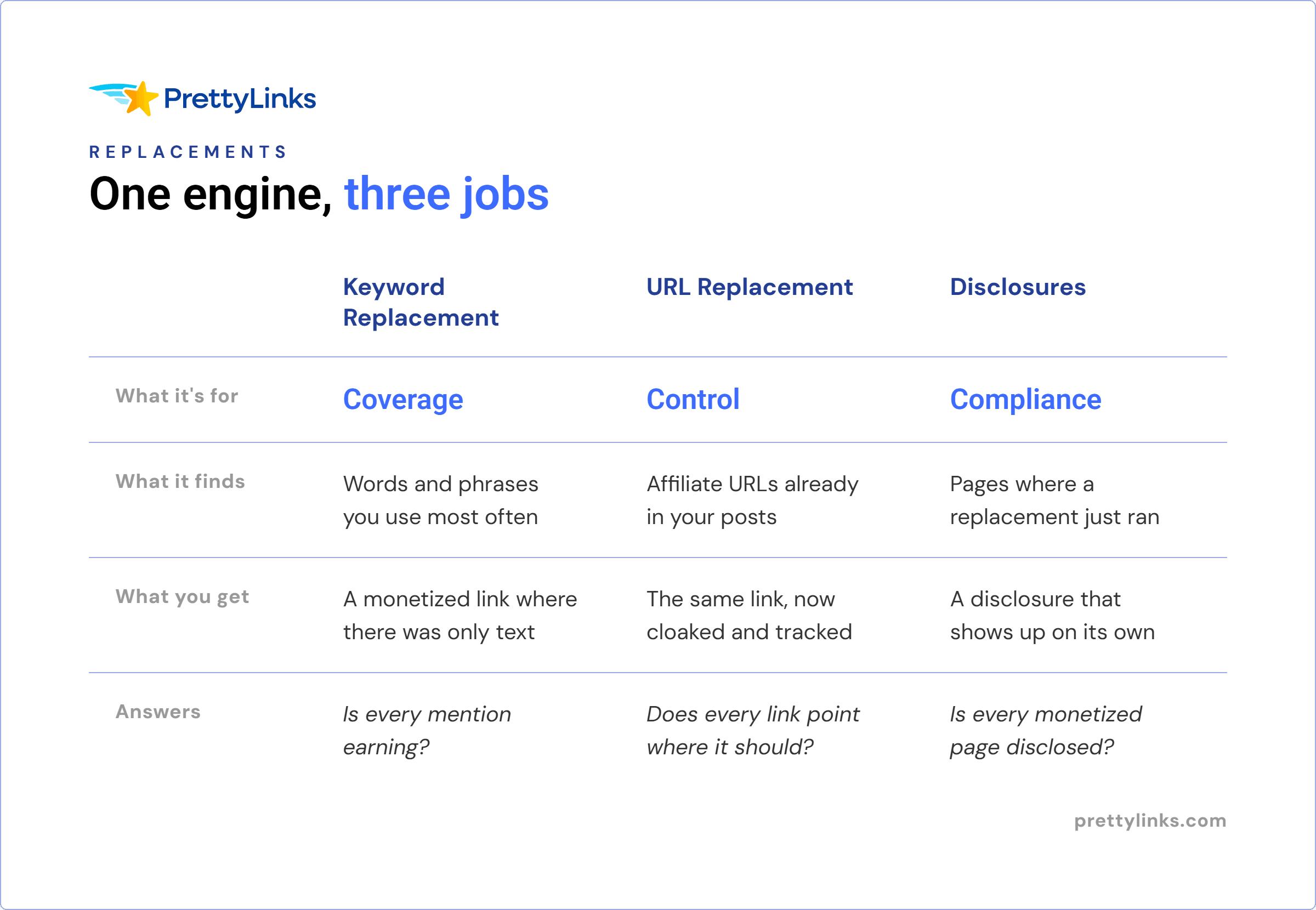
PrettyLinks Replacements es un motor que ejecuta tres tareas automatizadas en tu sitio de WordPress:
- Sustitución de palabras clave convierte las palabras y frases seleccionadas de tu contenido en enlaces.
- Sustitución de la URL sustituye las URL sin formatear que ya hayas publicado por sus versiones con enlaces optimizados.
- Divulgaciones Añade tu aviso de afiliación a las páginas y entradas en las que la sustitución de palabras clave o de la URL genere un enlace de afiliación.
⚡️ ¡Los recambios PrettyLinks acaban de recibir una importante mejora de velocidad! La función de sustitución de palabras clave ahora funciona 10 veces más rápido y la de sustitución de URL, 3 veces más rápido. 👉 Descubre qué más se ha actualizado en la versión 4.
Aunque Replacements está realizando numerosas tareas en toda tu web, es importante saber qué es lo que no es Acción: modificar cualquier contenido que ya hayas creado.
Tus entradas, páginas y todo lo que has escrito se mantienen tal y como están, ya que PrettyLinks solo actúa sobre los enlaces que hay dentro de ese contenido.
Tú también decides dónde funcionan los motores, qué dejan en paz y cómo se comportan.
Ahora vamos a analizar más detenidamente cada herramienta, qué la hace útil y la configuración básica necesaria para que funcione exactamente como tú quieres.
Sustitución de palabras clave para una mejor cobertura de enlaces
Sustitución de palabras clave convierte automáticamente las palabras y frases que elijas en enlaces a un «pretty link» concreto.
En lugar de añadir enlaces manualmente a lo largo de tu contenido, asignas las palabras clave al enlace personalizado y dejas que el motor de sustitución se encargue de gestionarlos en toda tu web.
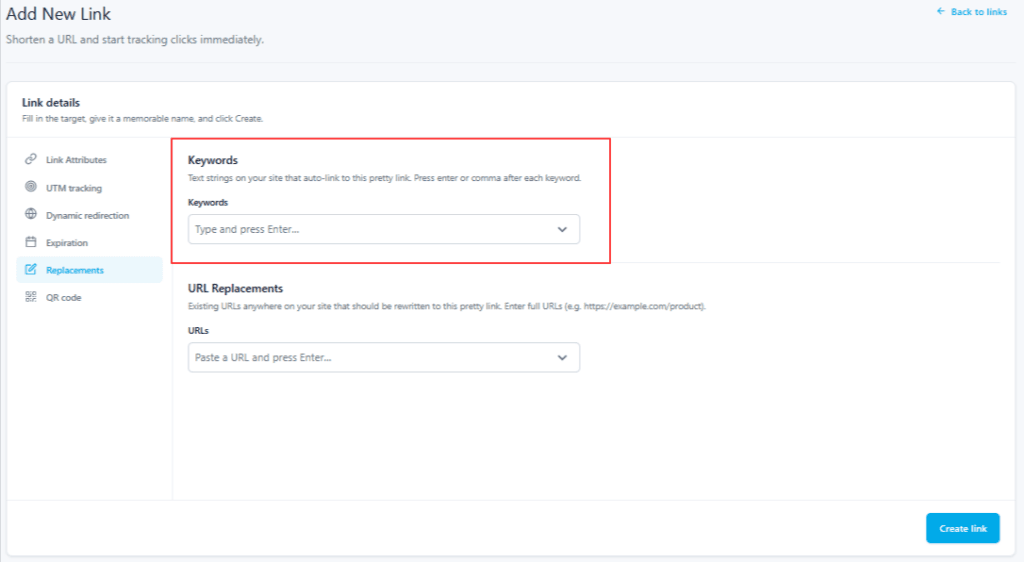
También puedes ajustar esa cobertura para que PrettyLinks sepa exactamente qué buscar y con qué frecuencia debe enlazarlo:
- Añade tantas palabras clave como quieras. Proporciona a PrettyLinks varios términos y expresiones que deba reconocer para el mismo destino.
- Establecer umbrales de sustitución. Controla la frecuencia con la que se puede enlazar una misma palabra clave en la misma página.
🆕 Una NUEVA incorporación al motor es el Escáner de palabras clave duplicadas, que avisa cuando se ha asignado la misma palabra clave a más de un enlace personalizado.
Esto resulta increíblemente útil con el paso del tiempo, ya que una palabra clave que asignes hoy puede que ya pertenezca a un enlace bonito que creaste hace años.
Si el escáner detecta un conflicto, puedes comprobar el rendimiento de cada enlace y decidir cuál de ellos se queda con la palabra clave.
🛠️ ¿Tienes alguna palabra clave en mente? Nuestra Documento de ayuda sobre la sustitución de palabras clave En un minuto ya lo tendrás enlazado.
Sustitución de URL para tener un mayor control sobre los enlaces antiguos
Mientras que la función «Sustitución de palabras clave» detecta las palabras que deberían ser enlaces, la función «Sustitución de URL» se encarga de los enlaces que ya están ahí.
Detecta las URL de afiliados sin formatear que hay en tu contenido actual y las sustituye por las versiones de enlaces optimizados que prefieres utilizar.
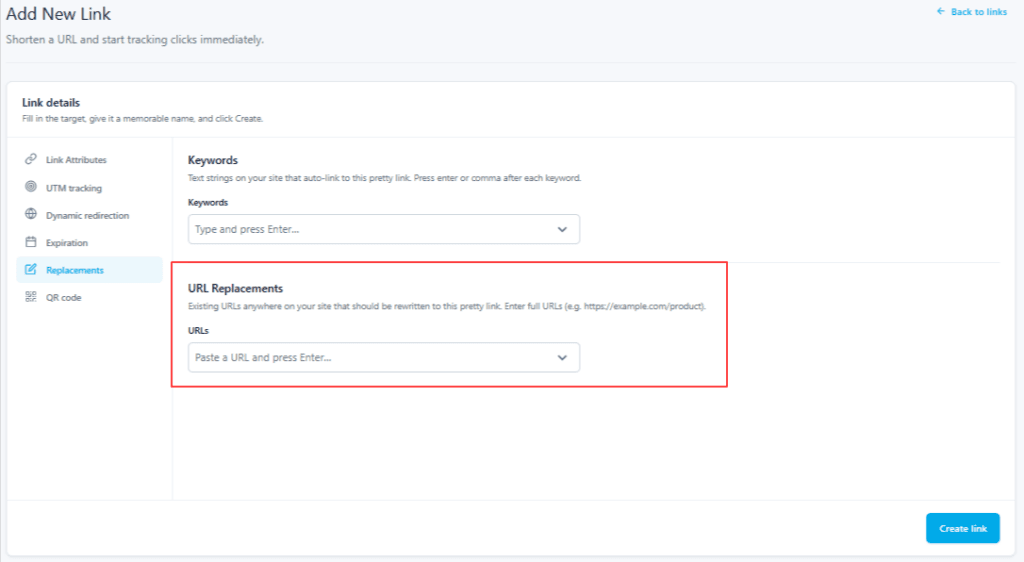
Una vez que esas URL se procesan a través de PrettyLinks, tendrás el mismo control sobre ellas que sobre el resto de tu colección, incluyendo seguimiento de clics, camuflaje, y la posibilidad de cambiar el destino desde un mismo lugar.
Hay varias formas de incorporar esas URL existentes a la gestión de PrettyLinks:
- Sustituir todas las URL Funciona en todo el sitio web: busca en tu contenido las URL que coincidan con la URL de destino de un enlace personalizado que ya hayas creado y las sustituye por la versión gestionada.
- URL adicionales tener en cuenta las variaciones que conducen al mismo destino sin coincidir exactamente con esa URL de destino. Añádelas al enlace optimizado correspondiente y el motor las tratará como parte del mismo enlace.
- Creación automática va un paso más allá: busca en tu contenido las URL que aún no tienen un enlace optimizado y crea uno automáticamente para ellas.
Con estas tres opciones, puedes abarcar de forma general tus URL actuales o gestionar variaciones específicas a medida que surjan.
🛠️ ¿Estás listo para recopilar todas esas URL antiguas? Nuestra Documento de ayuda sobre la sustitución de URL te indicará cuál es el enfoque más adecuado para tu sitio web.
Configuración compartida para la sustitución de palabras clave y URL
La sustitución de palabras clave y la sustitución de URL tienen cada una su propia función y configuración individual, pero también hay un conjunto de ajustes comunes para todo el sitio que se aplica a ambas.
Los encontrarás en PrettyLinks > Opciones > Sustituciones, donde puedes configurar algunas de las reglas generales sobre dónde se ejecutan los dos motores y cómo gestionan tus enlaces.
Entre los ajustes más útiles se encuentran:
- Forzar los atributos «nofollow» y «sponsored». Aplica automáticamente los atributos adecuados para los motores de búsqueda a los enlaces de afiliados sustituidos, para que no tengas que etiquetarlos uno a uno manualmente.
- Elige qué tipos de entradas quieres analizar. Las entradas y las páginas son el punto de partida más obvio, pero también puedes incluir otros contenidos que quieras que Replacements supervise, como cursos, contenidos para socios u otros tipos de entradas compatibles.
- Incluye comentarios. Incluye ambos motores en tu sección de comentarios, para que los enlaces y las menciones de palabras clave relevantes en las conversaciones de los lectores también se puedan gestionar allí.
- Incluye fuentes RSS. Incluye las actualizaciones en la versión de tus entradas que se distribuye a través de RSS, para que esos enlaces sigan estando disponibles para los suscriptores y los usuarios de lectores de feeds que quizá nunca lleguen a abrir el artículo directamente en tu sitio web.
- Añadir exclusiones. Indica a cualquiera de los dos motores lo que debe omitir, ya sea una palabra clave habitual que podría asociarse fácilmente a un contexto erróneo o una URL que quieras dejar intencionadamente apuntando exactamente a donde está.
- Aplicar un estilo personalizado. Con unos pequeños ajustes en CSS, puedes añadir colores, subrayados, texto decorativo o estilos al pasar el cursor para que los enlaces sustituidos destaquen.
Una vez que hayas tomado esas decisiones, no tendrás que volver a tomarlas enlace por enlace. Se convierten en las reglas comunes que siguen las funciones «Sustitución de palabras clave» y «Sustitución de URL», lo que proporciona a ambos motores una configuración coherente.
Información sobre transparencia y cumplimiento normativo
«Disclosures» es la única parte del motor de Replacements que no funciona de forma autónoma.
En cambio, funciona junto con las otras dos opciones, añadiendo automáticamente tu declaración de transparencia a cualquier página en la que la función «Sustitución de palabras clave o URL» haya añadido específicamente un enlace de afiliado.
De esta forma, la misma automatización que se encarga de tus enlaces también te ayuda a mantenerte al día con los requisitos de divulgación que conllevan.
Tú decides todo lo que ve tu lector, incluido el lugar en el que aparece tu aviso legal:
- En la parte superior del contenido, para que los lectores lo vean antes de llegar a cualquier enlace de afiliados.
- Al final, si prefieres añadirlo al final del artículo.
- Tanto en la parte superior como en la inferior, añadiendo un aviso en ambos extremos de las páginas más largas.
- En línea, colocar el texto informativo justo después de cada enlace de afiliado sustituido.
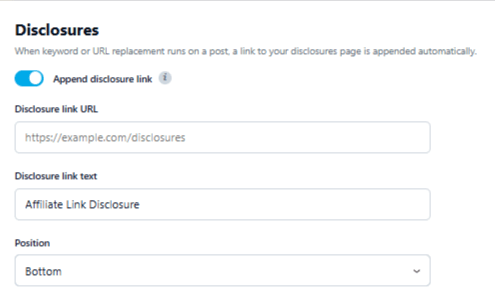
Hay otra forma de incluir enlaces de divulgación en tu contenido utilizando la función de sustitución de palabras clave.
Dado que PrettyLinks también puede redirigir a tus páginas internas, puedes crear una para tu página de aviso legal y asignarle la frase que prefieras como palabra clave.
Cada vez que utilices esa expresión de forma natural en tus textos, PrettyLinks puede redirigir automáticamente a los lectores a la información completa.
🛠️ ¿Ya tienes una página de información legal? Nuestra Enlace al documento de apoyo sobre la divulgación de información te indicará hacia dónde apuntarlo.
8 Tareas relacionadas con los enlaces de afiliados que puedes automatizar con los sustitutos de PrettyLinks
Si llevas ya un tiempo en esto, seguro que tienes una lista cada vez más larga de trabajos relacionados con los enlaces que nunca has llegado a hacer.
Veamos qué es lo que más se suele acumular y a qué parte del motor hay que asignar cada pieza.
Sustituciones de palabras clave
1. Añade un enlace a cada mención de un producto sobre el que hayas escrito alguna vez
Cuando todo un artículo trata sobre un solo producto —ya sea tu reseña sincera o una guía práctica—, acordarse de añadir el enlace de afiliado no suele ser lo más difícil.
Son las menciones más pequeñas las que se pasan por alto con mayor facilidad: cuando la recomendación está ahí, pero el enlace nunca llegó a aparecer.
Eso puede ocurrir en lugares como:
- Una recopilación en la que el producto es una recomendación más entre otras muchas.
- Una respuesta breve a un comentario en el que alguien te pregunta qué recomendarías personalmente.
- Un artículo antiguo en el que lo mencionaste de pasada.
La función «Sustitución de palabras clave» conecta por ti todas esas menciones dispersas, incluidas las que están ocultas en publicaciones que no has consultado en años.
💡 Un pequeño consejo: Fíjate en lo concreto que eres o, mejor dicho, en las ocasiones en las que no lo eres lo suficiente.
Por ejemplo, si escribes sobre utensilios de cocina, “freidora sin aceite” podría remitir, lógicamente, a varios productos que recomiendas, mientras que “Freidora sin aceite Ninja 4 en 1 Pro” tiene un destino mucho más claro en la página del producto.
Sin embargo, no hay que darle demasiadas vueltas al asunto. Recuerda que, si dos enlaces acaban compitiendo por el mismo término, el Escáner de palabras clave duplicadas está ahí para atraparlo.
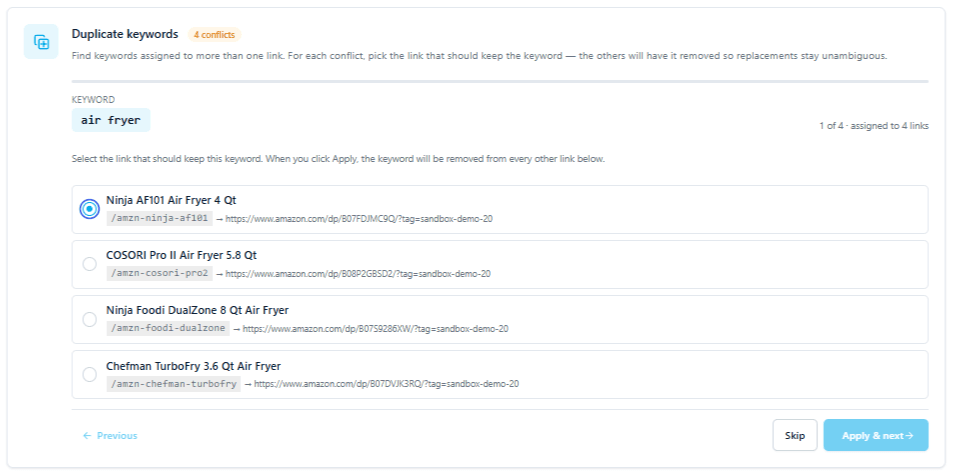
El escáner de palabras clave duplicadas detectó que esta palabra clave ya estaba asignada a otros cuatro enlaces antes incluso de que se produjera el conflicto.
2. Incluye el término abreviado que utilizas en lugar del nombre del producto
Escribir con naturalidad implica que probablemente no teclees el nombre oficial de un producto cada vez que aparece.
Una vez que tu lector sabe de qué estás hablando, lo expresas de forma más concisa. Quizá incluso hayas desarrollado tu propia forma abreviada de expresarlo sin darte cuenta.
Esas variaciones resultan igual de útiles en este caso, ya que un enlace bonito puede contener tantas palabras clave como quieras:
- Una versión abreviada del nombre completo
- El número de modelo que utilizas en lugar del nombre de la marca
- Un apodo que tus lectores habituales reconocen
- Una frase que se utiliza para describir la función del producto
- Una ventaja que sueles asociar con su uso
Volvamos, por ejemplo, a esa “Freidora Ninja 4 en 1 Pro”. Puedes escribir todo eso en la reseña; pero en el resto del texto, puedes abreviarlo como “la Ninja”, llamarla “la 4 en 1” o referirte a ella como tu “atajo para las cenas entre semana”.
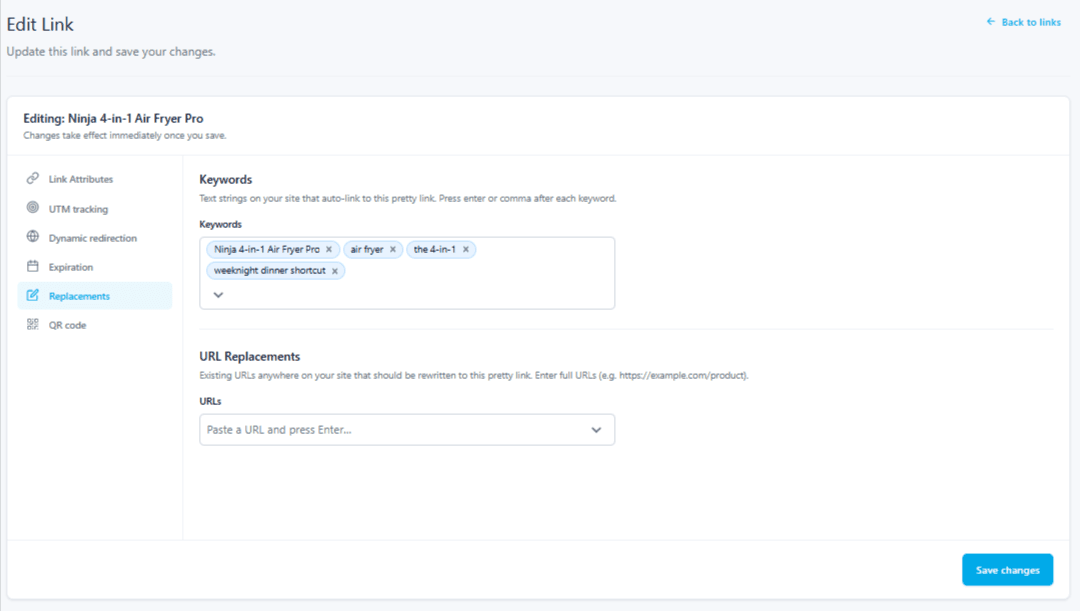
Un enlace muy práctico contiene el nombre oficial del producto y todas las abreviaturas que escribas, así que se activa de cualquier manera.
La idea es identificar los demás nombres y expresiones que utilizas habitualmente para referirte a un producto concreto y añadir aquellos que tengan sentido al mismo enlace atractivo.
3. Añade un enlace al nombre de una empresa del mismo modo que lo harías con un producto
No todas las colaboraciones de afiliados incluyen un catálogo de productos individuales.
Cuando estás trabajar con una marca concreta, sobre todo, la marca es lo que realmente estás recomendando.
Puede que haya diferentes planes, paquetes u opciones disponibles, pero no tienes que elegir un enlace de afiliado distinto para cada uno cada vez que se mencione a la empresa.
Esto es especialmente habitual en el caso de sociedades como:
- Software: Toma el programa de afiliados PrettyLinks. La empresa y el producto comparten nombre, por lo que recomendar uno es recomendar el otro.
- Suscripciones y afiliaciones: Piensa en los kits de comida, cajas de manualidades, o servicios de streaming. Puedes hablar de las diferentes opciones de planes, pero la oferta de afiliado es la suscripción.
- Empresas del sector de los servicios: En lugar de promocionar un producto, estás animando a los lectores a contratar a la empresa para servicios como redacción publicitaria, limpieza o mantenimiento de jardines.
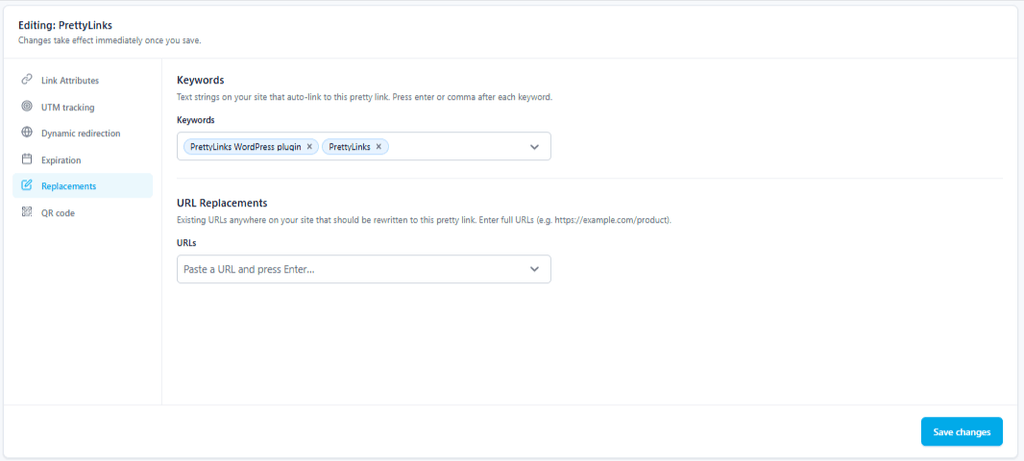
En este caso, el objetivo es una empresa y no un producto, por lo que las palabras clave incluyen el nombre de la marca y las variaciones del mismo que puedan aparecer en tus textos.
Sea cual sea el contenido de la oferta, lo que realmente te interesa es el nombre de la empresa. Por eso es una palabra clave útil para introducir en Keyword Replacement, de modo que cada mención de la marca incluya el enlace de afiliado asociado a ella.
4. Saca partido económico al contenido que publicaste antes de tener el enlace
Es posible que gran parte del contenido más antiguo de tu página web se haya publicado antes de que tuvieras enlaces de afiliación que incluir en él.
En realidad, eso es bastante habitual entre la mayoría de los creadores de contenido que están dando sus primeros pasos.
Para afiliados principiantes En particular, muchos programas y cadenas quieren ver una página web consolidada, con un amplio catálogo de contenidos publicados y una audiencia de seguidores habituales. antes de que aprueben tu solicitud.
O, a veces, el marketing de afiliados viene después Ya has creado un negocio de contenidos de éxito, en el que lo incorporas como una fuente de ingresos más a algo que ya está en marcha.
En cualquier caso, ya has hecho lo más difícil. Has creado el contenido, y es posible que parte de él ya esté generando tráfico y ayudando a los lectores a encontrar el productos por los que ahora te pagan por recomendarlos.
Con la sustitución de palabras clave, el enlace de afiliado pasa a formar parte de un contenido que ya estaba llamando la atención, lo que le brinda la oportunidad de empezar a generar comisiones gracias a él.
5. Dirige a los lectores hacia el contenido que quieres que encuentren
La sustitución de palabras clave no tiene por qué estar siempre vinculada a una oferta de afiliados.
Un enlace atractivo también puede dirigir a cualquier parte de tu propia web, lo que le da a esta función otra utilidad realmente práctica en tu estrategia de enlaces internos.
Al igual que hay productos de afiliados que quieres dar a conocer a más lectores, probablemente haya contenido en tu propia web al que te encantaría atraer más tráfico.
Quizás sea:
- Una publicación de gran éxito que genera de forma constante algunos de tu mayor volumen de tráfico.
- En recurso de carácter permanente que responda a las preguntas más habituales con las que tu público suele necesitar ayuda.
- A afiliado con alta tasa de conversión un artículo en el que un mayor número de lectores puede suponer más oportunidades de obtener ingresos.
Cuando ciertas frases se relacionan de forma natural con uno de esos elementos importantes, la función «Sustitución de palabras clave» las convierte en otra vía para que los lectores lleguen hasta allí.
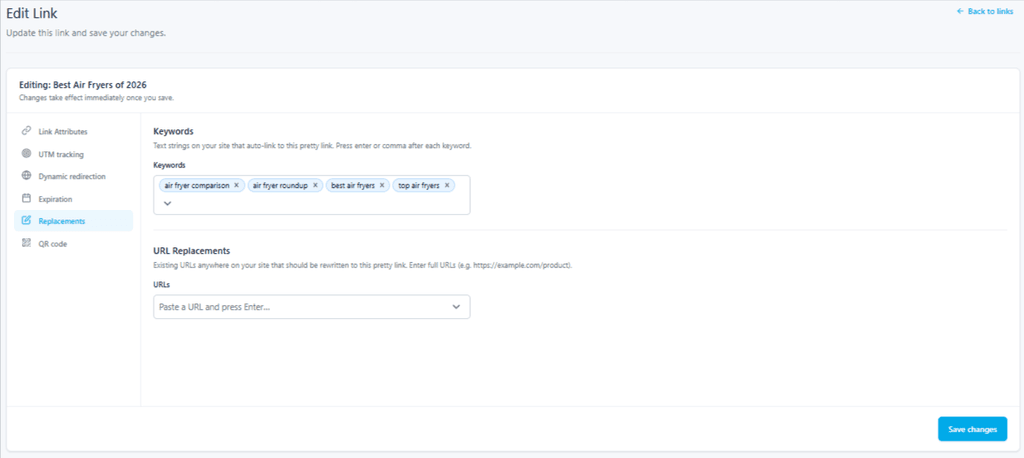
Añade un enlace bonito a tu propia publicación y las frases que se le hayan asignado redirigirán a los lectores allí automáticamente.
Lo mismo ocurre cuando las palabras de la página son pedir al lector que realice una acción.
Si le dices a alguien que se ponga en contacto contigo, que se suscriba, que se una o que te siga, hacer que esas palabras sean clicables significa que podrá hacerlo en el mismo momento en que se le ocurra.
Es fácil pasar por alto enlaces internos como estos cuando tu mente está concentrada en lo que estás escribiendo. Eso también hace que sean algunas de las oportunidades más fáciles de dejar pasar.
Sustitución de URL
6. Oculta los enlaces de afiliado que hayas colocado antes de PrettyLinks
Es posible que haya habido un momento en tu trayectoria profesional en el marketing de afiliados en el que no trabajaras con PrettyLinks. Lo sé, a nosotros tampoco nos gusta hablar de eso.
En aquella época, cogías los enlaces de afiliado que te proporcionaba cada programa y los añadías a tu contenido tal cual.
Los hipervínculos mantuvieron esos URLs monstruosamente largas Aunque no se veía, por debajo toda esa información de seguimiento y tu ID de afiliado seguían estando a la vista de todos.
Esos enlaces originales siguen estando presentes en tu contenido hoy en día, dirigiendo a los lectores a la página del producto correcta y generándote comisiones como siempre.
Simplemente lo están haciendo a la antigua usanza, sin ninguna de las medidas de protección ni el análisis de datos de los que disponen ahora el resto de tus enlaces.
Activa la opción «Sustituciones» y el motor encontrará esas URL originales dondequiera que las hayas colocado, sustituyéndolas por los enlaces optimizados que obtuvieron cuando importó esa colección.
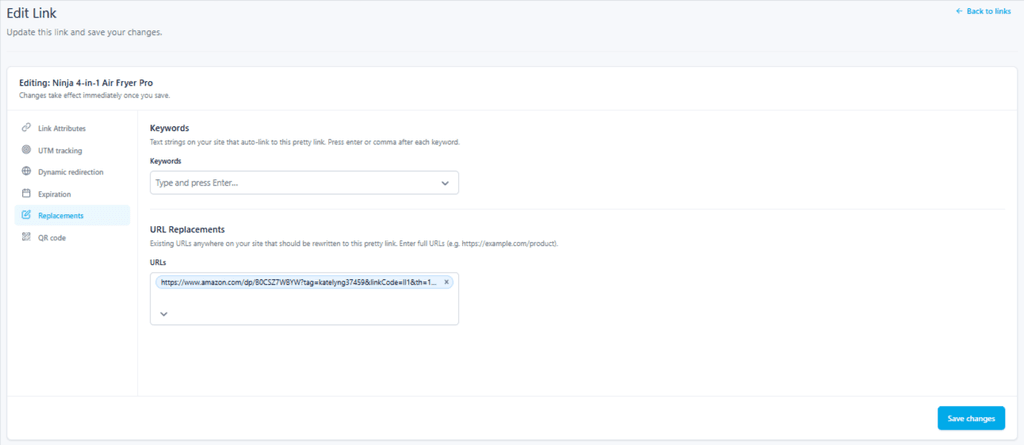
La URL de afiliado sin formatear —con el ID de afiliado visible y todo— ahora forma parte del enlace optimizado que la sustituye en todas tus entradas antiguas.
Ahora cada uno de ellos es un enlace bonito que te pertenece, así que puedes ver cómo llegan los clics, personalizar la URL para que merezca la pena compartirla o convertir lo que antes eran cuatro palabras de texto azul en una exposición completa de productos.
7. Registra todas las versiones de una URL de afiliado que hayas utilizado
Cuanto más tiempo trabajes con un socio de afiliación, más probable es que la URL que te proporcionó no haya sido exactamente la misma cada vez que la has utilizado.
Pueden colarse algunas variaciones en la mezcla por motivos totalmente normales:
- El mismo producto, enlazado de dos formas diferentes. En el caso de Amazon, por ejemplo, SiteStripe genera un enlace completo y un enlace corto para la misma página. Utiliza el enlace completo en una reseña y el corto en un resumen, y tendrás dos URL completamente diferentes.
- Un socio que ha renovado su imagen de marca. Cuando un programa se traslada a un nuevo dominio, es posible que las direcciones antiguas sigan redirigiendo, pero No hay nada que garantice cuánto tiempo durará eso. Por otra parte, también tienes activadas dos versiones del mismo enlace de producto.
- Un formato ligeramente diferente. Algo tan sencillo como añadir “www” u omitir la barra final basta para que te quedes con otra versión de una URL que ya has utilizado antes.
Para ti, todos esos enlaces son iguales; pero un enlace bonito solo reconoce la URL de destino que le has indicado, y por eso se ignoran las otras versiones.
Los alias sirven para incluir el resto. Cada variante que añadas se vincula a ese mismo enlace optimizado, de modo que el motor de sustitución de URL las detecta todas, independientemente de dónde aparezcan en tu contenido.
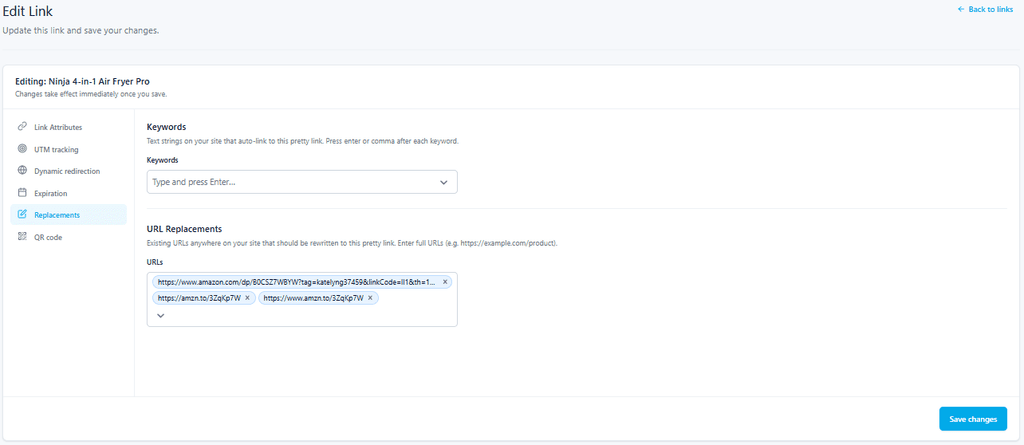
Las URL adicionales recogen las variaciones que, de otro modo, se pasarían por alto.
Divulgaciones
8. Da a conocer todas las páginas que tus sustitutos acaban de monetizar
Lo mejor de Replacements es que no tienes que estar pendiente tú mismo de todas las oportunidades de enlazar.
Especialmente con la función de sustitución de palabras clave, esa automatización no tarda mucho en abarcar mucho más contenido del que cabría esperar.
Imagina que añades cinco palabras clave o frases a cinco de tus enlaces de afiliado más populares. Ahora, PrettyLinks reconoce 25 términos diferentes en toda tu web.
Y, dependiendo de la frecuencia con la que hayas escrito sobre esos productos, esos sustitutos podrían aparecer en 10 entradas, en 50 entradas o en todas las páginas que hayas publicado.
Resolver eso después significaría:
- Localizar cada recambio que se ha instalado en el motor
- Averiguar qué páginas se vieron afectadas
- Comprobar si cada uno cuenta con la información que necesita en este momento
En ese momento, estás convirtiendo en una tarea de limpieza manual algo que habías automatizado precisamente para evitarla.
De eso se encarga «Disclosures».
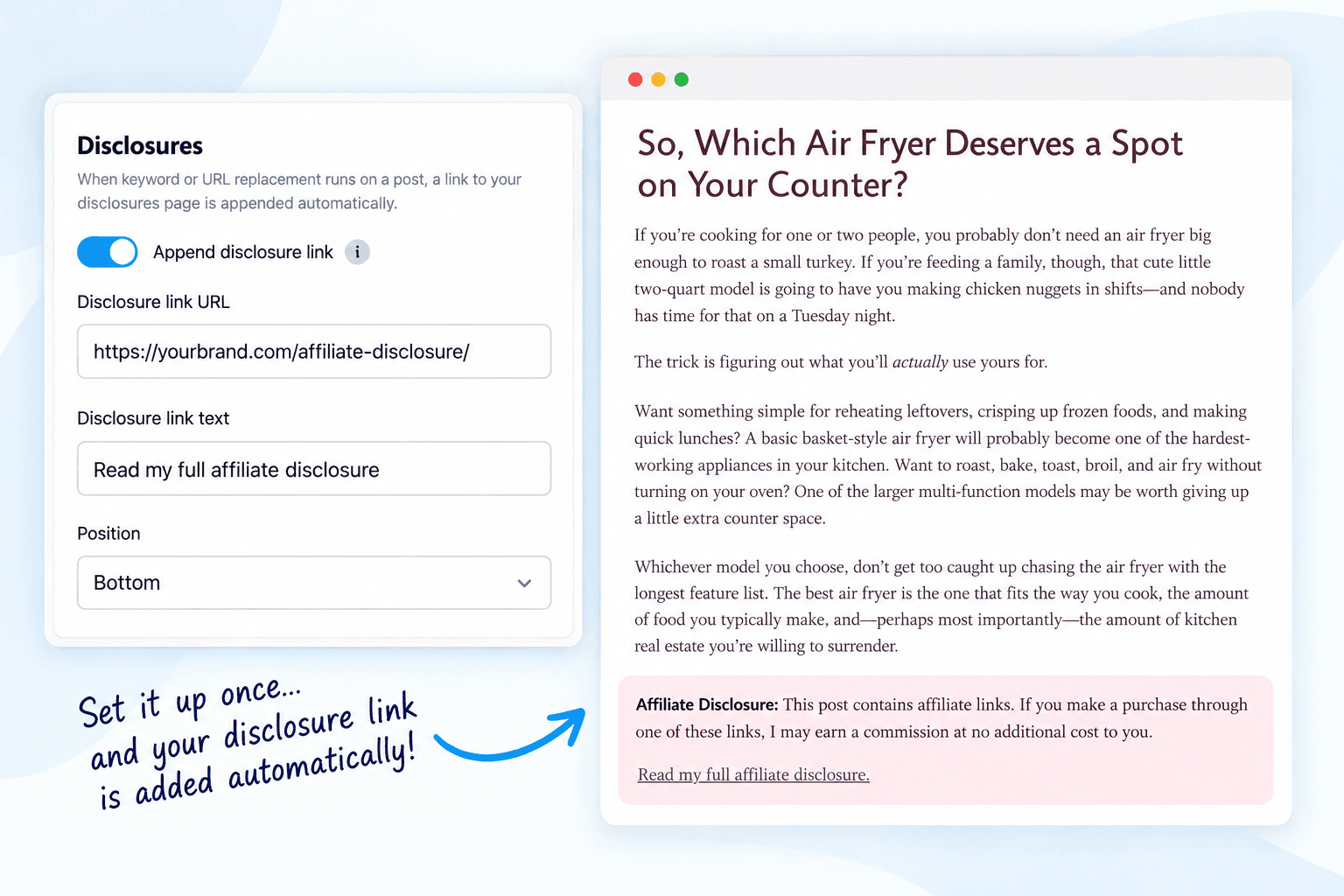
Configura el ajuste una sola vez y el aviso aparecerá en todas las páginas con las que los motores generan ingresos.
Cada vez que cualquiera de los dos motores añada un enlace de afiliado válido, PrettyLinks añadirá tu aviso legal a esa misma página, redactado y colocado tal y como tú has decidido.
Conclusión
Tres funciones, una sola configuración y sin necesidad de volver a abrir nunca más una publicación antigua. En su lugar, dispones de un sitio web en el que:
✅Una recomendación que escribiste en 2021 te está reportando una comisión hoy mismo.
✅Por fin se ha realizado el seguimiento de una antigua URL de afiliado, se ha enmascarado y ya puedes redirigirla.
✅ Todas las páginas que se han monetizado a lo largo del proceso ya se han hecho públicas.
Y cada entrada que publiques desde aquí recibe el mismo tratamiento incluso antes de que pulses «Guardar».
Si ya estás utilizando PrettyLinks Replacements, me encantaría saber qué función activaste primero y qué te ha detectado desde entonces.
Y si lo estás utilizando de una forma que no he mencionado aquí, ese es el comentario que realmente me gustaría leer.




Deja una respuesta