
Verfügbar im „Super Affiliate“-Tarif.
Mithilfe von UTM-Parametern teilen Sie Analysetools – wie Google Analytics, Plausible, Fathom, Matomo und fast jedes andere Dashboard – mit, welche Kampagne, welcher Kanal und welcher konkrete Link zu einem Besuch geführt haben. Das UTMs-Add-on erleichtert die Erstellung dieser Parameter, indem es die manuelle Bearbeitung von URLs durch ein übersichtliches Formular ersetzt.
Das Problem mit manuell eingegebenen UTMs
Wenn Sie schon einmal eine URL mit UTM-Tags von Hand erstellt haben, kennen Sie die möglichen Fehlerquellen:
- Inkonsistente Werte — “E-Mail” in einem Link, “E-Mail” in einem anderen, “E-MAIL” in einem dritten. Für Analysetools sind das drei verschiedene Quellen;
- Tippfehler —
?utm_source=newsletterbleibt für immer in Ihren Daten erhalten; - Falsche Trennzeichen —
&anstelle von?für den ersten Parameter fehlt&zwischen den Parametern, doppelt?; - Vergessene Parameter — Du wolltest den Link mit einem Tag versehen, hast aber versehentlich die reine URL per Kopieren und Einfügen in deinen Beitrag eingefügt;
- Bereits mit Tags versehene URLs — Sie fügen einer URL, die bereits UTM-Parameter enthält, weitere hinzu, was zu widersprüchlichen Parameterwerten führt.
Bei einem einzelnen Link lässt sich das noch bewältigen. Bei hundert Kampagnen-Links in Blogbeiträgen, sozialen Medien, E-Mails und Biografie-Seiten führt die manuelle UTM-Kennzeichnung jedoch unweigerlich zu unübersichtlichen Analysedaten – und damit zu unüberlegten Entscheidungen.
Was das UTMs-Add-on leistet
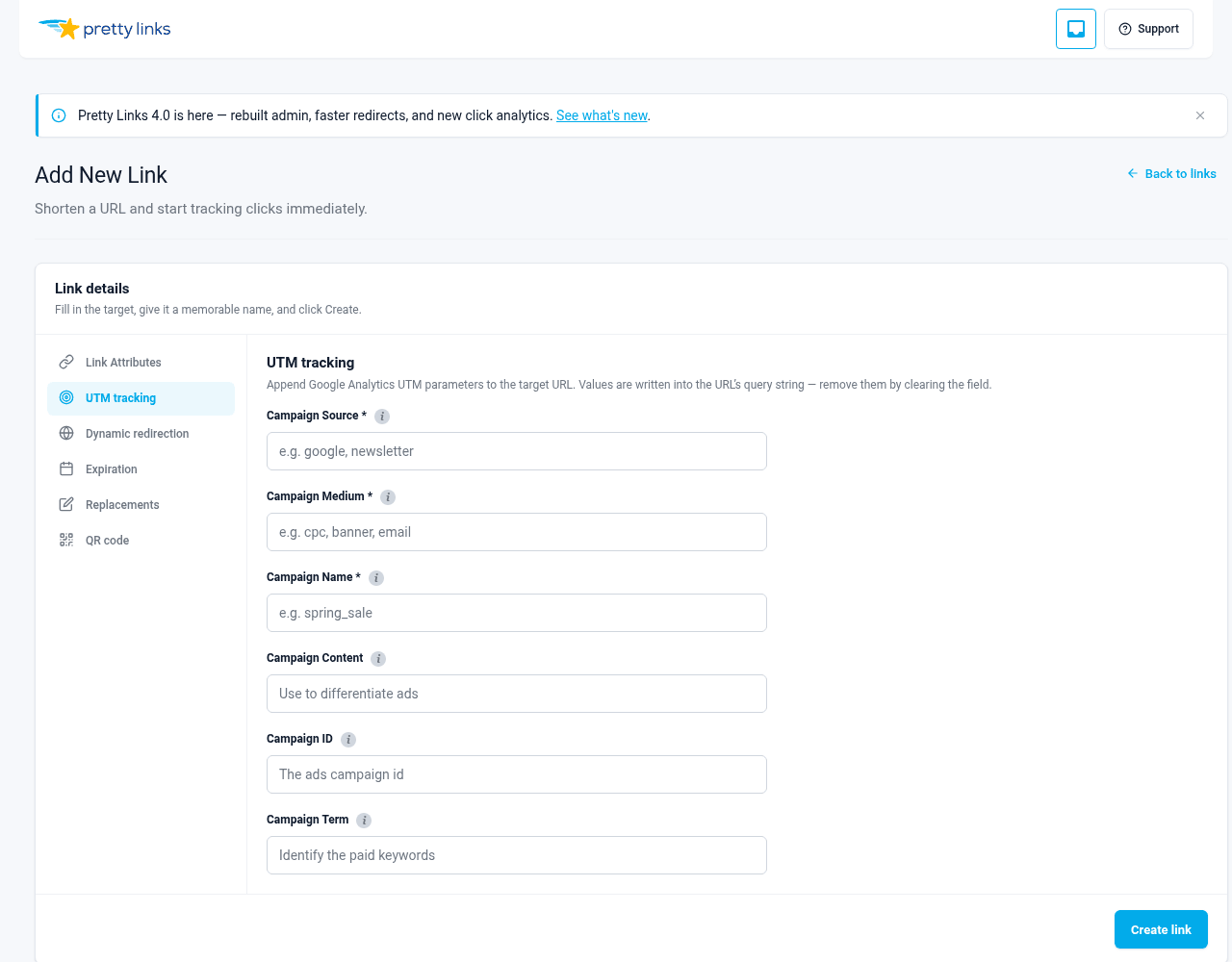
Das UTMs-Add-on fügt ein UTM Gehen Sie zum Pretty-Link-Editor. Dort finden Sie ein Formular mit einem Feld pro UTM-Parameter:
- Quelle (erforderlich);
- Mittel (erforderlich);
- Name (erforderlich) — entspricht
utm_campaign; - Inhalt (optional);
- ID (optional) — entspricht
utm_id; - Begriff (optional).
Sie füllen die Felder aus, speichern den Link, und Pretty Links fügt sie automatisch in die Ziel-URL ein. Keine manuelle Eingabe erforderlich ?utm_source=…&utm_medium=… Bearbeitung.
Warum das wichtig ist
Beständige Werte
Da die Werte aus Formularfeldern stammen, können Sie sie von einem Link zum nächsten kopieren und einfügen, ohne sich Gedanken über Groß-/Kleinschreibung oder Abstandsunterschiede machen zu müssen. “Newsletter” bleibt überall “Newsletter”.
Keine Tippfehler in der URL selbst
Sie können zwar einen Wert im Formular falsch eingeben, aber die URL darf nicht fehlerhaft sein. Die Struktur (?utm_source=…&utm_medium=…) wird jedes Mal korrekt generiert.
URL bereits mit Tag versehen? „Pretty Links“ kümmert sich darum
Wenn Ihre Ziel-URL bereits UTM-Parameter enthält, erkennt der Editor diese und übernimmt sie in das Formular, sobald Sie den Link öffnen. Sie können die Parameter überprüfen, anpassen und erneut speichern, ohne dass es zu doppelten oder widersprüchlichen Parametern kommt.
Versteckt, wo es nicht zutrifft
Bei „Pretty Links“ vom Typ „Pixel“ (die ein Tracking-Pixel auslösen, anstatt eine Weiterleitung durchzuführen) gibt es keine Ziel-URL, die mit Tags versehen werden könnte, daher wird die Registerkarte „UTM“ bei diesen Links automatisch ausgeblendet. Keine Unübersichtlichkeit, keine Verwirrung.
Lässt sich nahtlos in Ihre bestehende Infrastruktur integrieren
Die zusammengeführte URL ist eine normale URL mit normalen UTM-Parametern. Ganz gleich, welches Analysetool Sie verwenden – GA4, Plausible, Fathom, Matomo oder sogar Ihr CRM –, es erfasst die Parameter genauso, als hätten Sie die URL manuell mit Tags versehen.
Wann sollte man es verwenden?
Verwenden Sie das UTMs-Add-on immer dann, wenn:
- Sie führen mehrere Kampagnen durch und müssen den Traffic korrekt zuordnen;
- Sie veröffentlichen Inhalte auf verschiedenen Kanälen (Blog, soziale Medien, E-Mail, Partner) und möchten wissen, welcher davon die Konversionen fördert;
- Sie geben Links an Teamkollegen oder Auftragnehmer weiter und möchten eine einheitliche Kennzeichnung sicherstellen;
- Haben Sie sich schon einmal einen Kampagnenbericht in Google Analytics angesehen und versucht, die uneinheitlichen Werte für „Quelle“ und „Medium“ zu verstehen?.
Sie brauchen es wahrscheinlich nicht, wenn:
- Sie generieren Traffic immer nur aus einer Quelle (und legen keinen Wert auf die Attribution nach Kanälen);
- Sie verwenden ausschließlich direkte, nicht mit Tags versehene Links;
- Das UTM-Tagging erfolgt bei euch auf einer anderen Ebene (manche Teams erledigen dies stattdessen im E-Mail-Tool oder im Social-Media-Planer).
Aber wenn Sie ohnehin den Super-Affiliate-Tarif nutzen, gibt es keinen Grund, darauf zu verzichten. Selbst bei gelegentlicher Nutzung geht das schneller, als UTMs von Hand einzugeben.
Wo soll man anfangen?
Öffnen Sie einen beliebigen vorhandenen Pretty Link und suchen Sie den neuen UTM Registerkarte, füllen Sie die Felder aus und speichern Sie. Das war’s schon.
Eine Schritt-für-Schritt-Anleitung mit Beispielen finden Sie unter Verwendung des UTM-Builders.