
Création automatique génère automatiquement un lien optimisé pour chaque article dès sa publication. L'URL optimisée de l'article devient un raccourci court et personnalisé vers celui-ci, que vous pouvez partager sur les réseaux sociaux, dans des e-mails, sur papier, ou n'importe où ailleurs.
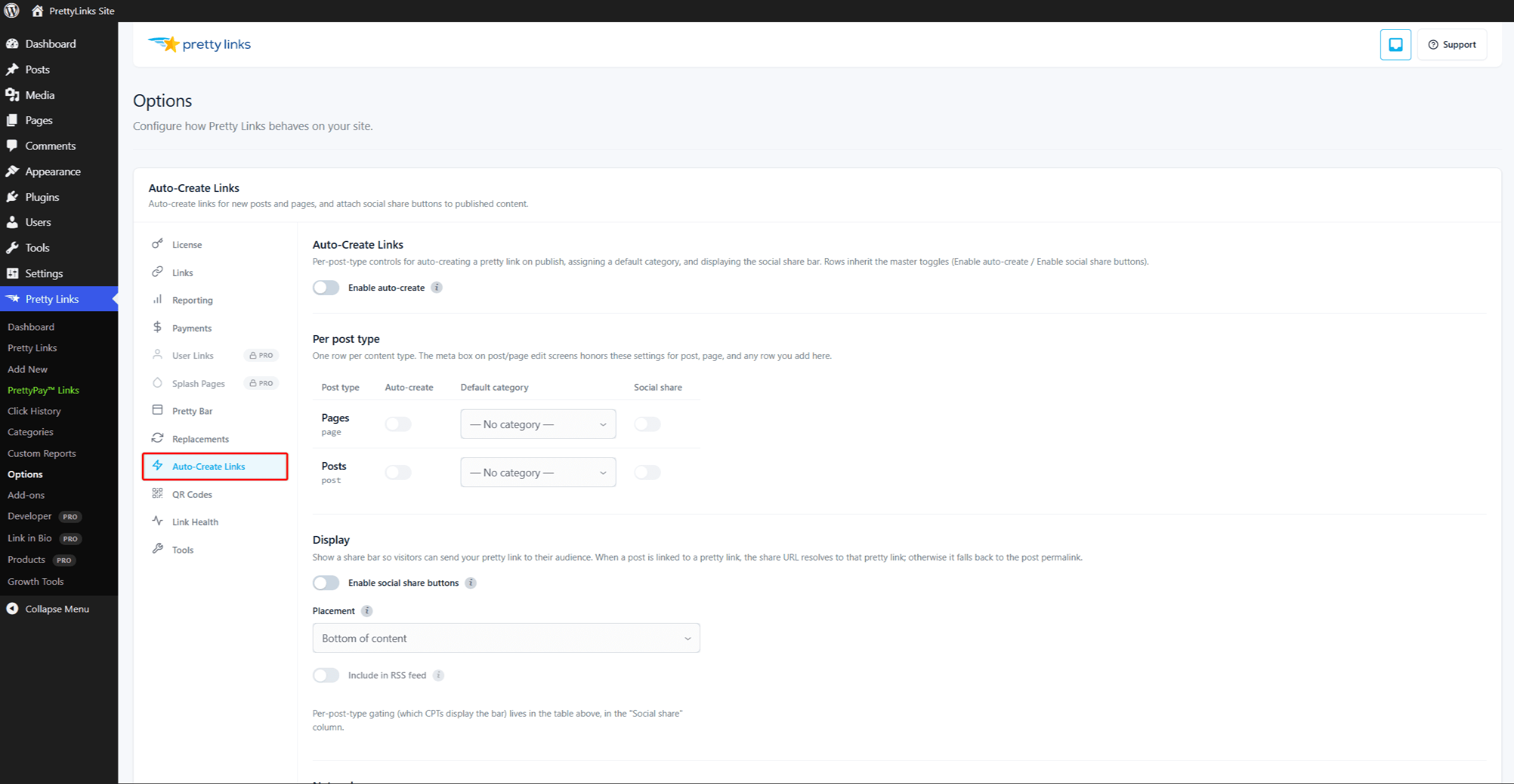
Fonctionnalité « Création automatique »
Lorsque vous publiez (ou mettez à jour) un article concerné par votre configuration de création automatique :
- Pretty Links vérifie si cet article dispose déjà d'un lien « pretty » généré automatiquement.
- Sinon, il en crée un — qui renvoie vers le lien permanent de l'article.
- Le lien « pretty link » se voit attribuer un slug (généré automatiquement par défaut), est enregistré, puis associé à l'article.
- À partir de là, vous pourrez partager cette URL simplifiée à la place du long lien permanent.
Le lien généré utilise les mêmes paramètres que vos paramètres par défaut globaux : type de redirection, suivi des clics, attribut « nofollow », etc. Vous pouvez modifier le lien obtenu à tout moment pour changer ces paramètres.
Configuration de la création automatique
Aller à Tableau de bord > Pretty Links > Options > Création automatique de liens.
Vous pouvez configurer ici :
Le commutateur principal
Avant tout, le Activer la création automatique Le commutateur principal active ou désactive l'ensemble de la fonctionnalité. Les lignes ci-dessous, spécifiques à chaque type de publication, ne s'appliquent que lorsque cette option est activée. La désactivation du commutateur principal suspend la création automatique pour tous les types de publication personnalisés (CPT) sans pour autant effacer vos paramètres au niveau des lignes.
Tableau par type de publication
Sous le bouton principal se trouve un tableau dédié à chaque type de publication. Chaque ligne correspond à l’un des types de publication publics de votre site (articles, pages, ainsi que tout type de publication personnalisé tel que les produits, les cours, les recettes, etc.) et comporte trois commandes indépendantes :
- Création automatique — Si un lien esthétique est généré lors de la publication d'un article de ce type ;
- Catégorie par défaut — Une valeur par défaut catégorie ajouté à chaque lien créé automatiquement pour ce CPT. Laisser tel quel
Aucunà ignorer. La catégorie par défaut peut être modifiée pour chaque lien a posteriori ; - Partage sur les réseaux sociaux — Que le barre de partage sur les réseaux sociaux s'affiche sur ce CPT. Cela n'a rien à voir avec la création automatique : vous pouvez activer l'une sans l'autre.
Par défaut, le tableau est vide (aucun CPT n'est sélectionné). Cochez les lignes de votre choix.
Format « Slug »
Les liens créés automatiquement utilisent le générateur de slugs standard de Pretty Links : par défaut, il s'agit d'une courte chaîne alphanumérique aléatoire. Le champ prérempli dans la boîte de méta-données d'édition a posteriori (voir ci-dessous) vous indique le slug choisi, et vous pouvez le modifier directement avant la publication.
Il n'existe pas de paramètre de modèle de slug applicable à l'ensemble du site dans la version 4 (il s'agit d'une décision délibérée visant à assurer la compatibilité directe avec la version 3, qui avait supprimé les champs de modèle dans ses dernières versions mineures). Le lien créé automatiquement nom provient du titre de l'article, et son description est tiré de l'extrait de l'article.
Remplacement par publication
Le métabox des options de publication sur chaque écran de modification d'un message, vous permet d'ajuster précisément le comportement de ce message en particulier :
- Lien automatique vers le slug — Remplacer le slug généré automatiquement. Saisissez ici votre propre slug avant d'enregistrer : le lien créé automatiquement l'utilisera alors à la place de celui généré aléatoirement ;
- Désactiver le remplacement des mots-clés — Ne pas créer de liens automatiques vers les mots-clés dans cet article ;
- Désactiver le remplacement des URL — Ne pas remplacer automatiquement l'URL de cet article ;
- Masquer les boutons de réseaux sociaux — Ne pas afficher la barre de partage sur cet article.
Il n'existe pas de case à cocher “ Désactiver la création automatique ” au niveau de chaque article. Pour désactiver la création automatique d'un seul article, les solutions de contournement documentées sont les suivantes :
- Supprimez manuellement le lien optimisé généré automatiquement, puis supprimez le
_lien-simplifiémétadonnées (avancées) ; - Désactivez complètement l'option de création automatique du CPT si vous ne souhaitez pas qu'elle s'applique à aucun article de ce type.
Dans la pratique, les brouillons d’articles et les sauvegardes automatiques ne déclenchent jamais la création automatique : les liens ne sont créés que sur publié articles, afin que les brouillons internes ou privés n'encombrent pas votre liste de liens.
Intégrer le lien automatique dans votre article
Utiliser le code court pour afficher l'URL optimisée générée automatiquement pour un article au sein même du contenu de celui-ci. Le shortcode est le suivant :
[post-pretty-link]Modèles courants :
- Un bouton “ Partager cette URL ” au bas de chaque article de blog ;
- Une “ URL raccourcie ” figurant dans votre modèle imprimable ;
- Une URL simplifiée, facile à partager par e-mail, dans le pied de page de votre newsletter.
Comment fonctionne la création automatique de publications avec les boutons de partage sur les réseaux sociaux
Le boutons de partage social Cette fonctionnalité utilise l'URL simplifiée de chaque publication (lorsque la création automatique est activée) comme URL à partager. Cela signifie que :
- Les visiteurs qui cliquent sur “ Partager sur Twitter ” partagent votre URL simplifiée, et non le lien permanent ;
- L'URL partagée est plus courte (ce qui est plus pratique sur les plateformes où le nombre de caractères est limité) ;
- Les clics provenant des réseaux sociaux sont suivis dans vos rapports Pretty Links.
C'est cette synergie qui rend la fonctionnalité de création automatique si utile : chaque publication se voit attribuer une URL courte traçable, et vos boutons de partage l'utilisent automatiquement.
Que se passe-t-il si un message est désactivé ou supprimé ?
Si vous supprimez un article, le lien raccourci généré automatiquement pour cet article est pas est automatiquement supprimé. Le « joli lien » continue de rediriger vers le permalien de l'article — qui renvoie désormais à une erreur 404 ou à la page des articles supprimés.
Vous pouvez :
- Si vous souhaitez le supprimer, jetez manuellement le « joli lien » ;
- Modifiez manuellement le lien « pretty link » pour qu'il renvoie vers une page utile (un article en rapport, votre page d'accueil) ;
- Laissez tel quel — cela peut s'avérer utile si vous souhaitez restaurer la publication ultérieurement.
Pretty Links ne supprime pas automatiquement les liens, car il ne souhaite pas vous prendre au dépourvu en supprimant sans préavis les URL traçables que vous avez déjà partagées sur les réseaux sociaux ou dans des e-mails.
Conseils
- Activez la création automatique dès le début de votre processus de création de contenu. Il est bien plus facile d'avoir des URL claires dès le départ que de les créer a posteriori pour un catalogue de 500 articles ;
- Vérifier la catégorie par défaut pour organiser les liens créés automatiquement ;
- N'activez pas la création automatique pour tous les types de publications. Cela encombre votre liste de liens. Limitez-vous aux types d'articles que vous partagez réellement en externe ;
- À associer avec Remplacements d'URL si vous souhaitez que les permaliens des articles présents dans votre contenu soient remplacés automatiquement par des URL optimisées générées automatiquement.