
Disponible en el plan Marketer y superiores.
Los webhooks son la forma en que Pretty Links comunica otros sistemas cuando ocurre algo. Cada vez que se añade, edita, se envía a la papelera, se restaura o se elimina un enlace, Pretty Links envía una solicitud HTTP POST a la URL que tú especifiques, con un cuerpo JSON que describe lo que ha ocurrido.
Esta guía forma parte de la Descripción general del complemento «Pretty Links Developer Tools», el punto de acceso al complemento «Herramientas de desarrollo».
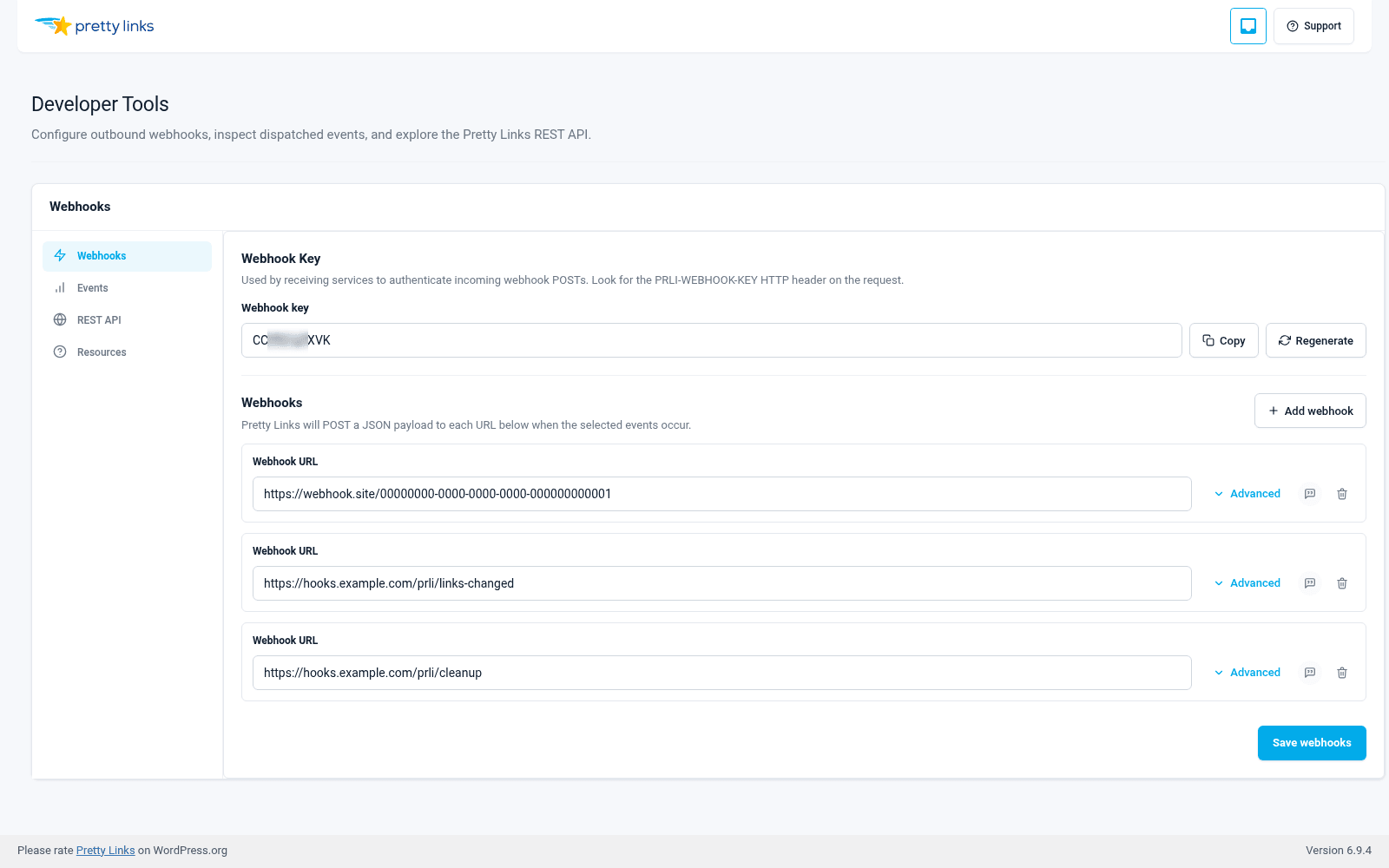
Añadir una suscripción
- Ir a Panel de control > Pretty Links > Herramientas para desarrolladores > Webhooks.
- Haga clic en Añadir suscripción.
- Rellena:
- URL de destino — La URL HTTPS completa a la que deben enviar la solicitud POST los «Pretty Links». Suele tratarse de una URL de webhook proporcionada por Zapier, Make, n8n, tu punto final personalizado o un webhook entrante de Slack/Teams;
- Tipos de eventos — ¿Qué eventos deberían activar este webhook (véase más abajo)?;
- Descripción — Etiqueta opcional para que recuerdes para qué sirve esta suscripción.
- Haga clic en Guardar.
La suscripción ya está activa. La próxima vez que se produzca un evento que coincida, tu URL de destino recibirá una solicitud POST.
Tipos de eventos
Puedes suscribirte a un evento, a varios eventos o a todos los eventos.
| Evento | Se dispara cuando |
|---|---|
enlace añadido | Se crea un nuevo Pretty Link |
enlace actualizado | Se edita un «Pretty Link» ya existente |
enlace eliminado | Se ha movido un «Pretty Link» a la papelera |
enlace-restablecido | Un Pretty Link que se ha enviado a la papelera se recupera de la papelera |
enlace eliminado | Un «Pretty Link» se elimina definitivamente |
todos | Todo lo anterior (recibirás todas las notificaciones de enlaces) |
Elegir todos Si quieres una única suscripción que lo abarque todo, o bien seleccionar eventos concretos si tu sistema posterior solo se interesa, por ejemplo, por la creación de nuevos enlaces.
Seguridad de los webhooks: el encabezado PRLI-WEBHOOK-KEY
Tu sitio web tiene un único clave de webhook — tal y como se muestra en Panel de control > Pretty Links > Herramientas para desarrolladores junto con la clave de la API. Pretty Links envía esta clave en el PRLI-WEBHOOK-KEY encabezado de cada solicitud POST que envía a una URL de destino, independientemente de qué suscripción se haya activado.
Tu punto final receptor debe comprobar este encabezado. Si el valor coincide con la clave que Pretty Links te muestra en el panel de administración, la solicitud es auténtica. Si no coincide (o no aparece), la solicitud es falsa y tu punto final debe ignorarla.
Al igual que la clave de la API, puedes volver a generar la clave del webhook desde el panel de administración si alguna vez se filtrara. Volver a generarla implica actualizar el valor de comparación en cada receptor que hayas configurado.
Así es como puedes proteger tu terminal frente a personas que envían cargas falsas del tipo “enlace añadido” a tu URL. Sin la comprobación de la clave, cualquiera que adivine la URL de tu webhook podría activar tu automatización posterior.
La mayoría de los receptores de webhooks (Zapier, Make, código personalizado) te permiten leer los encabezados entrantes. Compara PRLI-WEBHOOK-KEY al valor esperado antes de procesar la carga útil.
Registro de eventos
Cada envío de webhook —tanto si se ha realizado correctamente como si no— queda registrado en el registro de eventos de la pantalla «Webhooks». Para cada envío, puedes ver:
- El tipo de evento;
- La URL de destino a la que se envió;
- El código de respuesta HTTP que ha devuelto tu punto final;
- La carga útil completa que se envió.
Esto resulta muy útil para la depuración. Si un Zap no se activa, comprueba el registro de eventos: ¿ha enviado Pretty Links realmente el webhook? ¿Tu punto final ha devuelto un código de estado 200 o un 500? ¿La carga útil era la que esperabas?
Envío de prueba
Junto a cada suscripción hay un Envío de prueba acción. Haz clic en ella y Pretty Links enviará una carga de prueba a tu URL de destino ahora mismo, sin esperar a que se produzca un evento real.
Utiliza la opción «Envío de prueba» para:
- Comprueba que una nueva suscripción esté conectada correctamente;
- Comprueba que se pueda acceder a la URL de destino;
- Comprueba qué aspecto tiene la forma de la carga útil en tu herramienta posterior;
- Vuelve a realizar la prueba tras cambiar la URL de destino.
Configuraciones habituales de webhooks
Alerta en Slack cuando se crea un enlace de campaña: Suscríbete a enlace añadido y configura la URL de destino para que apunte a un webhook de entrada de Slack (a menudo a través de Zapier o Make para el formato).
Archivar automáticamente en la hoja de cálculo cuando se elimine el enlace: Suscríbete a enlace eliminado y configura la URL de destino para que apunte a un webhook de Zapier que añada una fila a una hoja de cálculo de Google titulada “Enlaces eliminados”.
Sincronizar con un CRM personalizado: Suscríbete a todos y configura la URL de destino para que apunte al punto final de recepción de tu CRM. Utiliza el campo «tipo de evento» de la carga útil para decidir qué acciones deben realizarse en cada lado.
Reintentos y fallos
Si tu punto final devuelve un código de respuesta distinto de 2xx (o no responde en absoluto), el envío se registra como fallido. Comprueba tu punto final, soluciona el problema y, a continuación, utiliza «Envío de prueba» para confirmar que vuelve a funcionar. Los eventos reales que se produjeron durante la interrupción del servicio no se reproducen automáticamente, así que asegúrate de que tu punto final sea fiable antes de depender de los webhooks para flujos de trabajo críticos.