
Disponible en el plan Marketer y superiores.
Esta página ofrece una visión general. La referencia completa y siempre actualizada de la API REST se encuentra en el panel de administración de WordPress. — ir a Panel de control > Pretty Links > Herramientas para desarrolladores > Documentación para ver ejemplos completos de solicitudes y respuestas.
Esta guía forma parte de la Descripción general del complemento «Pretty Links Developer Tools», el punto de acceso al complemento «Herramientas de desarrollo».
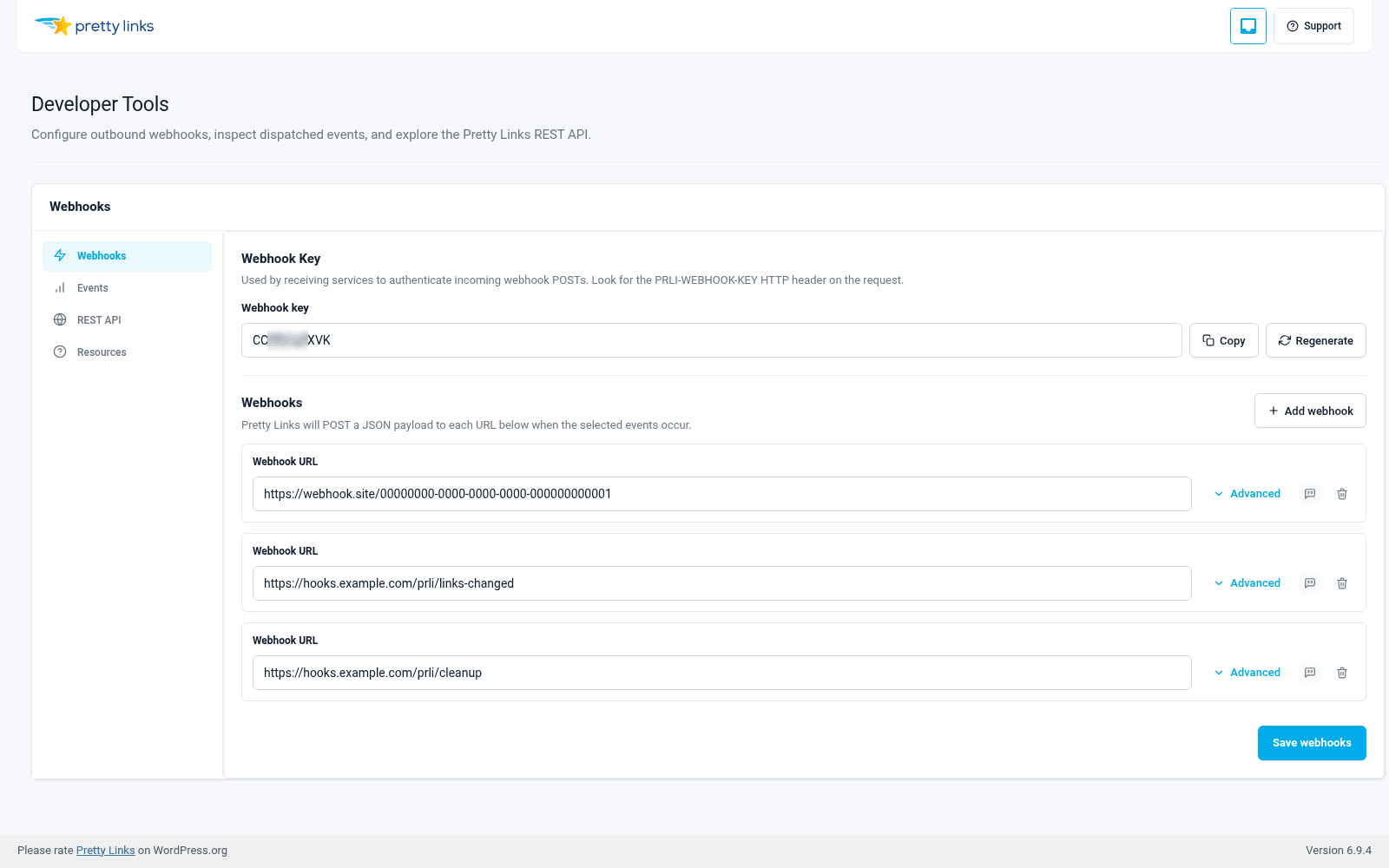
Dónde encontrar la referencia completa
En la barra lateral de administración de WordPress, ve a Panel de control > Pretty Links > Herramientas para desarrolladores > Documentación.
La pestaña «Documentación» muestra todos los puntos finales con su método HTTP, parámetros, formato del cuerpo de la solicitud, formato de la respuesta y ejemplos de llamadas. Como se aloja desde tu propia instalación, siempre coincide con tu versión actual de Pretty Links; así que no tendrás que preocuparte por documentación en línea desactualizada.
Abre la pestaña «Documentos» en otra pestaña del navegador mientras trabajas. Es la fuente de información fiable.
Descripción general de los terminales
Aquí tienes un resumen rápido de lo que hay disponible, para que sepas qué opciones tienes antes de profundizar en la documentación de la aplicación.
Pretty Links (CRUD)
- Lista de enlaces optimizados — Accede a todos tus «Pretty Links», con funciones de filtrado y paginación;
- Consigue un único Pretty Link — Buscar un enlace por su ID;
- Crear un enlace bonito — Añadir un nuevo enlace mediante programación. Resulta útil para migraciones, importaciones masivas o la creación automática de enlaces desde otro sistema;
- Actualizar un «Pretty Link» — Modificar la URL de destino, el slug, el tipo de redirección, el nombre u otros campos de un enlace ya existente;
- Eliminar un enlace simplificado — Eliminar o borrar definitivamente un enlace.
Suscripciones a webhooks
- Suscríbete — Crear una nueva suscripción a un webhook mediante programación (POST);
- Darse de baja — Eliminar una suscripción a un webhook por su ID (DELETE).
Resultan útiles cuando un sistema externo necesita gestionar el ciclo de vida de sus propias suscripciones a webhooks; por ejemplo, una integración que quiera registrarse automáticamente al activarse y eliminarse al desactivarse. Para ver la lista actual de suscripciones, utiliza la pantalla «Webhooks» del panel de administración.
Autenticación
Todos los puntos finales requieren la clave API del sitio, que se envía bien en el PRLI-API-KEY encabezado o el Autorización encabezado. Véase Claves de API para saber dónde encontrarlo y cómo regenerarlo.
El espacio de nombres REST es pl/v1 — por ejemplo, https://yoursite.com/wp-json/pl/v1/links.
La pestaña «Documentación» de la aplicación muestra el formato exacto del encabezado y un ejemplo de comando curl que puedes copiar.
Formato de respuesta
Todas las respuestas están en formato JSON. Las respuestas correctas devuelven un código de estado 2xx con los datos pertinentes en el cuerpo. Los errores devuelven un código de estado 4xx o 5xx con un cuerpo en formato JSON que describe cuál ha sido el problema.
Se aplican las convenciones estándar de HTTP:
200 OK— Lectura correcta;201 Creados— Creación realizada con éxito;400 Solicitud incorrecta— Tu solicitud no se ha enviado correctamente;401 Acceso no autorizado— Clave API ausente o no válida;404 No encontrado— El enlace o el recurso no existe;Error 500 del servidor interno— Ha habido un error en el servidor.
Consejos para trabajar con la API
Empieza con una llamada a «List». La primera solicitud que debes probar es “mostrar todos mis Pretty Links”. De este modo, se comprueba tu clave API, el formato de tu URL y la configuración de tu herramienta, todo de una sola vez.
Consulta la documentación de la aplicación para conocer los nombres exactos de los campos. La lista de campos de un «Pretty Link» está documentada en el panel de administración. No intentes adivinar los nombres de los campos; cópialos de la documentación para evitar errores ortográficos.
Prueba primero las llamadas de creación y actualización en un sitio de prueba. Un error tipográfico en un script de creación masiva puede generar cientos de enlaces erróneos. Ejecútalo primero en un entorno de prueba, comprueba el resultado y, a continuación, aplícalo al entorno de producción.
Utiliza webhooks en lugar de la consulta periódica. Si te ves obligado a llamar al punto final «List» de forma periódica para comprobar si hay cambios, configura mejor una suscripción a un webhook. De este modo, recibirás las modificaciones en tiempo real, sin tener que preocuparte por los límites de frecuencia.
Comprueba el registro de eventos si un webhook no se activa. No des nada por sentado: compruébalo. El registro de eventos muestra si Pretty Links envió realmente la solicitud y qué respuesta devolvió tu punto final.
Para todo lo demás, la pestaña «Documentos» de la aplicación es la fuente de información de referencia. Añádela a tus favoritos.